
Introduction
I use GitHub Actions a lot in day-to-day development—CI, deployments, scheduled tasks, basically all of that runs through it. But there’s one thing that’s always been annoying: whether I open a PR and want to check if CI has run, or I want to manually rerun a deployment, I have to leave IDEA, open the browser, find the repo, click into the Actions tab, and then drill down layer by layer. When I’m already in the flow of writing code, that context switch breaks the rhythm, and getting back into it takes a moment.
So I started thinking: for such a high-frequency operation, there should be a smoother way to do it inside the IDE. After looking around, I found that neither of the obvious options really worked:
- IDEA’s built-in GitHub integration can show PRs, Git Log, and even the Actions status for a specific commit, but it can only display things—it can’t manually trigger
workflow_dispatch. - There’s a plugin on the market called GitHub Actions Manager. It’s feature-complete and can both trigger workflows and view logs, but some features are paid.
One can’t execute, the other charges for part of the functionality—so I figured I might as well just build it myself. The core features aren’t actually that complicated. And after thinking about it a bit more, instead of opening a brand-new tool window, it made more sense to embed it directly into IDEA’s existing Git panel, placing a “GitHub Actions” tab alongside Log and Console. That way, whether I’m checking Git history or Action status, it’s all in one place without constantly switching windows.
Main Content
Is it actually feasible to add a tab into the Git panel?
At first, I wasn’t totally sure. This is basically inserting something into someone else’s territory—the git4idea plugin. But after digging through the IntelliJ Platform source code, I found that the Log / Console / Worktrees tabs in the Git panel are actually registered through an extension point called changesViewContent. It’s not some private implementation. In other words, third-party plugins can use the exact same mechanism to add their own tab into that panel and sit alongside the official tabs as a first-class citizen. Once that was confirmed, the overall approach felt solid, and the rest was just about filling in the content.
Token handling took a small detour
In the initial design, the most natural idea was to ask users to generate a Personal Access Token on GitHub themselves, then paste it into the plugin settings. But then I thought about it again, and honestly, that experience would be pretty bad—if the user is already logged into GitHub inside IDEA (Settings → Version Control → GitHub), why should they have to generate another token separately and copy-paste it again?
After reading through the source code of IDEA’s built-in GitHub plugin, I found that both accounts and tokens are centrally managed through GHAccountManager, and the token itself is stored in the system Password Safe. That means the plugin can just reuse the existing logged-in account directly, without storing another copy of the token at all. So I changed the design to directly reuse the GitHub account already logged into IDEA. Users don’t need to configure anything—install the plugin, open a project with a GitHub remote repository, and it just works. That’s probably the design decision I’m happiest with in this plugin.
What the functionality looks like
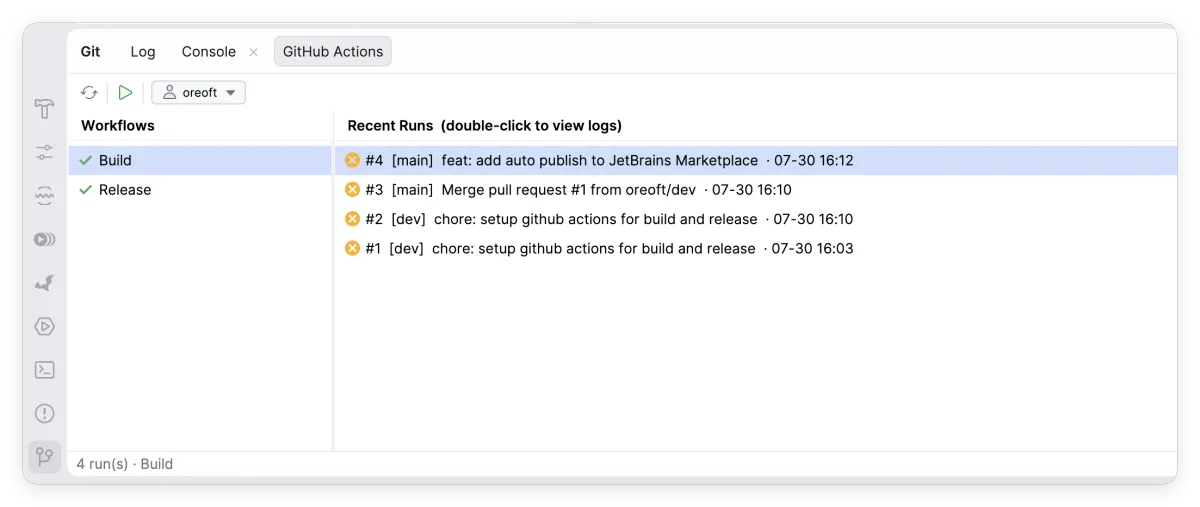
The core flow is: detect the GitHub repository for the current project → list all workflows → select one to view its recent runs → double-click into a run to see which job failed and what the logs say → manually trigger it if needed.
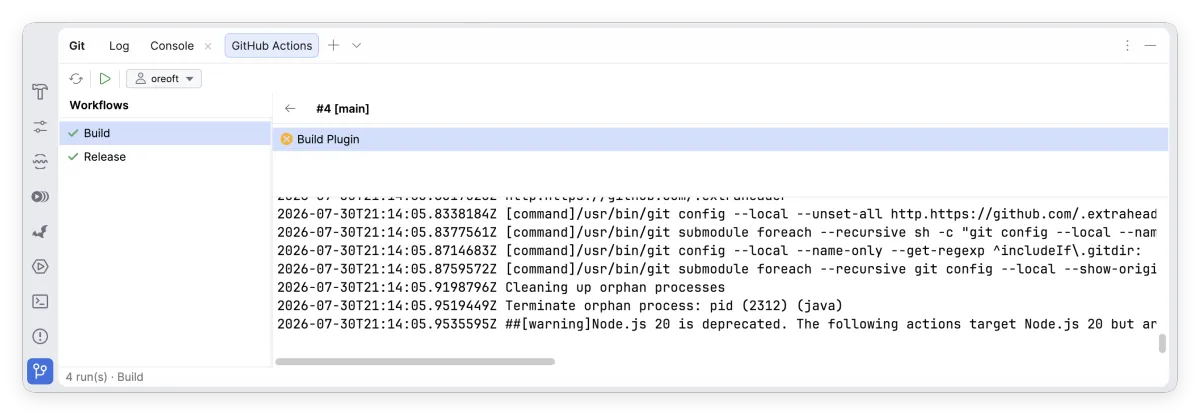
Double-clicking a specific run switches to the detail view, where you can see which jobs ran in that execution. Expanding a job shows the full log directly, so there’s no need to jump back to the web UI and dig around there.
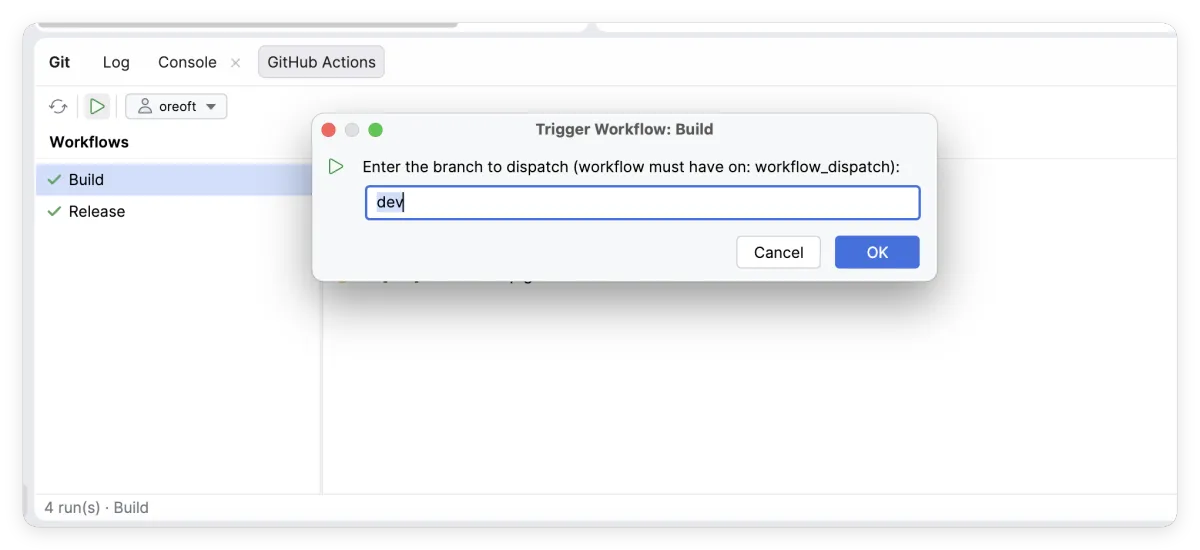
And the most important requirement—the ability to manually trigger workflows—is there too. Click the trigger button in the toolbar, enter the branch you want to run on (it defaults to the current branch for you), and it sends the request directly. Refresh a few seconds later and you’ll see the new run in the list.
Development process
This development process was actually pretty interesting—it wasn’t me grinding through everything from start to finish alone. Once the idea was clear, I first walked through the design with AI: where the panel should go, how to reuse the account, how to call the APIs, and so on. We talked through it step by step before writing any code. Along the way, I also specifically checked the IntelliJ Platform source code to verify that some key APIs really existed (for example, the changesViewContent extension point and the exact usage of GHAccountManager), so the implementation wouldn’t just be based on guesswork. I first got a shell version running to verify the placement and styling, and once that looked right, I handed off the remaining core functionality to another AI, which generated it in one go. On my side, I mainly reviewed the code, fixed bugs, and cleaned up some edge cases—like GitHub Enterprise support and expired account tokens. Humans and AI each handled the parts they’re better at, and the efficiency boost was honestly pretty noticeable.
Closing Thoughts
The plugin is now finished and published, and the code is open source as well. The repository is at github.com/oreoft/github-actions-controller. If you’re interested, feel free to check out the source code directly or open an issue. I’m planning to keep maintaining it gradually, including things I haven’t had time to polish yet, like dynamic forms for inputs in workflow YAML and multi-account switching.
At the end of the day, this came from a very small pain point—it’s not some huge engineering project, just one of those repetitive operations that kept happening often enough that it felt worth smoothing out. And after fixing it, it really does feel much nicer to use.
All articles in this blog, unless otherwise stated, are licensed under @Oreoft . Please indicate the source when reprinting!