
Preface
Last time I introduced the configuration and basic usage of Charles, the packet-capturing powerhouse on macOS. Today I want to share how I usually use it in day-to-day work—beyond the most common use case of listening to requests and inspecting packet details. It can also boost efficiency in some special scenarios (this post is aimed at mobile app projects; for a typical web project, Chrome DevTools (F12) might be more convenient).
For example, company projects usually have multiple environments: production, staging/canary, testing, local, etc. Sometimes something breaks in the test environment and you need to troubleshoot it locally. If just reading code statically doesn’t make the issue obvious, you’ll typically set a breakpoint by sending a request into your code. But if that request has tons of headers and body parameters, it’s a pain to set up the request payload every single time. Postman can help manage this, but with a large number of APIs it still gets pretty tedious.
Now imagine this: you tap once on your phone, and the app’s request endpoint is routed directly to a server running on your local machine, so you can hit breakpoints straight in your code. Wouldn’t that make debugging way easier? Today I’ll share how to use Charles to quickly repeat requests, do domain mapping, and change a request’s host.
Quickly repeat requests
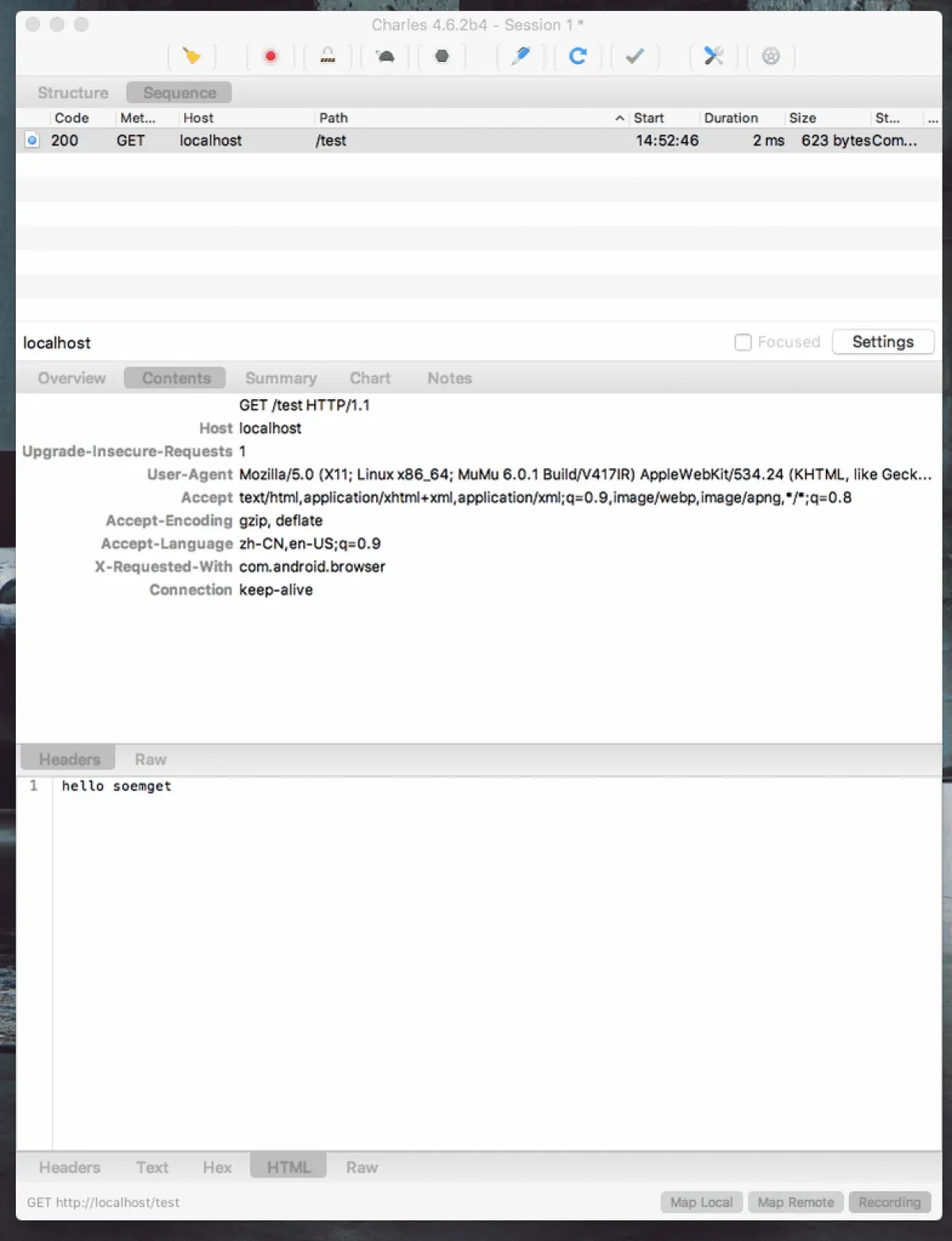
Sometimes after sending a request, you inspect the packet in Charles. Then you restart the service and want to see the result again—whether it matches what you expected. You can use Charles to quickly repeat the request. Since you’re going to check the result in Charles anyway, this is much more convenient.
You can right-click a request and choose Repeat, or click the clockwise arrow icon at the top
Redirect using domain mapping
This is super useful. You can listen to requests from your device, change the app’s domain to localhost, and run the service locally—so all API requests from the app will hit the service running on your computer. This makes it easy to check logs or debug.
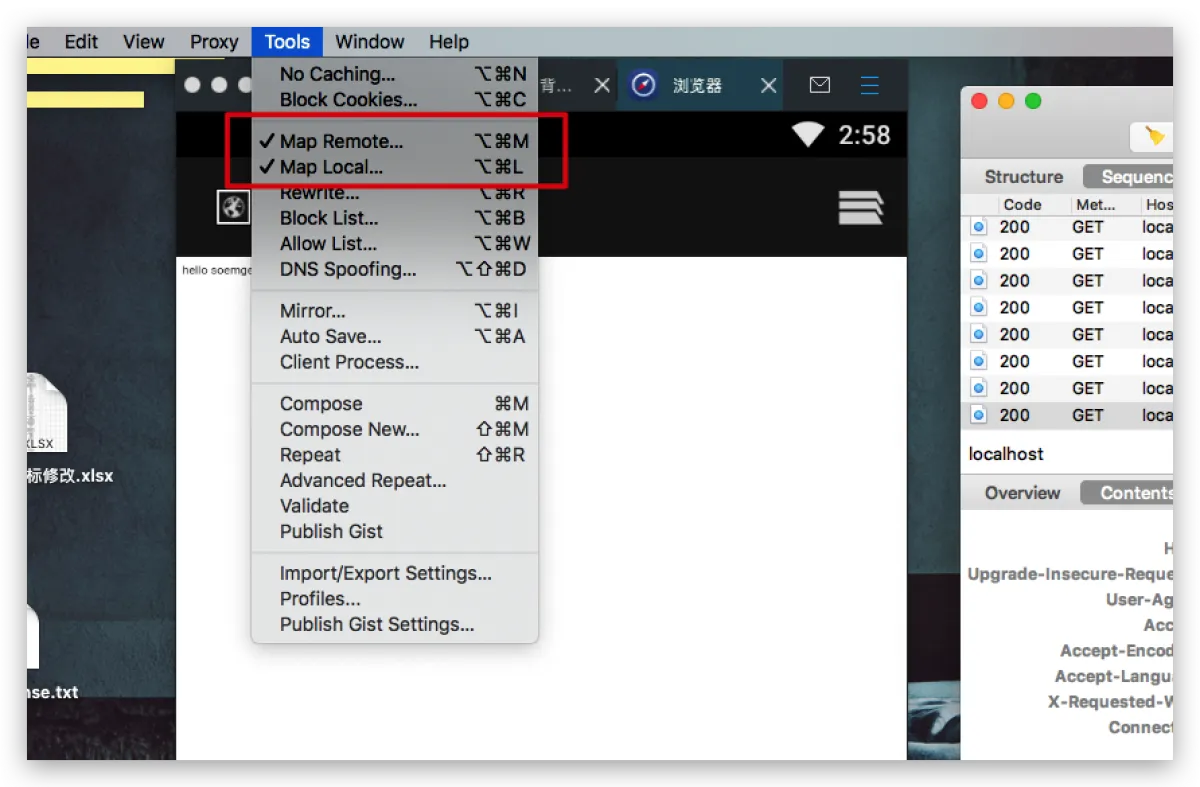
You can configure this in Charles menu bar -> Tools -> Map Remote. There’s also a Map Local option. That’s not the focus of today’s post: it returns a fixed response for a specific request (pointing to a JSON file and always returning that result). It might be useful for mocking data, but I personally haven’t found it that useful in real work, so I won’t cover it here. Let me focus on how I use Map Remote.
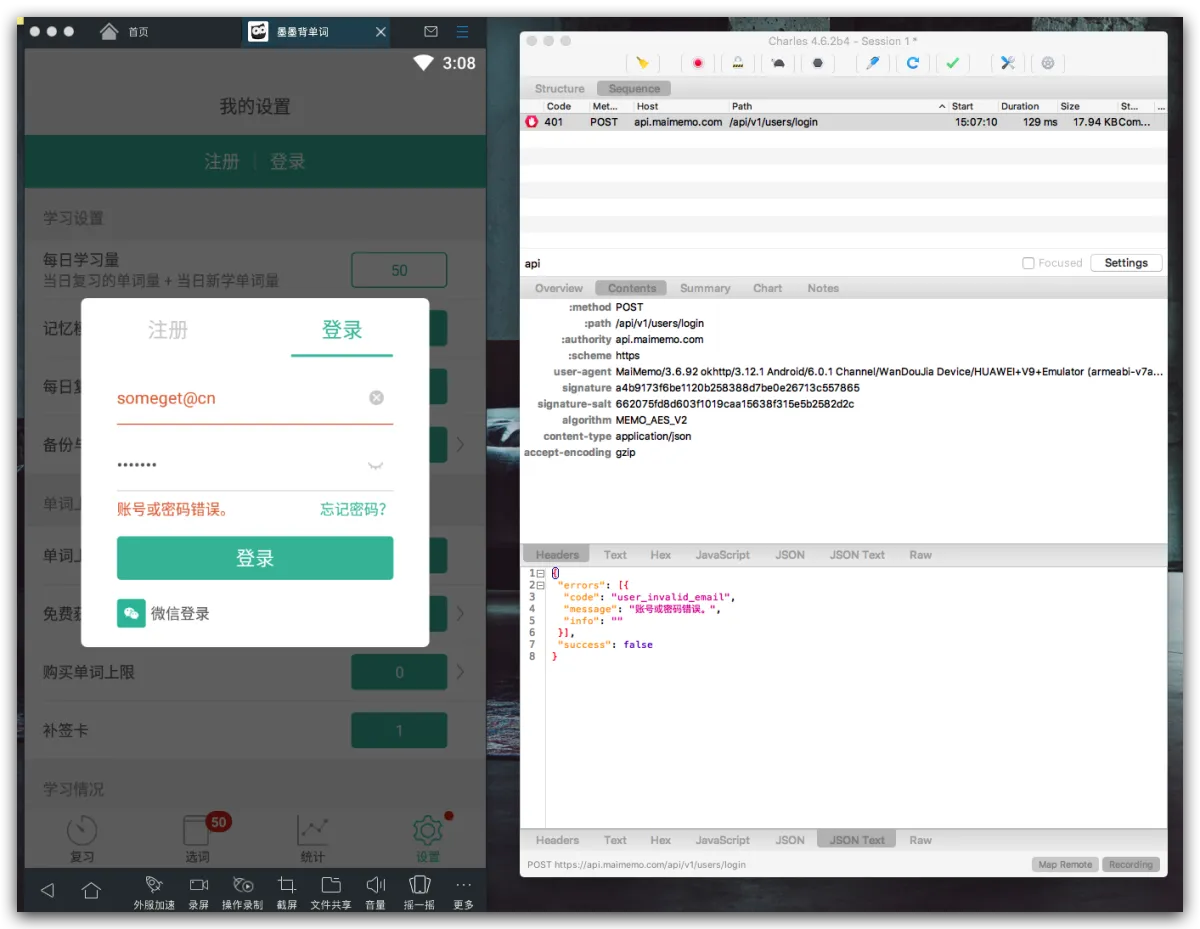
- Before we start: for privacy reasons it’s not convenient to use my company’s product as an example, so I’m going to “abuse” an app I often use for memorizing vocabulary—Maimemo (also a little recommendation)—to capture and modify its login request.
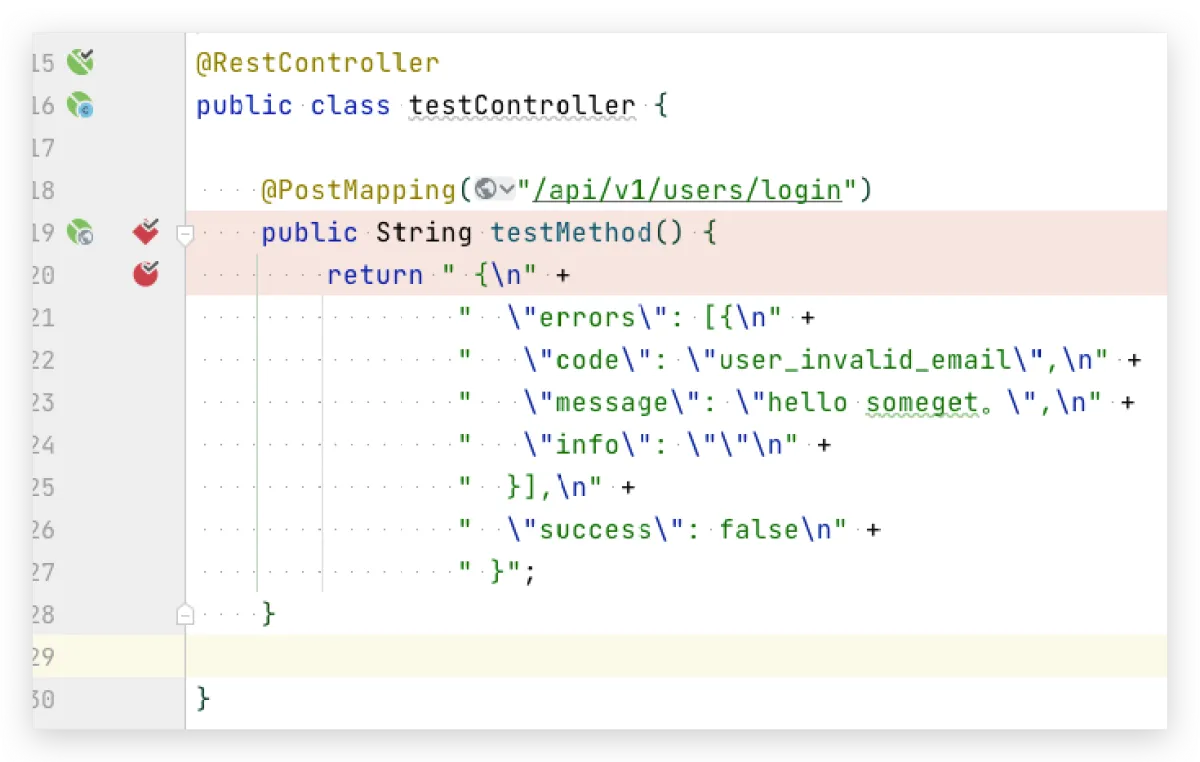
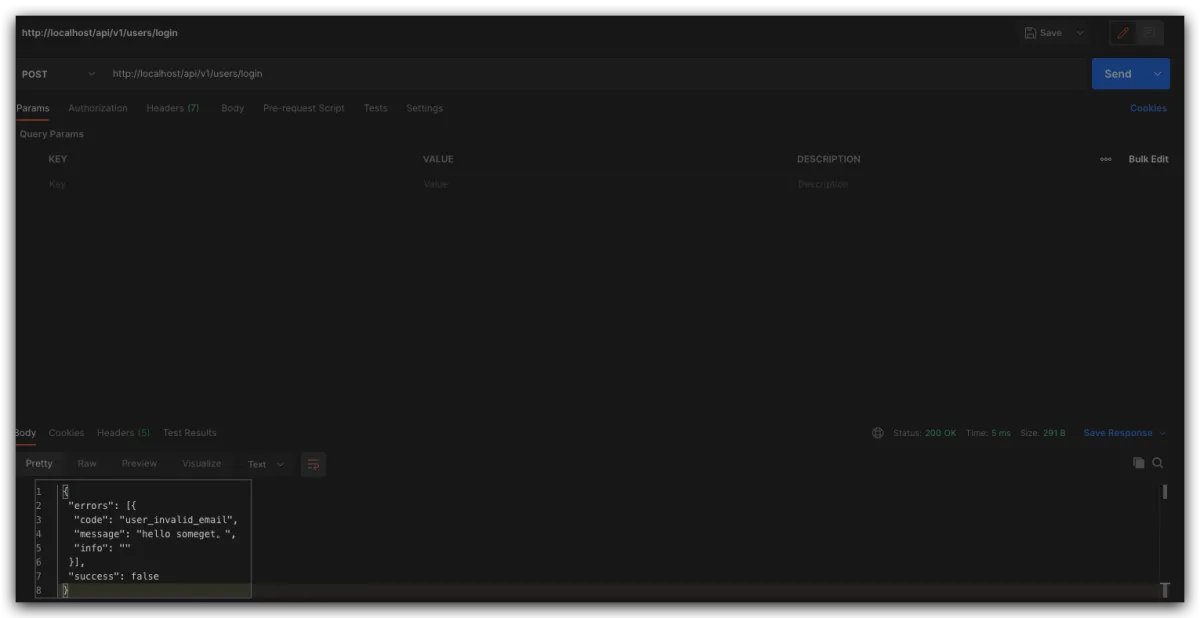
- Now I already have a local service running, with the same endpoint
/api/v1/users/login, but the response is a bit different. Let’s test it with Postman.
-
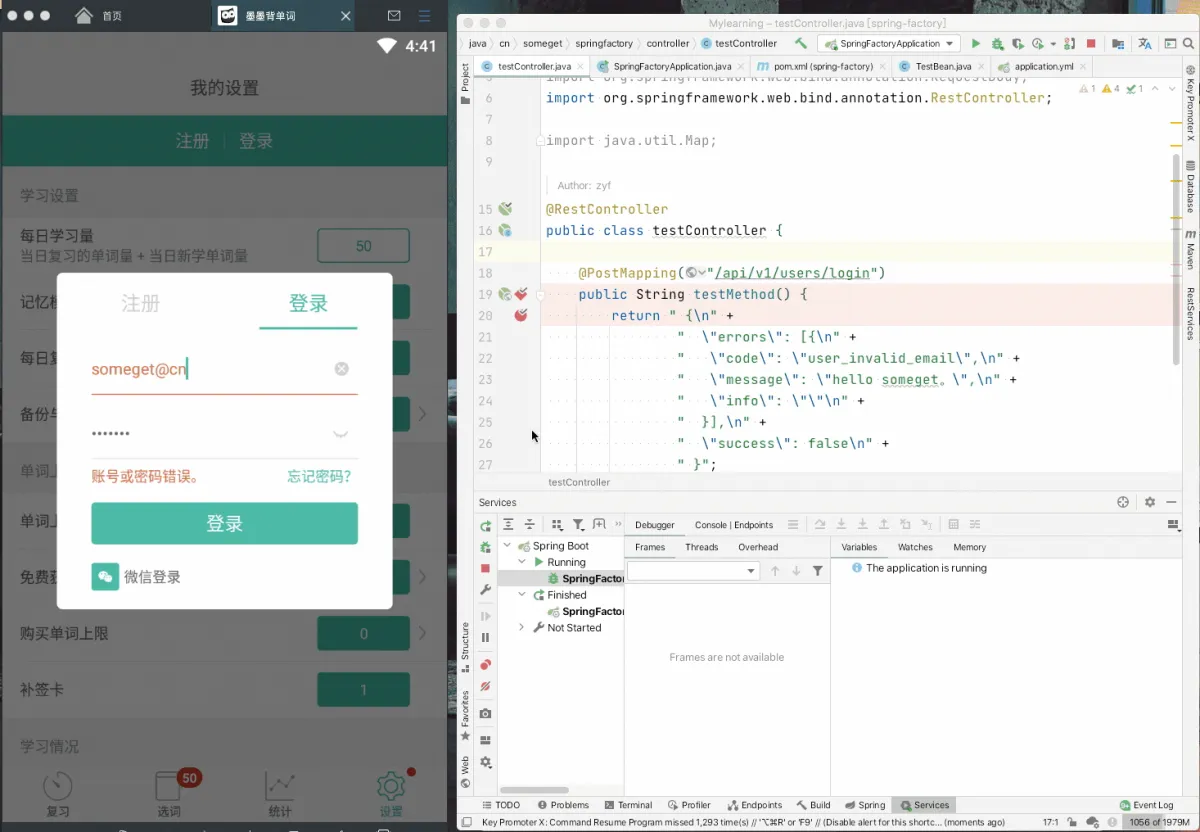
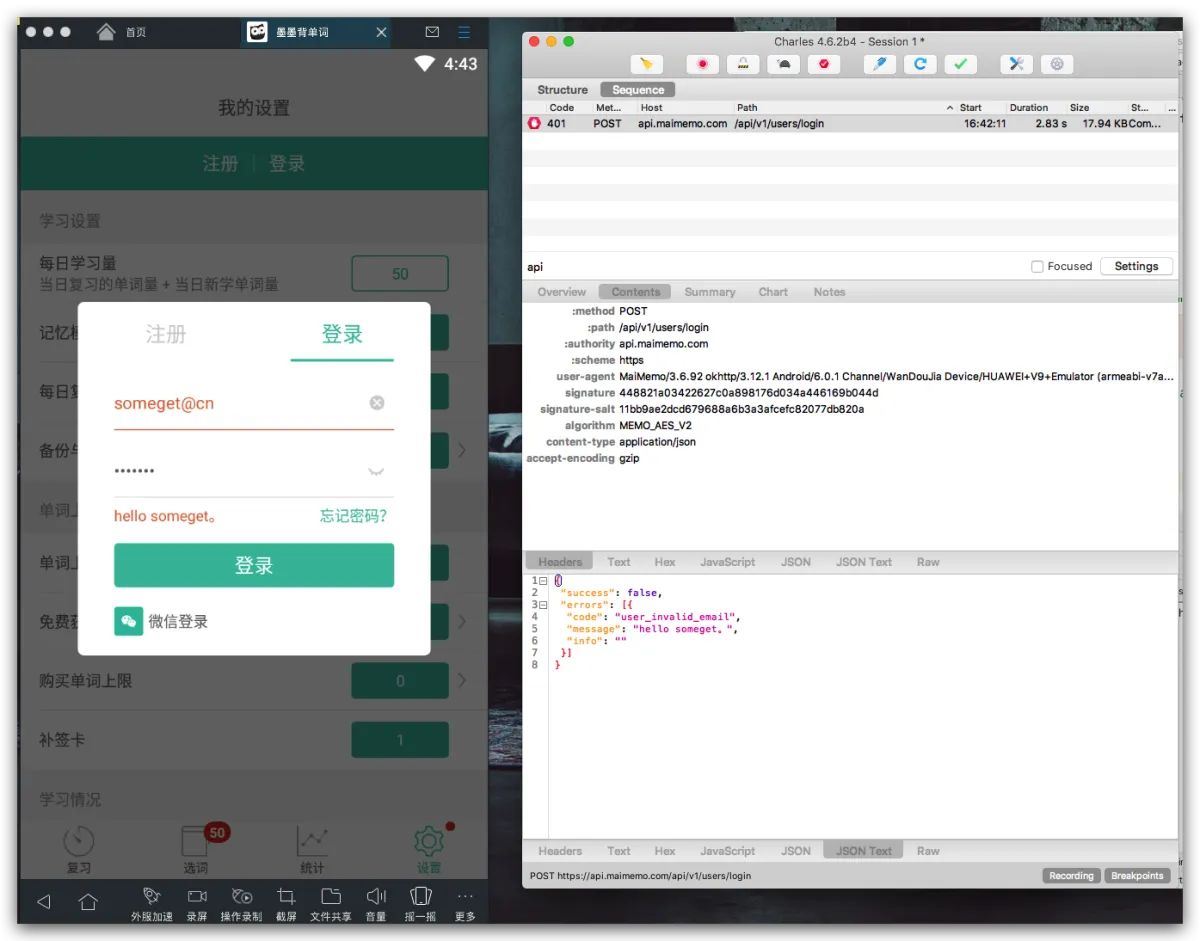
Now I want to tap “Login” in Maimemo, and have the request go into my code, and the
messagereturnhello someget. What should I do? Two options:- In Charles’ menu bar, choose Tools -> Map Remote, then click Add in the UI. Enter the mapping info there.
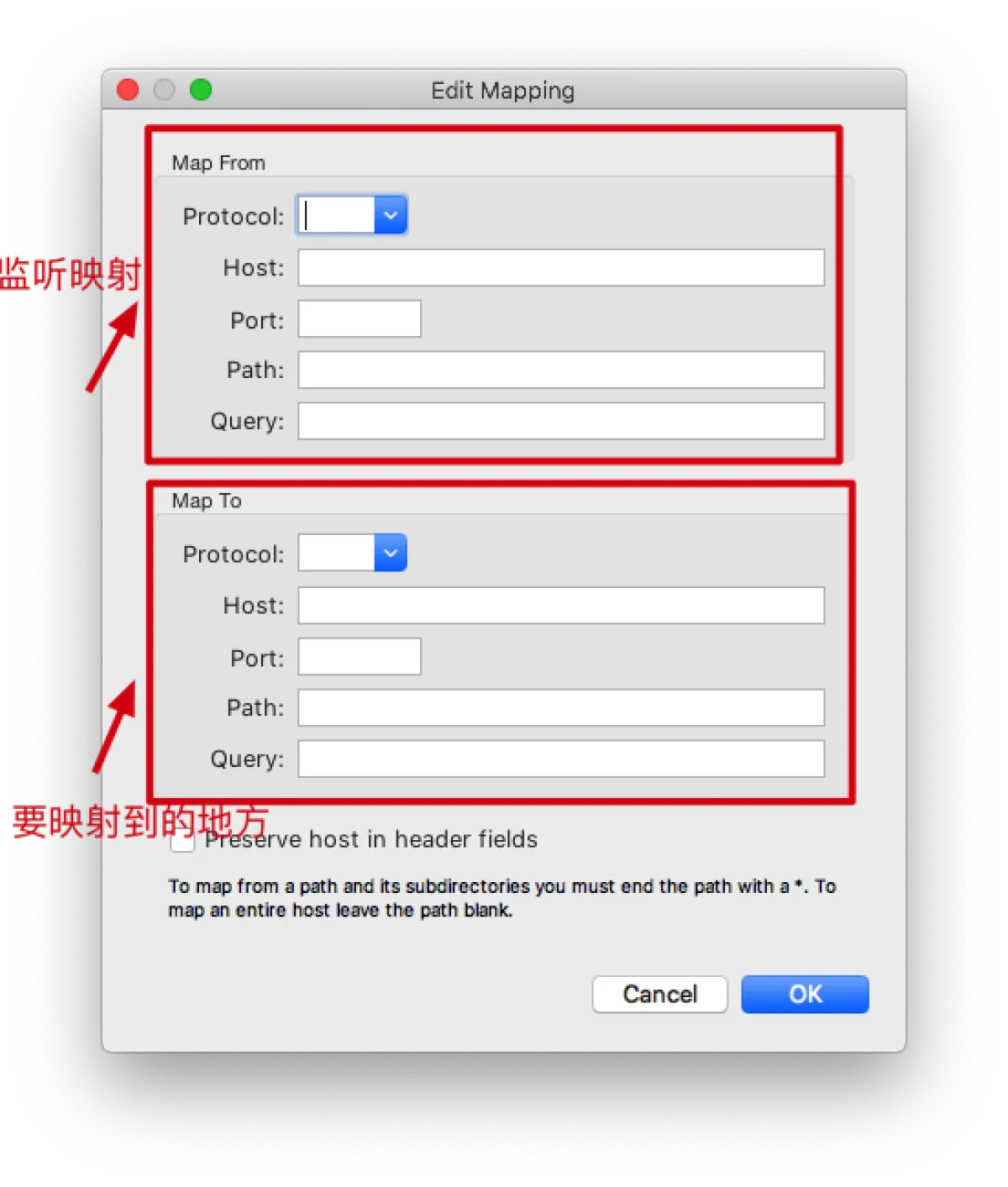
- Select a request record, then right-click and choose Map Remote.
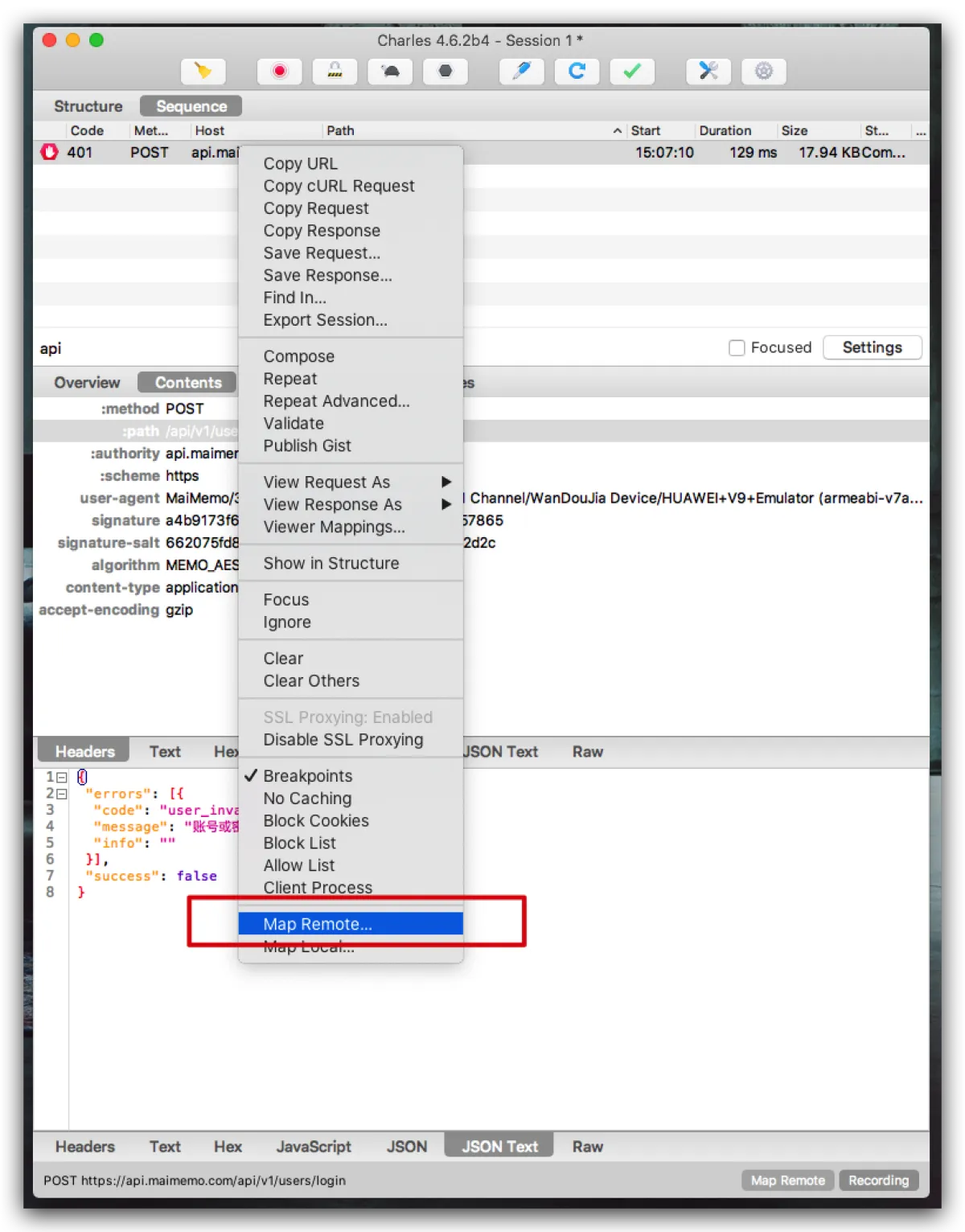
The difference is: the second one auto-fills the captured path for you, so you don’t have to type it yourself.
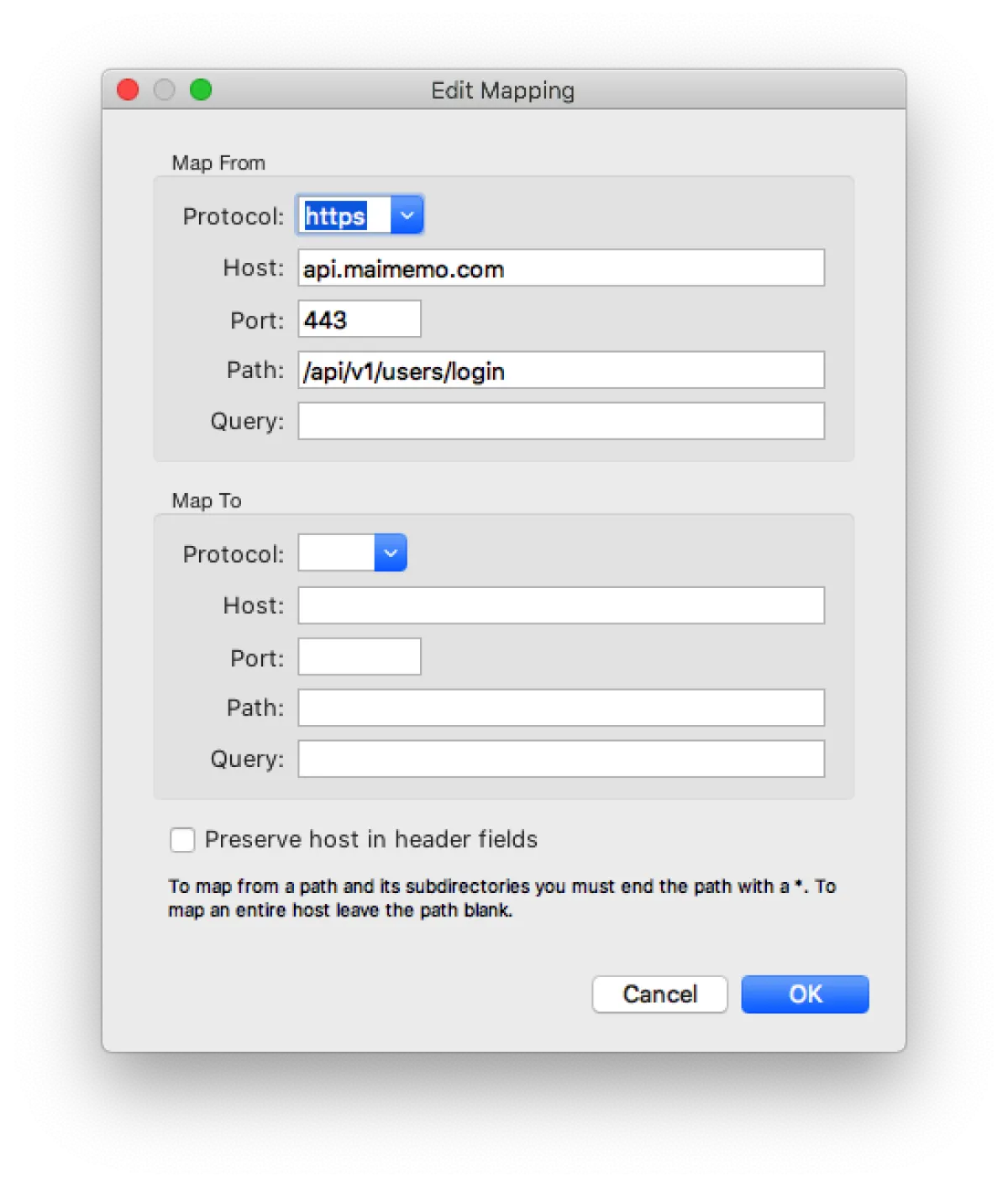
- Let’s set up the mapping for this path and see whether the request can hit our local service.
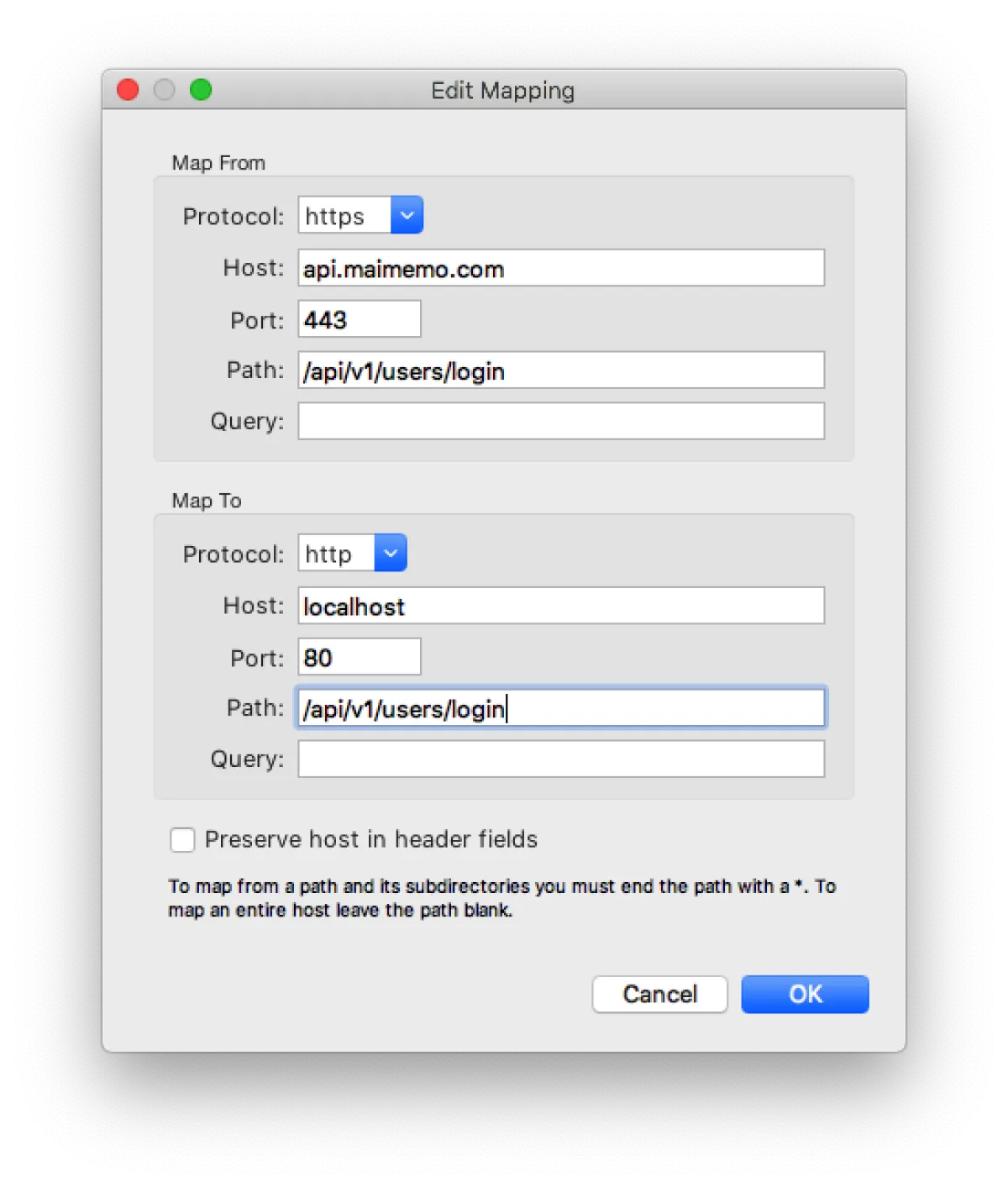
- You can see that after I tap “Login”, the app stays stuck waiting for a response, and the breakpoint has already been hit in IDEA.
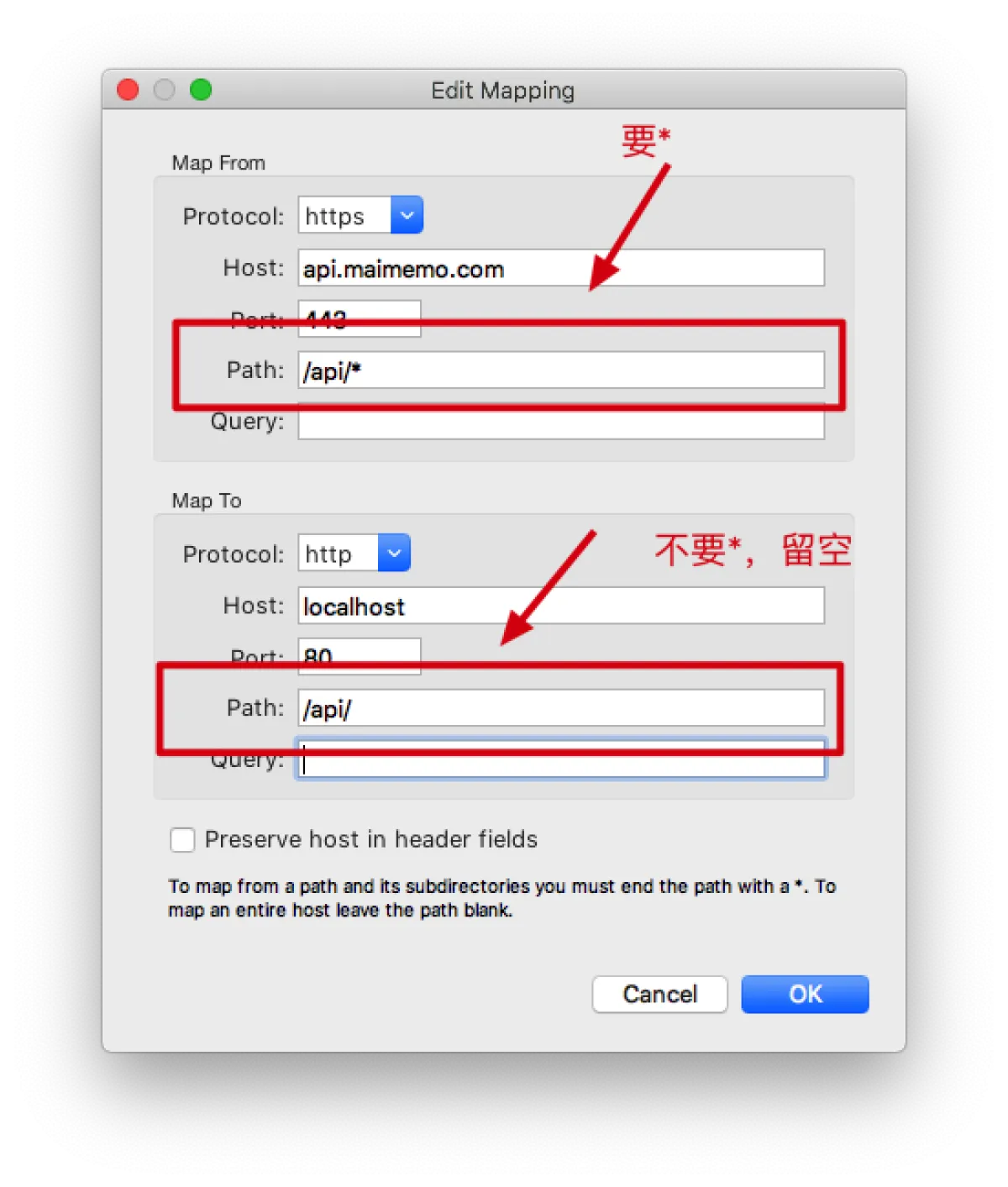
- Above we mapped a fixed endpoint. In more complex cases, we can redirect all client API requests by rule. There’s a small pitfall here worth mentioning. For example, if you want to map all requests under the
api.maimemo.comdomain that start with/api(with microservices, a single domain may host multiple modules; each module might start with a different/api/prefix. Other modules should still go to the remote host, and only the specific module should go to your local service), then use*as a wildcard after the remote host path, and leave the local path empty—like this. Note: the remote side needs the wildcard, but the local side does not.
Using Compose as a Postman enhancement
Functionally, Charles is mainly for viewing requests, while Postman is for sending requests. But… Charles can also send requests, and in some ways it can be much more convenient than Postman. With Charles you can reuse many requests that the client has already sent, so you don’t have to reconstruct the request packet in Postman. You can even save and convert client requests and then import them into Postman.
Let me briefly introduce Charles’ Compose feature.
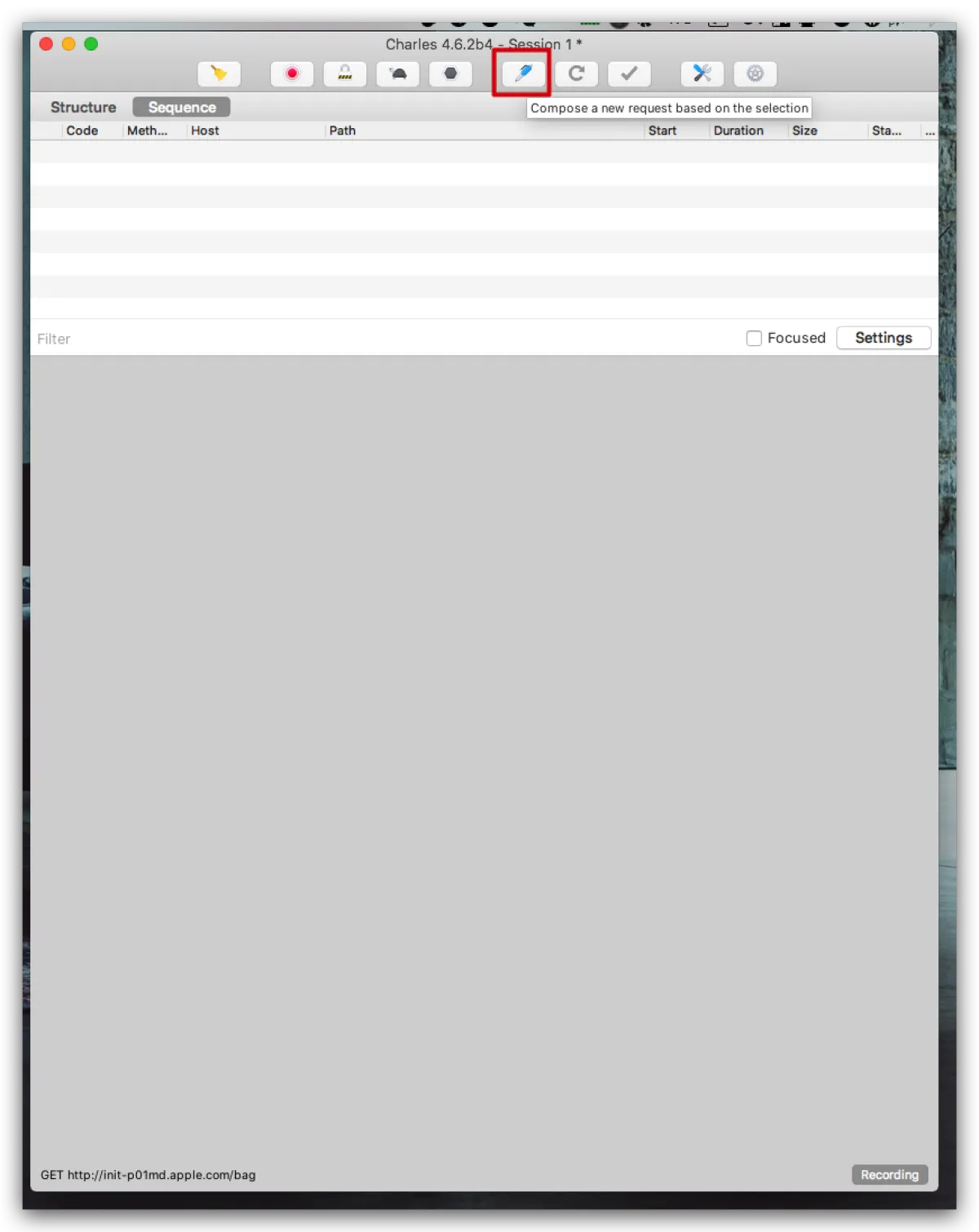
- Click the small fountain-pen icon in the top toolbar to build a request.
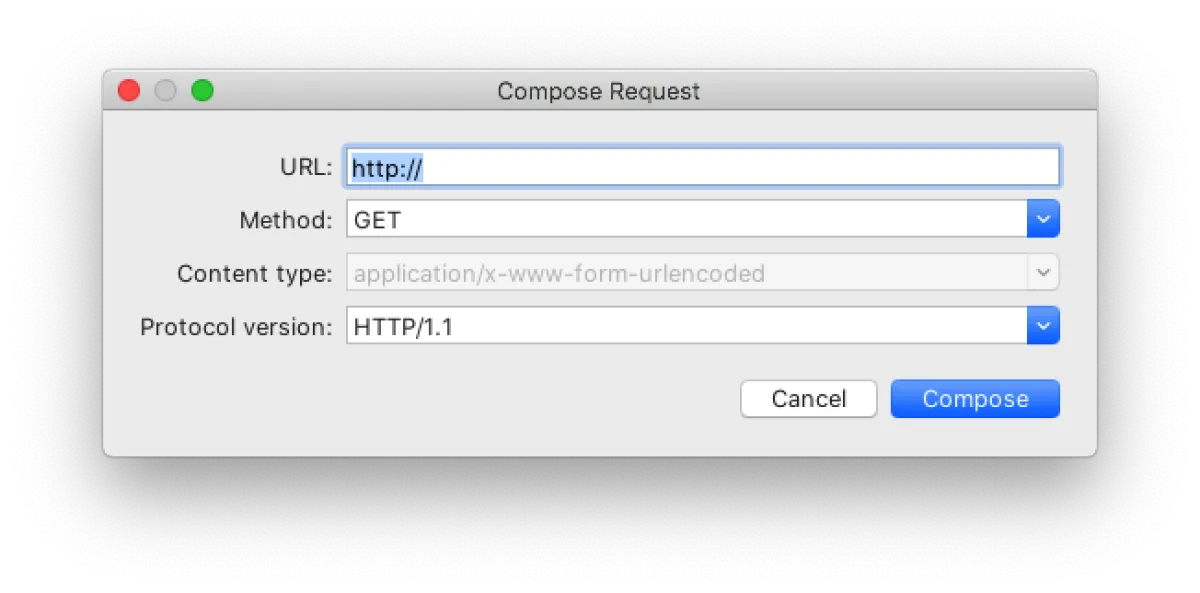
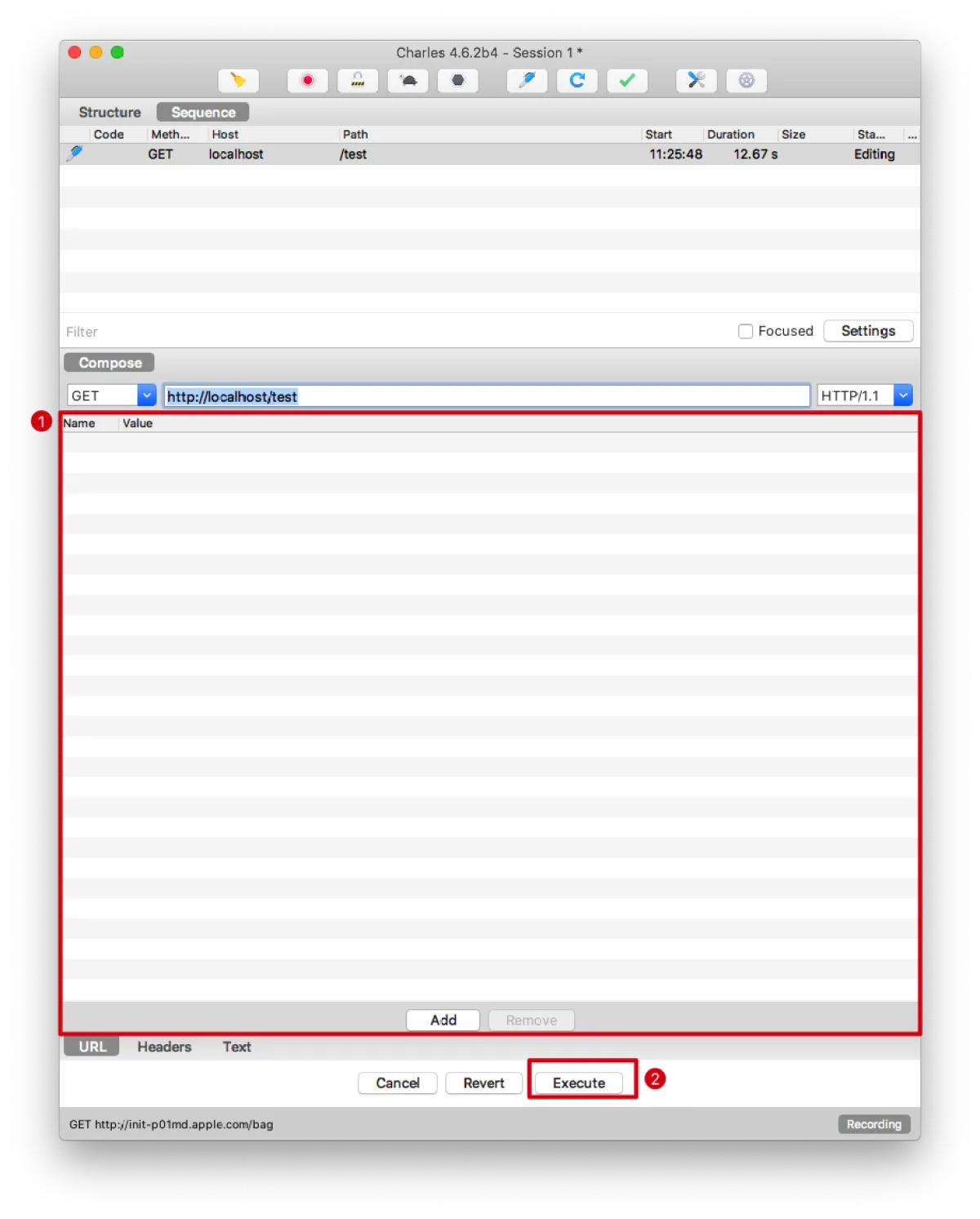
- In the screenshot below, you can add request parameters at (1). Click Execute at (2) to send the request.
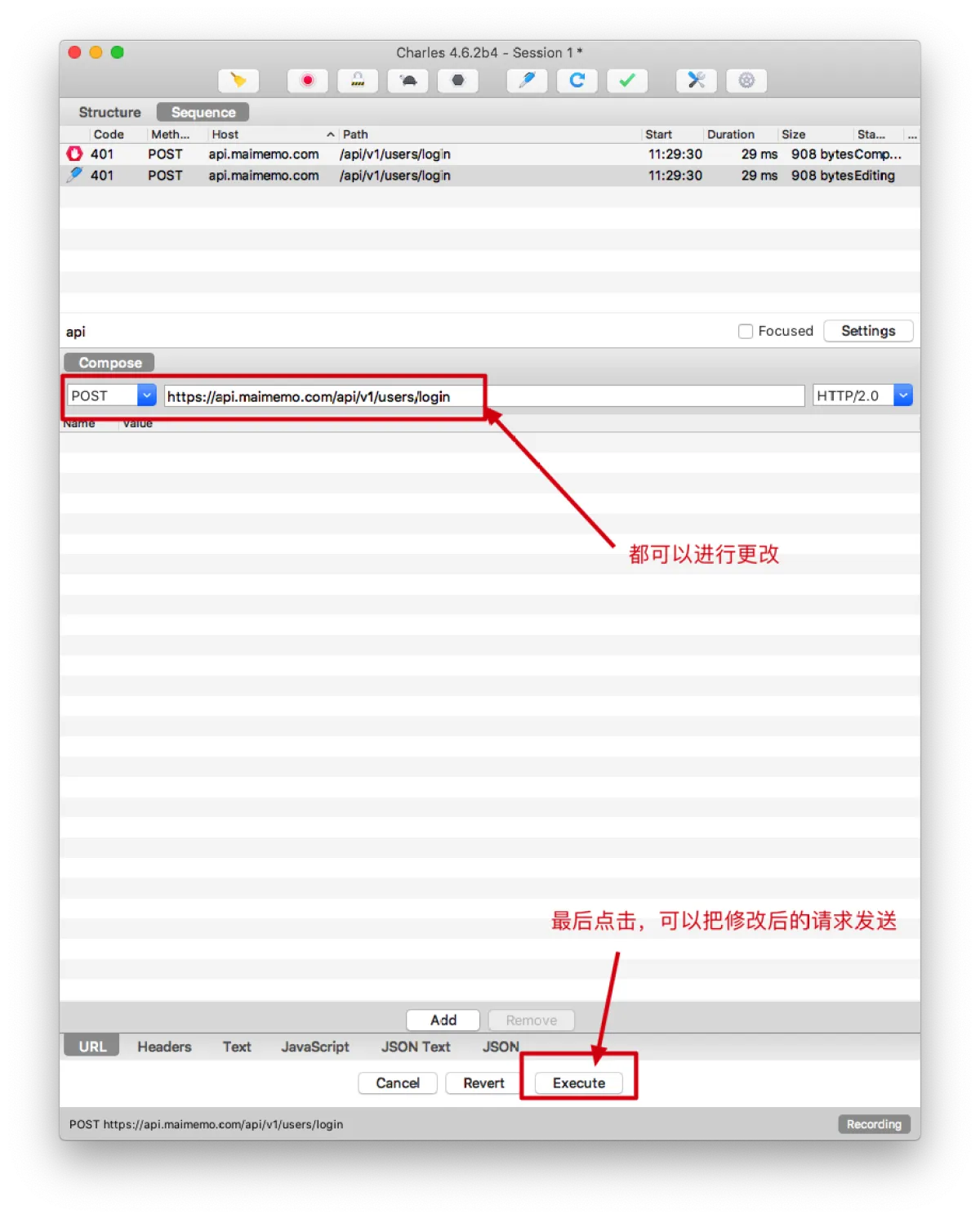
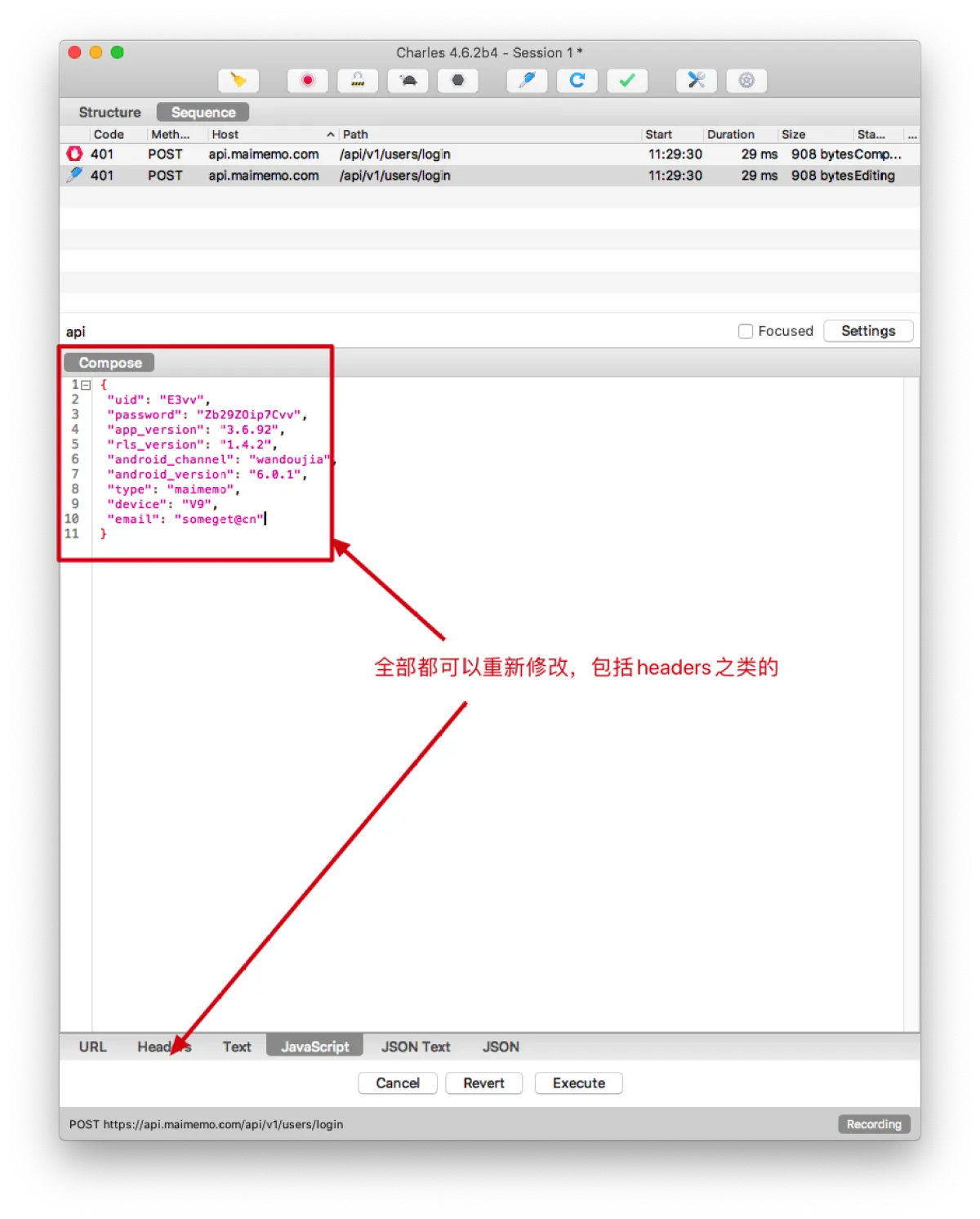
- Obviously, sending requests this way isn’t as convenient as Postman. The most common use of Compose is modifying a request and then sending it again. Select a request and click the fountain-pen icon, or right-click the request and choose Compose.
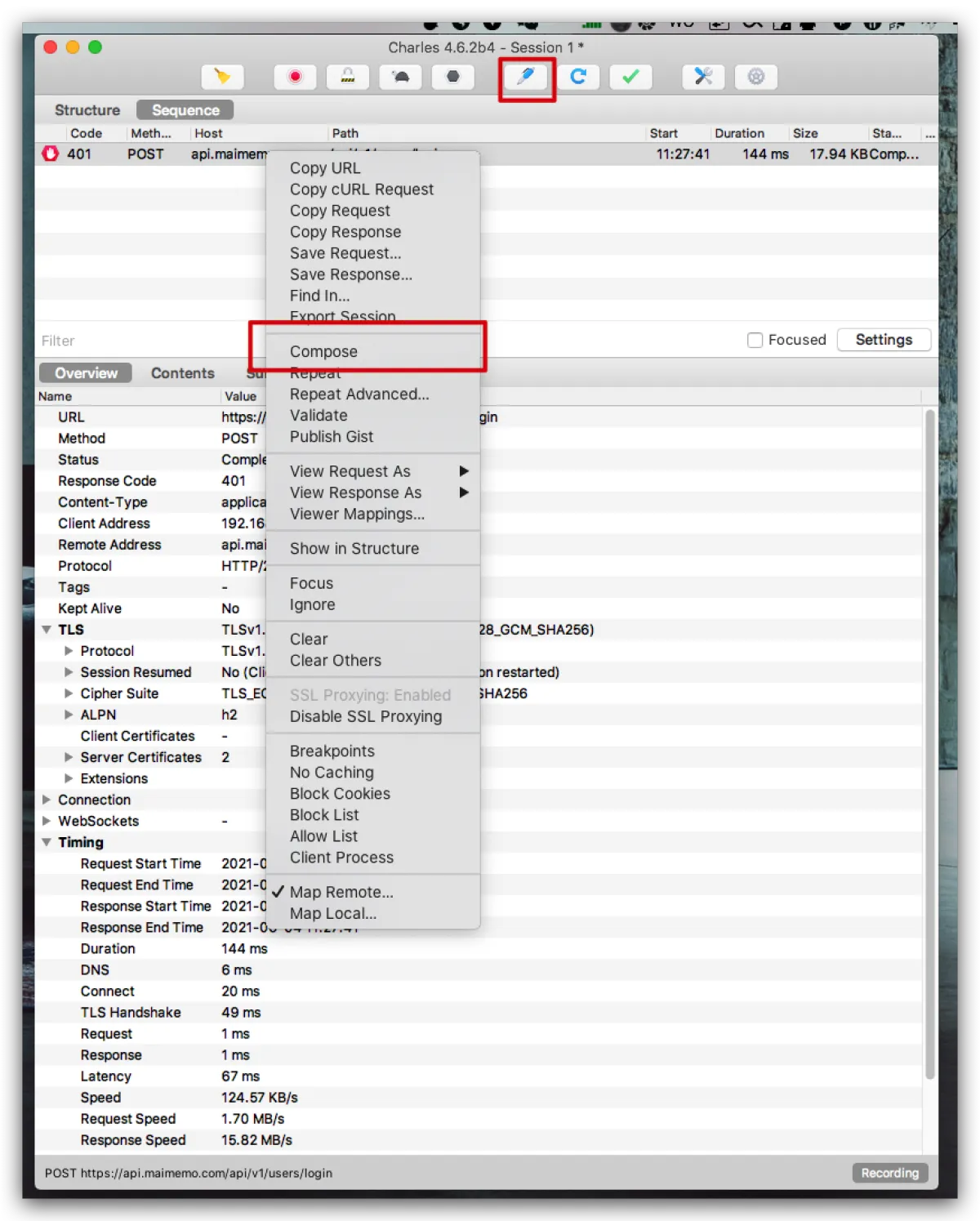
- At this point, Charles will generate a Compose record for that request. You can modify it based on that record and then click Execute to send it again. This is much more convenient—you don’t need to rebuild a bunch of request info in Postman, which makes debugging and testing easier. You can also directly modify the host and reuse the client’s request packet to send the request to your local service (I do this all the time).
Afterword
Charles is powerful. It also has some features that I personally don’t find useful, but could be extremely useful for people in different roles. Here I can only share a few features that I use a lot at work and that really improve efficiency. Of course, there are plenty of things I still don’t know—features that might be super useful to me are waiting to be discovered. I’m even more looking forward to your sharing~
All articles in this blog, unless otherwise stated, are licensed under @Oreoft . Please indicate the source when reprinting!