
Preface
I recently started working on a microservices project. Since there are a lot of services, local debugging often means starting multiple projects. I noticed my coworkers all use the dashboard to manage projects—services and ports are laid out nice and neatly. But my dashboard was completely empty. After a bunch of Googling/Baidu, I finally fixed it.
While looking for a solution, I ran into a domestic article that kept getting copied over and over—the content never changed, only the messy formatting did. What should’ve been a small issue ended up being even more confusing for anyone trying to troubleshoot it. So I’m sharing my solution here to see if it can help others.
Steps
-
In newer versions of IDEA, the dashboard has been integrated into Services, but the steps are still the same.
-
If you can’t even see Services, double-tap the Shift key, type
dashboard, then press Enter.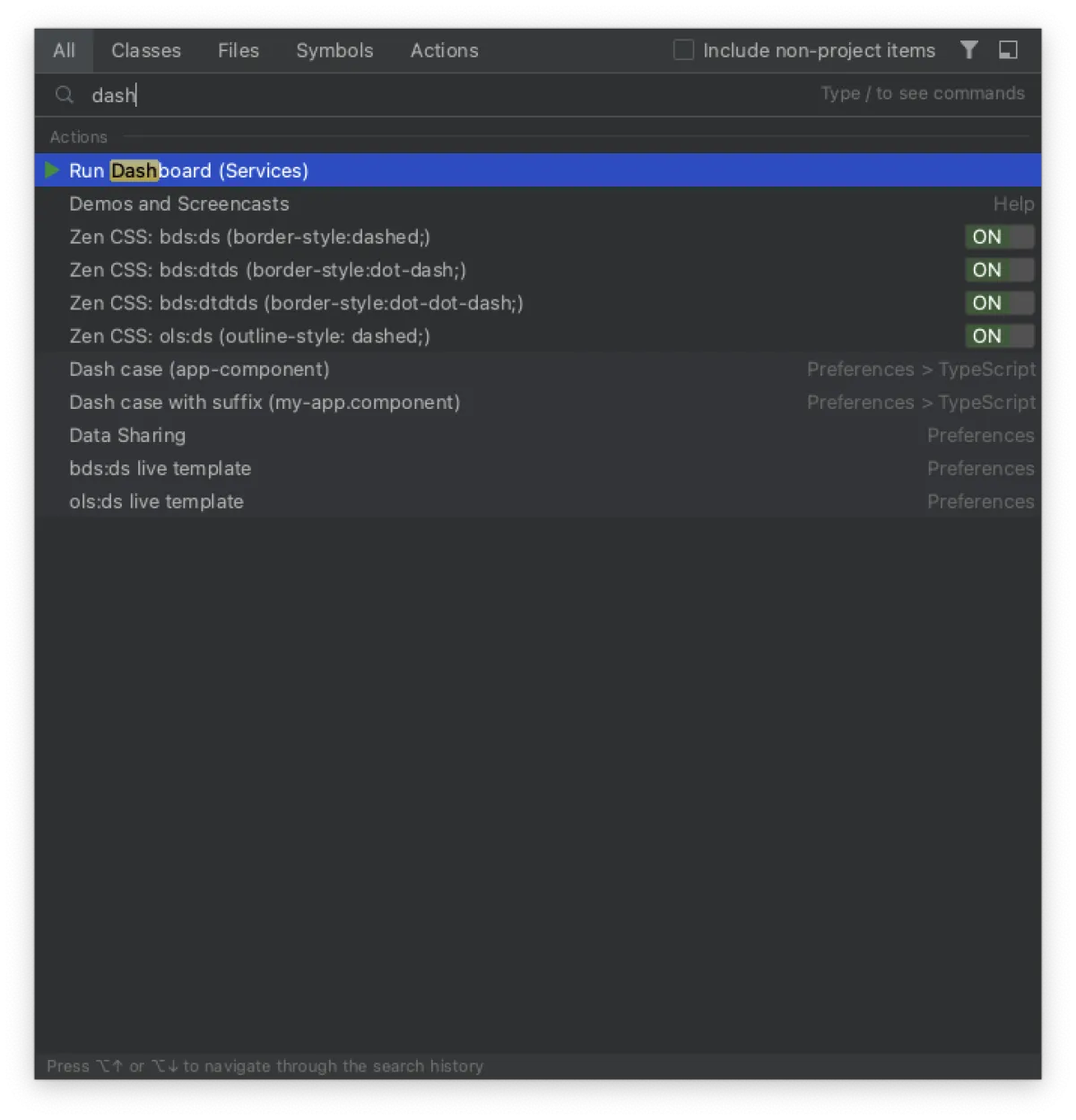
-
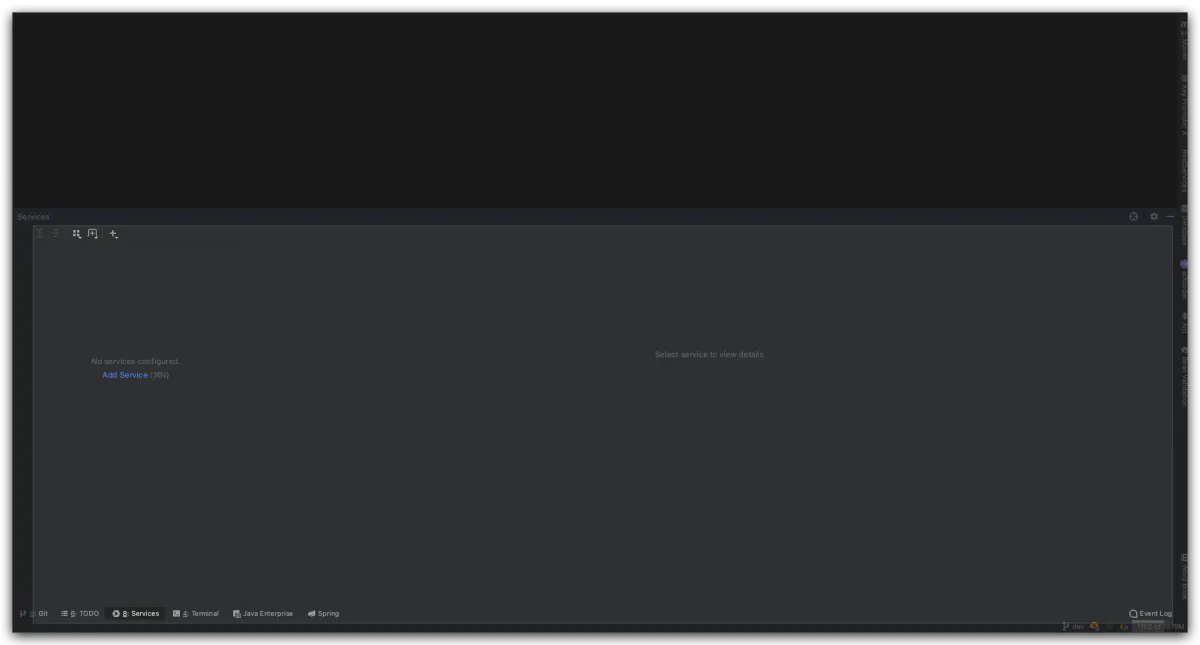
Then you’ll see it’s empty—even if you have a bunch of microservice projects, nothing shows up here. If you do see a lot of projects listed, congrats: just start your services and you don’t need to read further.
-
If there’s no dashboard content in Services, it’s usually an IDEA project configuration issue. You need to add a tag to
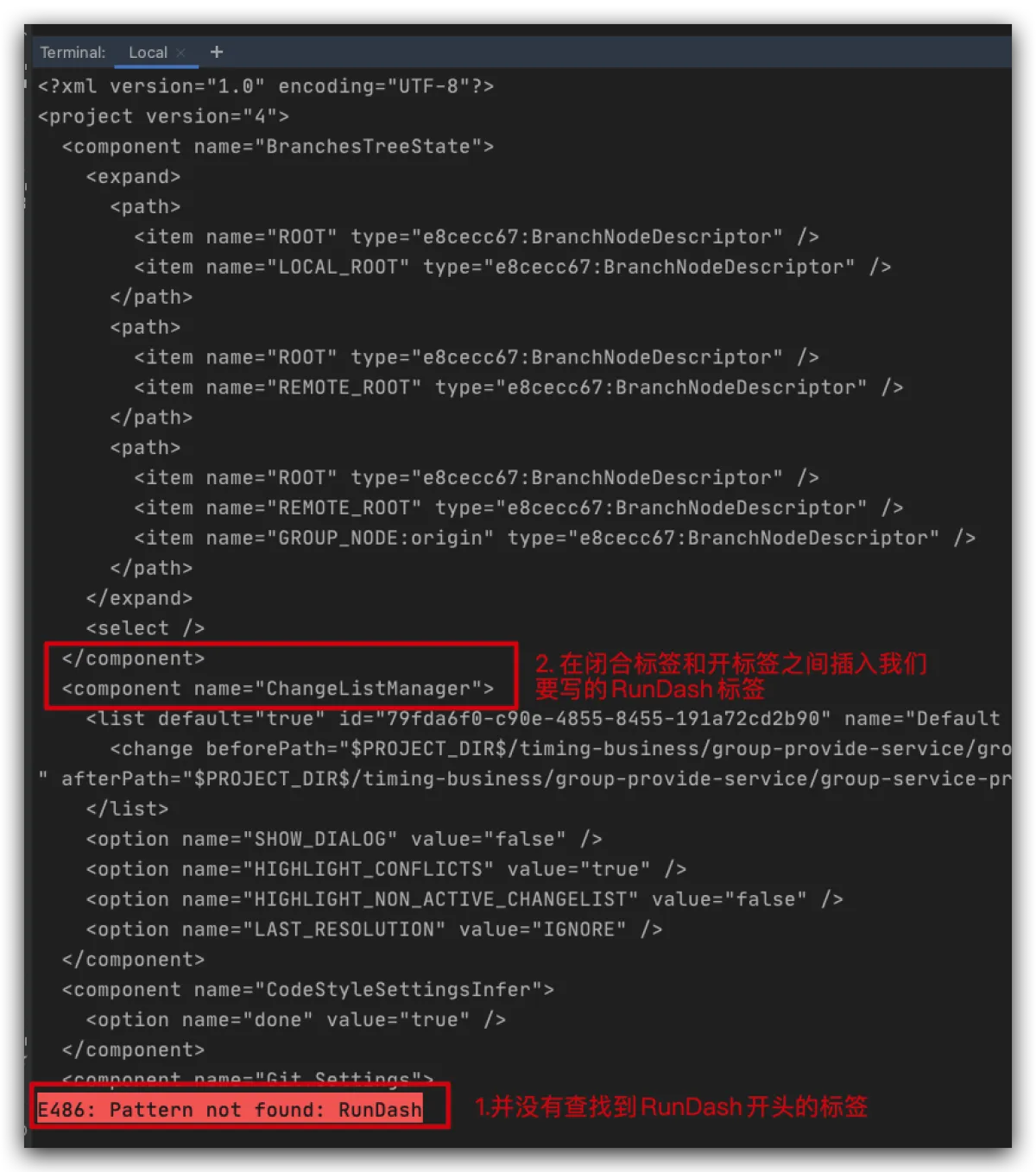
.idea/workspace.xmllike this:<component name="RunDashboard"> <option name="configurationTypes"> <set> <option value="SpringBootApplicationConfigurationType" /> </set> </option> <option name="ruleStates"> <list> <RuleState> <option name="name" value="ConfigurationTypeDashboardGroupingRule" /> </RuleState> <RuleState> <option name="name" value="StatusDashboardGroupingRule" /> </RuleState> </list> </option> </component> -
Since
.ideais a hidden folder: on Windows, most coders usually enable showing hidden files. On macOS, showing hidden files looks kind of ugly, so people often don’t enable it. On Windows, just follow the steps below. On macOS, I used the terminal andvimto add it.
-
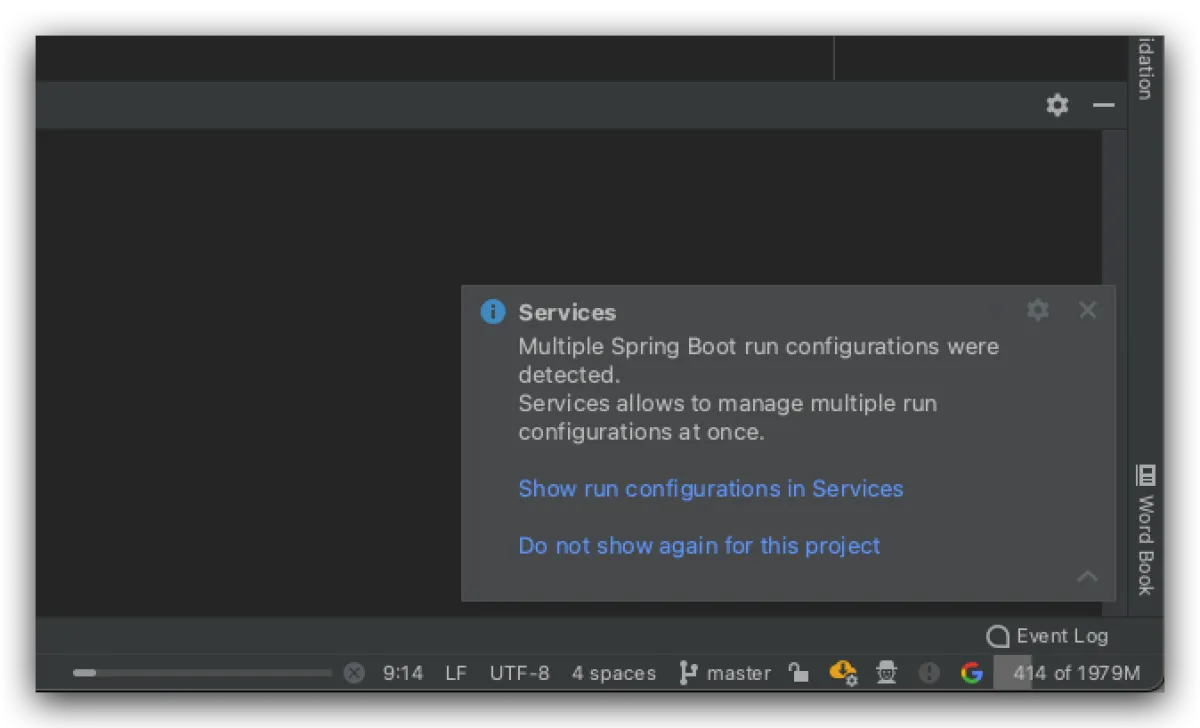
After writing it, restart IDEA. Then open IDEA again and open this project—you’ll get the prompt below. Choose the first option: show run*.
-
Now you should be able to see the dashboard. If you still can’t, go back into
workspace.xmland check whether theRunDashboardtag is there.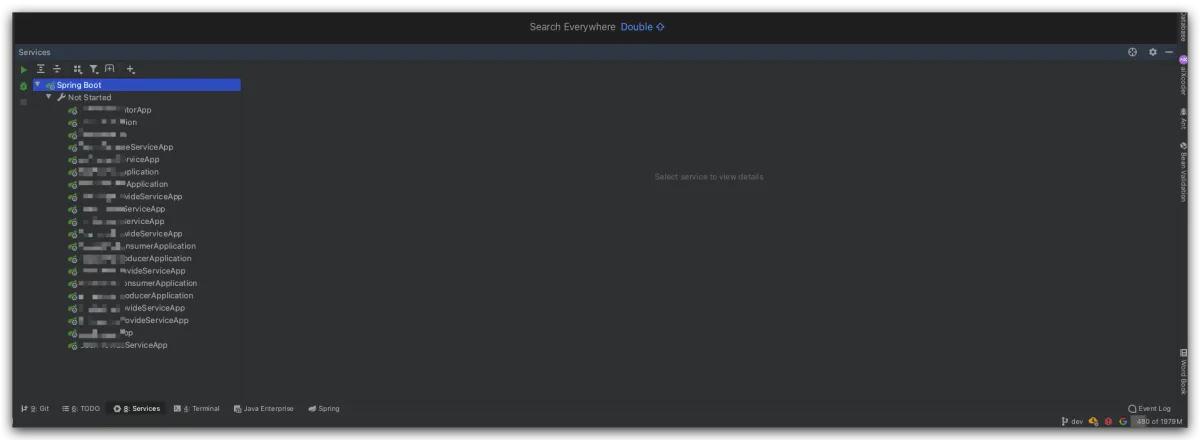
All articles in this blog, unless otherwise stated, are licensed under @Oreoft . Please indicate the source when reprinting!