
Preface
A coworker picked up a Magic Keyboard Gen1 on Xianyu. After just a few days, the escape key broke, and he’d already confirmed receipt… He didn’t want to waste the money and still wanted to keep using it, so he listed out the scenarios where he needed escape and found the most frequent one was switching modes in vim. With that as a trigger, I’m sharing a few simple tweaks I use for vim on macOS—super handy, and you can basically ditch escape.
Quick intro to vim: it’s a text editor—honestly kind of like the TextEdit app on macOS—but its interaction philosophy is “do everything with the keyboard.” I’m not here to hype vim though. As a Java dev, is there really anything better than IntelliJ IDEA? Let alone a text editor 🤡 (runs away~). That said, I have seen real vim masters. At my previous company we had a PHP team, and some seniors wrote code directly on servers most of the time and barely used an IDE—hands on the keyboard like playing the piano, tap tap tap~.
Why do I call it a simple tweak? Because I used to be obsessed with vim too. I thought writing code in vim looked insanely cool, and I did all the tinkering—highlighting, hints, search, jumps, all the flashy stuff. But when it comes to writing JVM code, I still need IntelliJ. The learning/onboarding cost goes up, and the payoff is tiny. Still, even if you don’t code on servers, you’ll definitely run into cases where you need to edit config files, so I’d recommend doing a small quality-of-life setup first. Later, if you actually need server-side coding, you can add plugins and custom key mappings then.
Configuration and Plugins
Quick note: macOS ships with vim. Some folks online recommend replacing the system vim with MacVim. I don’t recommend it—partly because I’m lazy, and partly because MacVim’s biggest feature (besides internal vim improvements) is that it comes with a GUI. But vim is all about ditching the mouse, so that feels a bit against the philosophy. And it’s 2021 and MacVim’s shell support is still pretty lacking. If, like me, you only need a simple CLI setup, I’d say don’t switch.
Also, starting from Mojave (10.14.x), the built-in vim on macOS is already 8.x. Whatever you need is basically covered by the stock vim.
How to modify the config
The default config file for the built-in vim on macOS is at /usr/share/vim/vimrc. This is a system-level (global) vimrc file. To keep vim running normally, you generally don’t edit this file. Instead, you create a new user-level vimrc file under your home directory. In Terminal, type touch ~/.vimrc to create a config file manually (don’t worry—vim will automatically load it). Note that I’m creating a hidden file here, while the global config file is a normal non-hidden file. Hidden vs non-hidden is up to personal preference (.xxx is hidden, xxx is not).
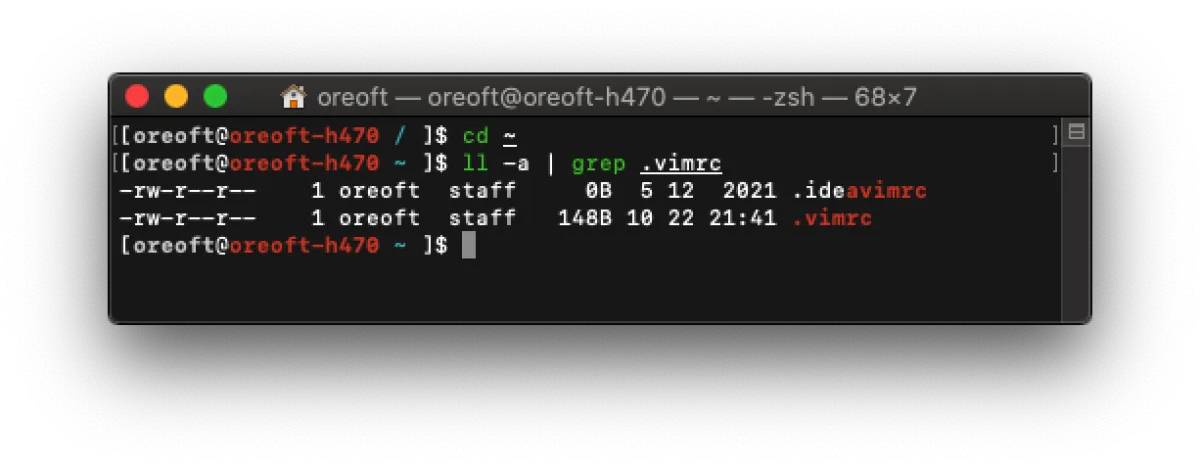
After that, if you want to tweak built-in vim settings or add custom key mappings, just put them in here. No restart needed—changes take effect immediately.
How to install plugins
For installing vim plugins, you can follow the official vim guide and install manually. But I strongly recommend using a package manager—it makes updates much easier later. Here I recommend vim-plug. You might see people recommend vundle, but it’s no longer maintained. vim-plug not only promises ongoing maintenance, it also has very solid documentation.
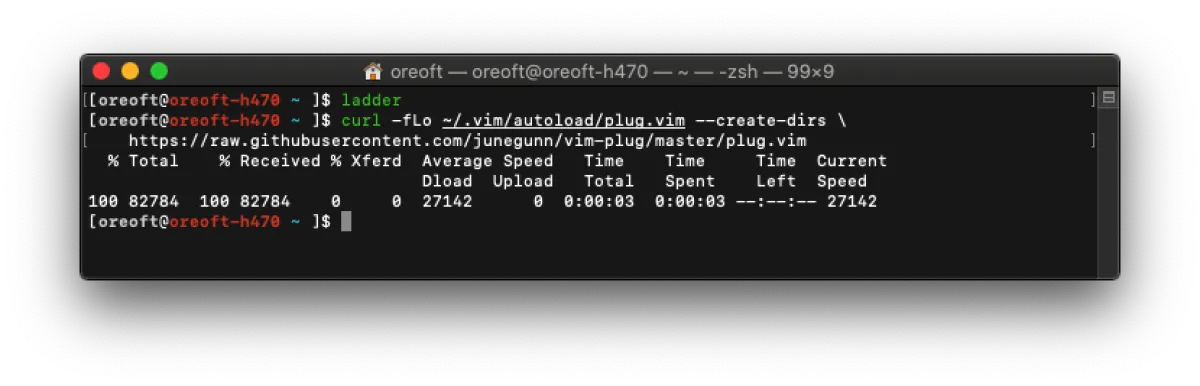
Installation is super simple. Their github has guides for different platforms. For Unix (macOS and Linux), just run this in your shell:
curl -fLo ~/.vim/autoload/plug.vim --create-dirs \
    https://raw.githubusercontent.com/junegunn/vim-plug/master/plug.vim
That’s it. If the progress bar hangs forever, you can check my post on Terminal proxy, or download the .vim script from their site and manually place it under ~/.vim/autoload/ (create the directory if it doesn’t exist).
After installing, you’ll need a plugin marketplace to find the package name—kind of like Maven coordinates. vim-plug is like Maven managing your dependencies, and Maven Central is like the plugin marketplace. Unless you can memorize all coordinates, you go to the central repo, copy the coordinates, and put them into pom.xml. For vim plugins, you go to the marketplace, find the corresponding command, put it into .vimrc, and then run the install command (kind of like…).
The marketplace I use is vimawesome. It has a huge collection, and it supports not only vim-plug but also other package managers.
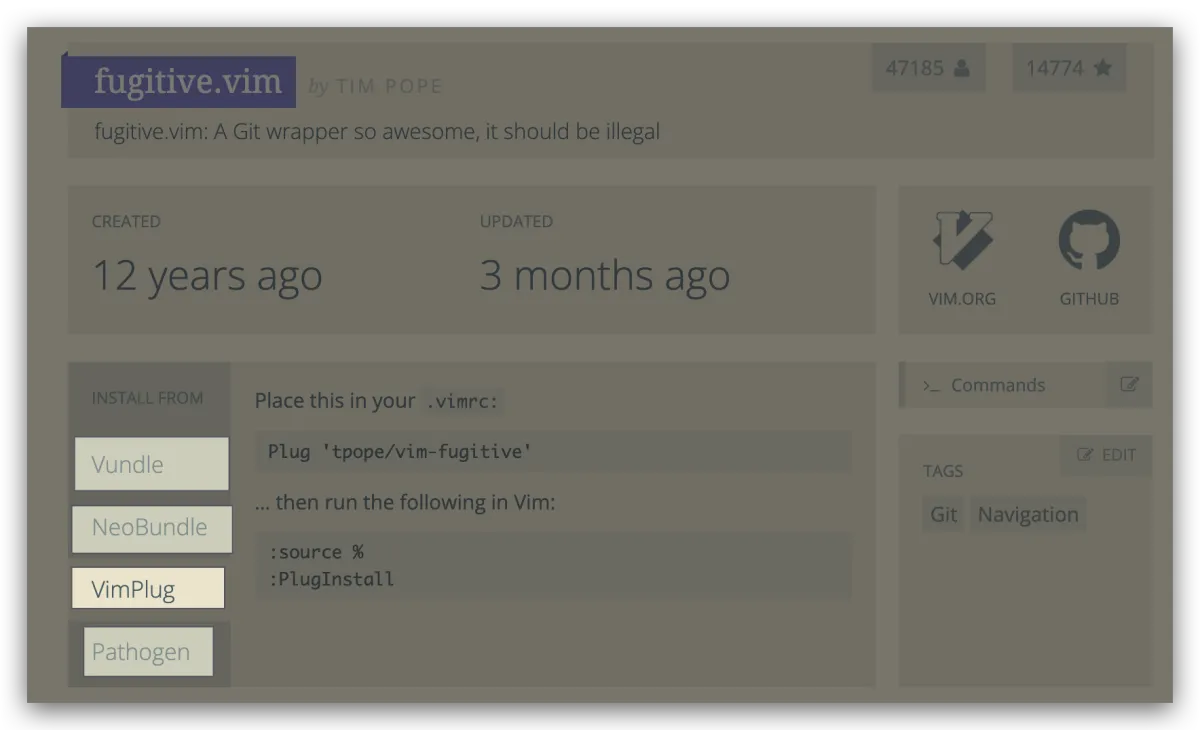
Once you have vim-plug and have bookmarked vimawesome, just follow the vim-plug docs to install plugins. I’ll also share a plugin below and show you how to install it.
Recommended config tweaks
Enable syntax highlighting
By default, vim on macOS doesn’t have syntax highlighting. I might not understand the code, but the code must be highlighted. I randomly edited a startup file with some default and custom configs to show the difference between highlighted vs not.
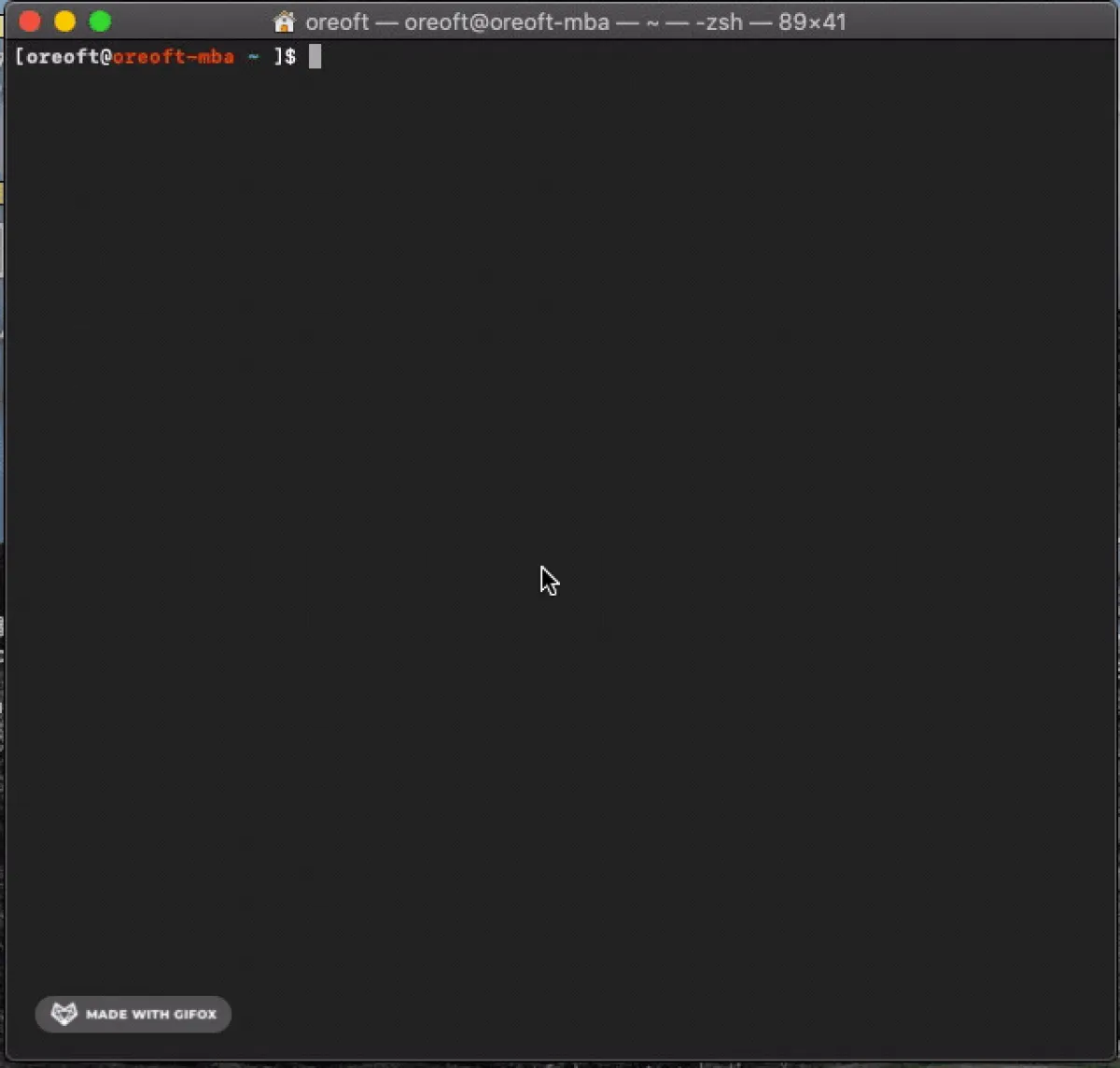
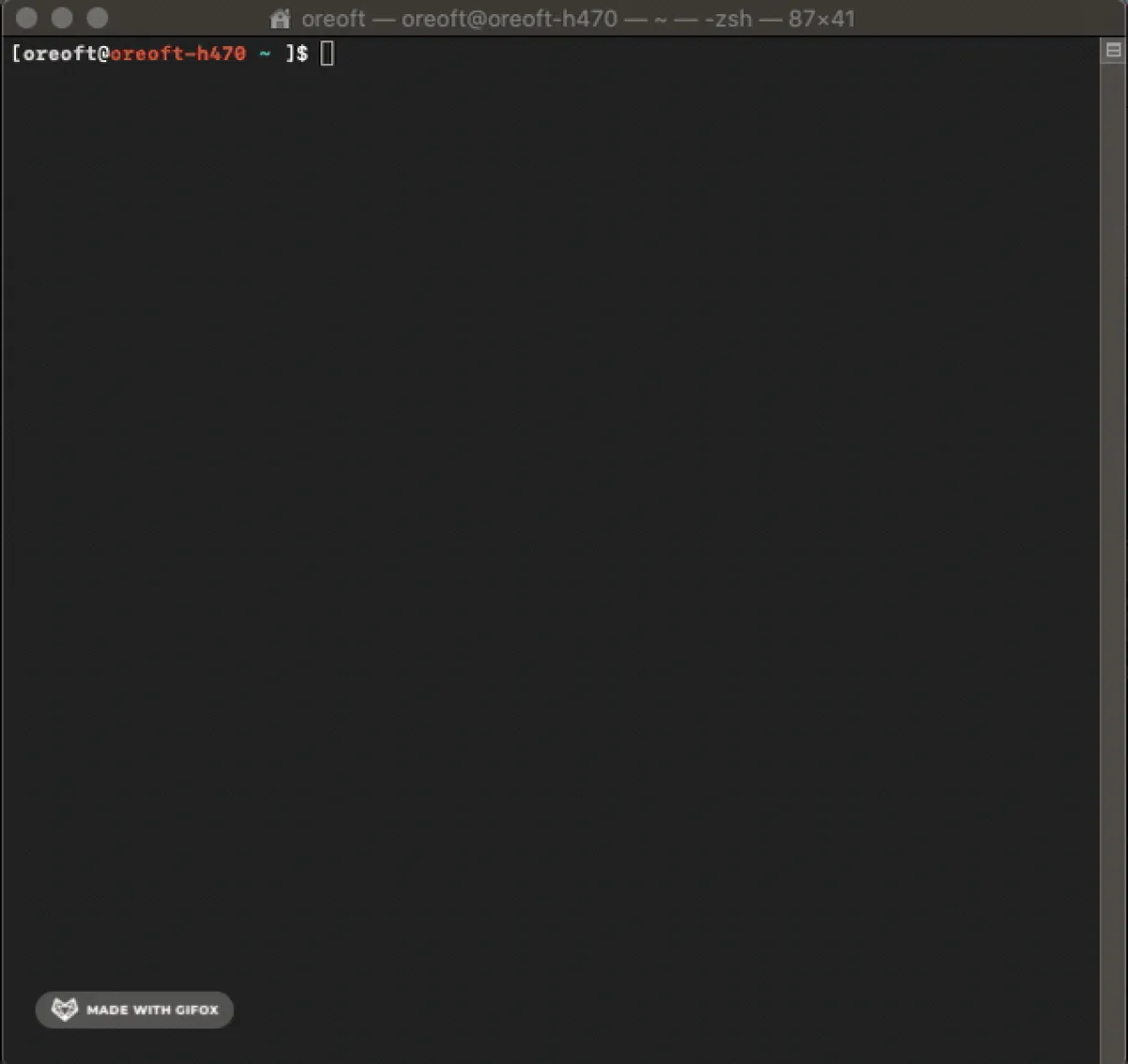
I don’t think I need to say much about this comparison. Every time I see the Android folks in my team with a screen full of colorful code, I’m like “wow so pro”—more colors must mean better skills, right? 🤡
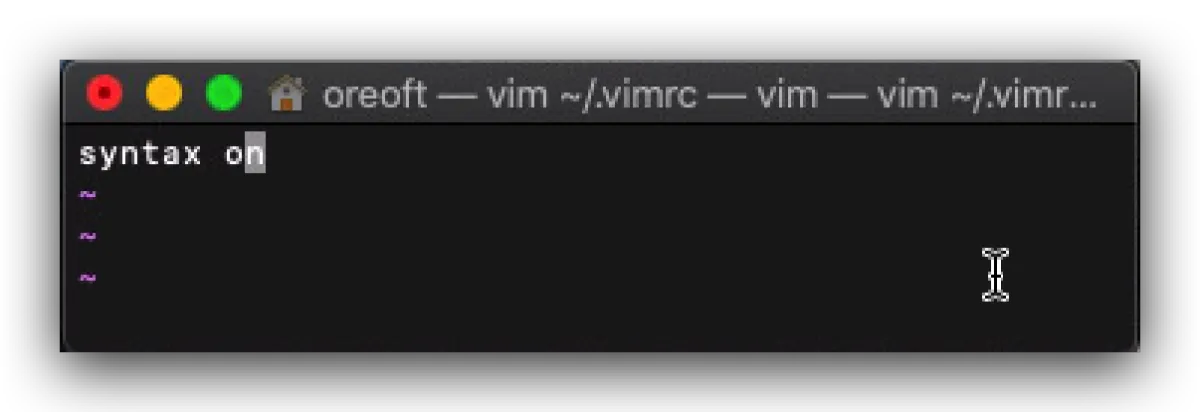
Enabling highlighting is super easy: in your shell, run vim ~/.vimrc, then add syntax on, then :wq to save. After that, open vim again and check your code—highlighting should be there.
Highlight the current line
In your shell, run vim ~/.vimrc, then add set cursorline.
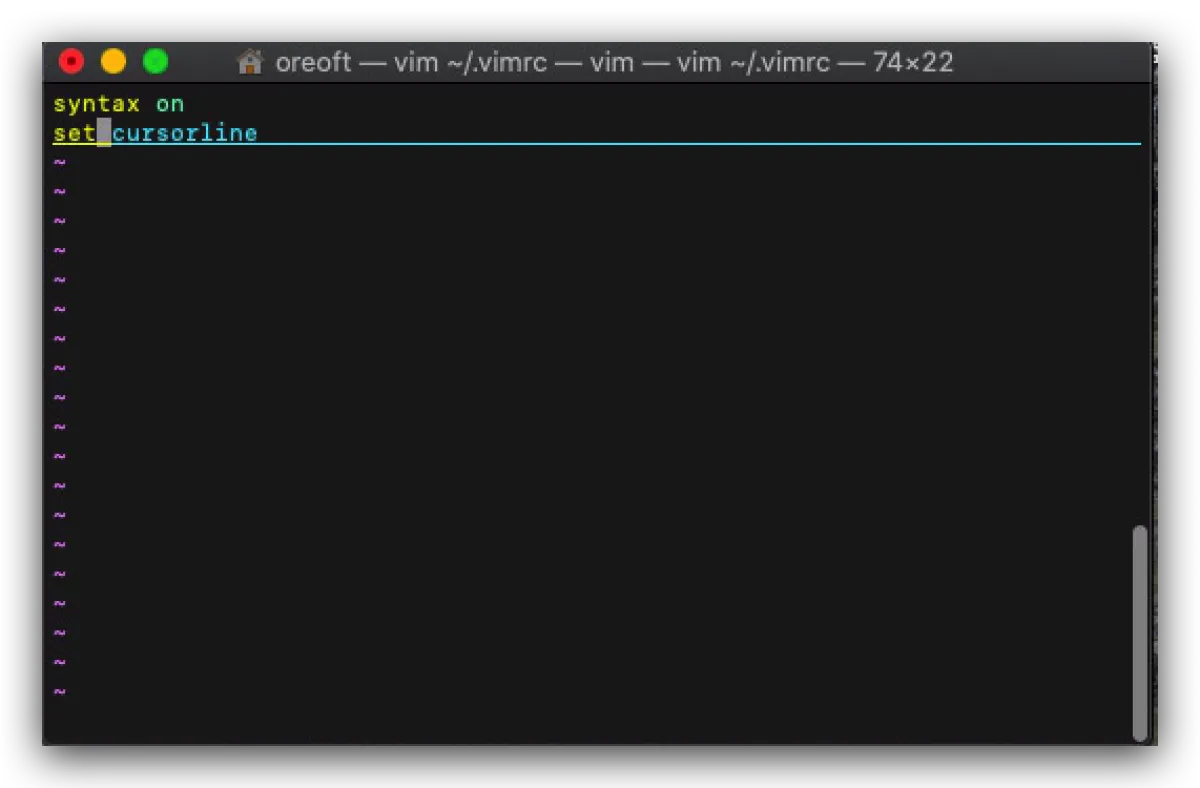
Then you’ll get the effect below: the line where your cursor is will be underlined/highlighted. This is super useful when editing configs—especially when you use / to search and your eyes have to scan around to figure out where you landed.
Keep indentation consistent
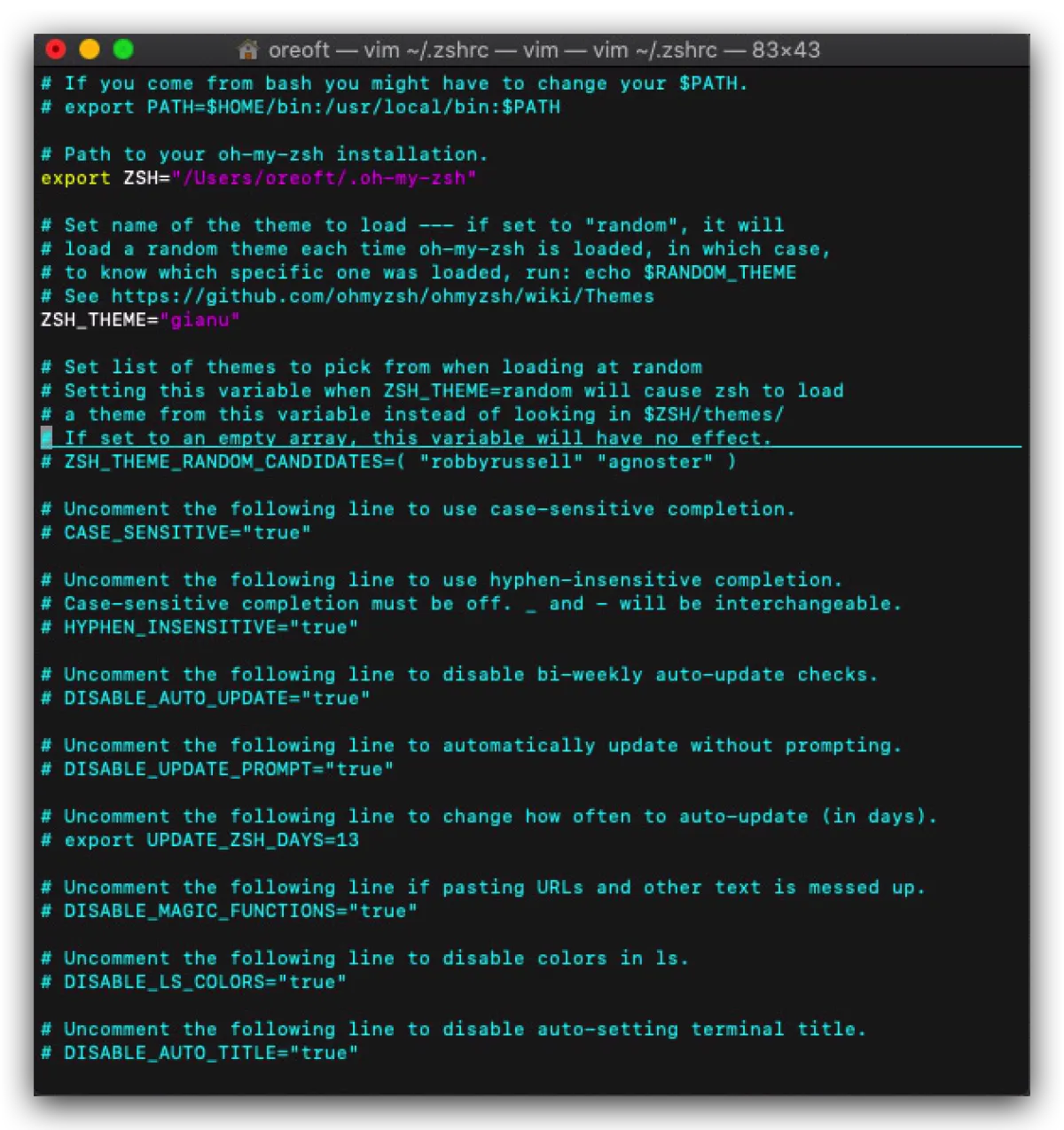
Most of the time I use vim to edit server configs. Sometimes I add comments before modifying things. If I indent the first line, when I go to the next line it won’t keep the indentation automatically—I have to type it again. Add set autoindent to .vimrc and the next line will automatically keep the same indentation as the previous line.
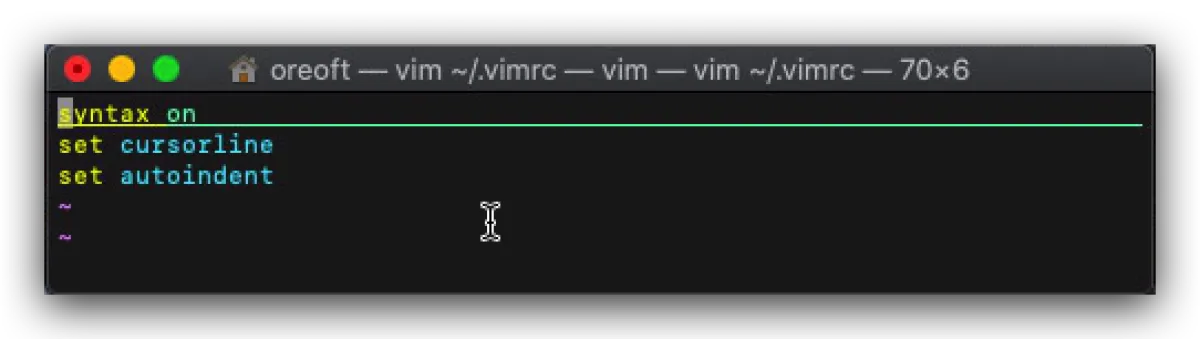
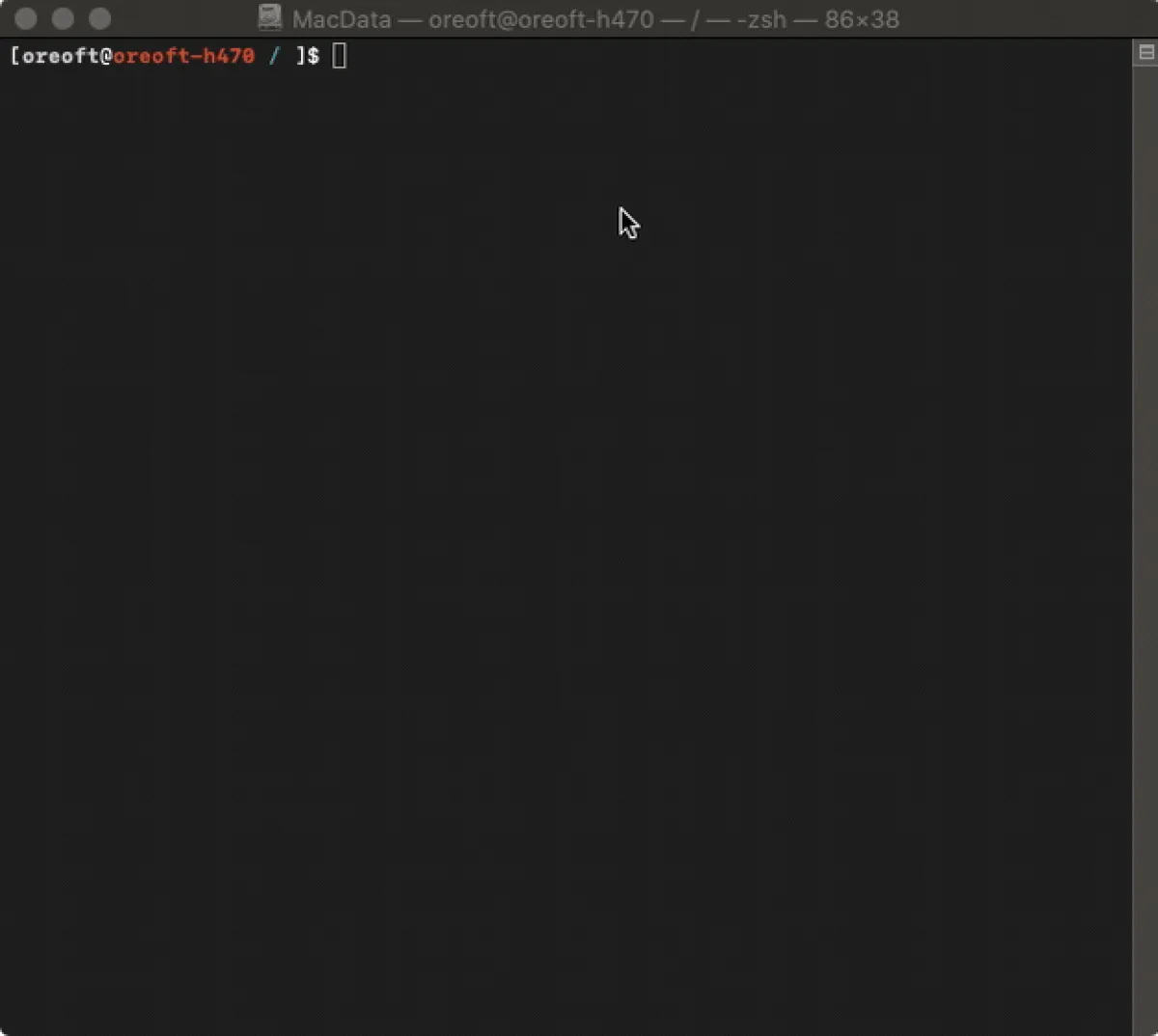
Replace the escape key
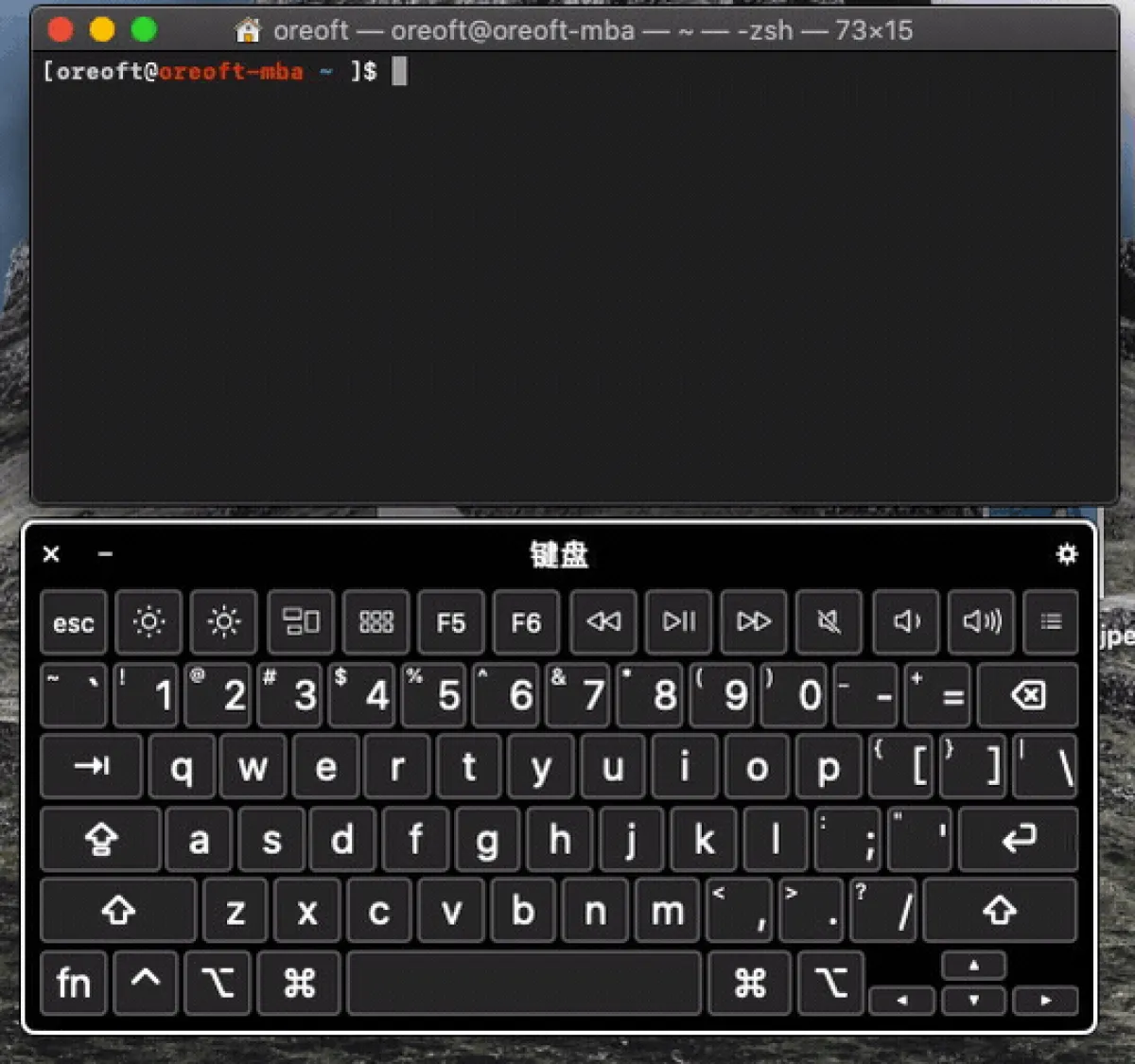
The most common use of escape is switching from insert mode back to normal mode. escape is far away, and the most comfortable “core” keys are already taken. My solution is to use a combo key: quickly type j+k to act as escape.
The change is simple: add imap jk <Esc> to ~/.vimrc. You can replace jk with any other keys you like—I’m just used to jk.
Final effect: when typing, use the jk combo to quickly switch back to normal mode.
Replace the : key
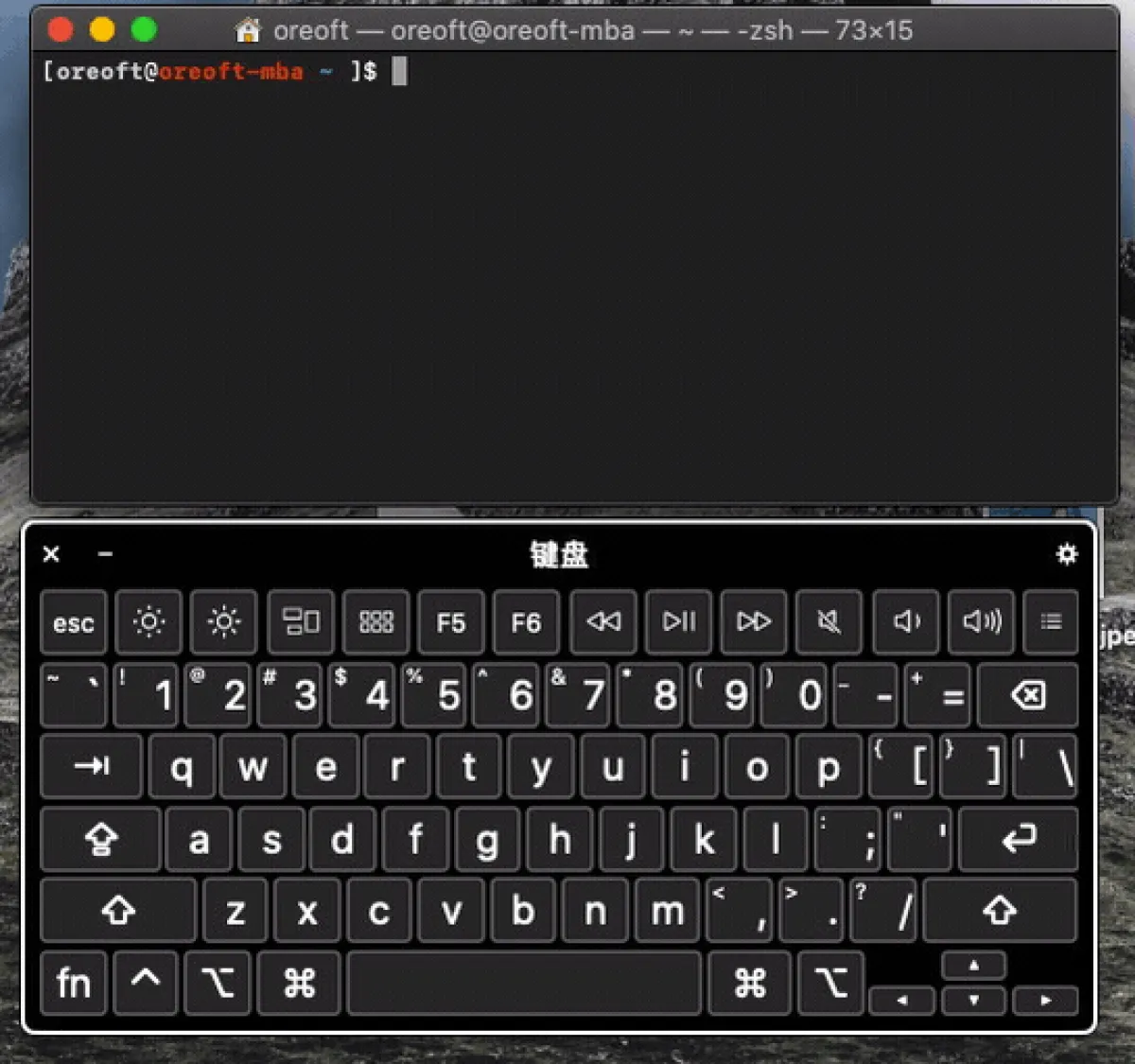
To type :, you have to press shift+;. As a lazy person, I really don’t want to press two keys. But entering command-line mode from normal mode is something you do constantly when interacting with vim. After thinking about it, I realized the space key is basically wasted in normal mode, because editing in normal mode relies on letter keys and doesn’t use space. So I mapped space to : to enter command mode. It’s also super simple: add nmap <space> : to ~/.vimrc.
Effect:
Others
You can totally set things based on your own habits. For key mappings, you can use xmap. Here x is a dynamic value—different x means different modes/behaviors. I made a table for you; feel free to get creative and customize your mappings.
| x | Meaning |
|---|---|
| nore | Non-recursive |
| n | Effective in normal mode |
| v | Effective in visual mode |
| i | Effective in insert mode |
| c | Effective in command-line mode |
| un | Followed by a key combo; removes the mapping |
| clear | Clears all mappings in the corresponding mode |
For other configs, here’s a summary as well:
# 自动语法高亮
syntax on
# 开启插件
filetype plugin indent on
# 关闭 vi 兼容模式
set nocompatible
# 显示行号
set number
# 突出显示当前行
set cursorline
# 打开状态栏标尺
set ruler
# 设定 << 和 >> 命令移动时的宽度为 4
set shiftwidth=4
# 使得按退格键时可以一次删掉 4 个空格
set softtabstop=4
# 设定 tab 长度为 4
set tabstop=4
# 覆盖文件时不备份
set nobackup
# 自动切换当前目录为当前文件所在的目录
set autochdir
# 设置备份时的行为为覆盖
set backupcopy=yes
# 搜索时忽略大小写,但在有一个或以上大写字母时仍保持对大小写敏感
set ignorecase smartcase
# 禁止在搜索到文件两端时重新搜索
set nowrapscan
# 输入搜索内容时就显示搜索结果
set incsearch
# 搜索时高亮显示被找到的文本
set hlsearch
# 关闭错误信息响铃
set noerrorbells
# 关闭使用可视响铃代替呼叫
set novisualbell
# 置空错误铃声的终端代码
set t_vb=
# 插入括号时,短暂地跳转到匹配的对应括号
set showmatch
# 短暂跳转到匹配括号的时间
set matchtime=2
# 设置魔术
set magic
# 允许在有未保存的修改时切换缓冲区,此时的修改由 vim 负责保存
set hidden
# 隐藏工具栏
set guioptions-=T
# 隐藏菜单栏
set guioptions-=m
# 开启新行时使用智能自动缩进
set smartindent
# 不设定在插入状态无法用退格键和 Delete 键删除回车符
set backspace=indent,eol,start
# 设定命令行的行数为 1
set cmdheight=1
# 显示状态栏 (默认值为 1, 无法显示状态栏)
set laststatus=2
# 设置在状态行显示的信息
set statusline=\ %<%F[%1*%M%*%n%R%H]%=\ %y\ %0(%{&fileformat}\ %{&encoding}\ %c:%l/%L%)\
# 开始折叠
set foldenable
# 设置语法折叠
set foldmethod=syntax
# 设置折叠区域的宽度
set foldcolumn=0
# 设置折叠层数为1
set local foldlevel=1
Recommended plugins
I’m only recommending one plugin here—mainly to demonstrate how to install plugins with vim-plug. You can go treasure-hunting on vimawesome yourself. After you find something, remember to share it in the comments.
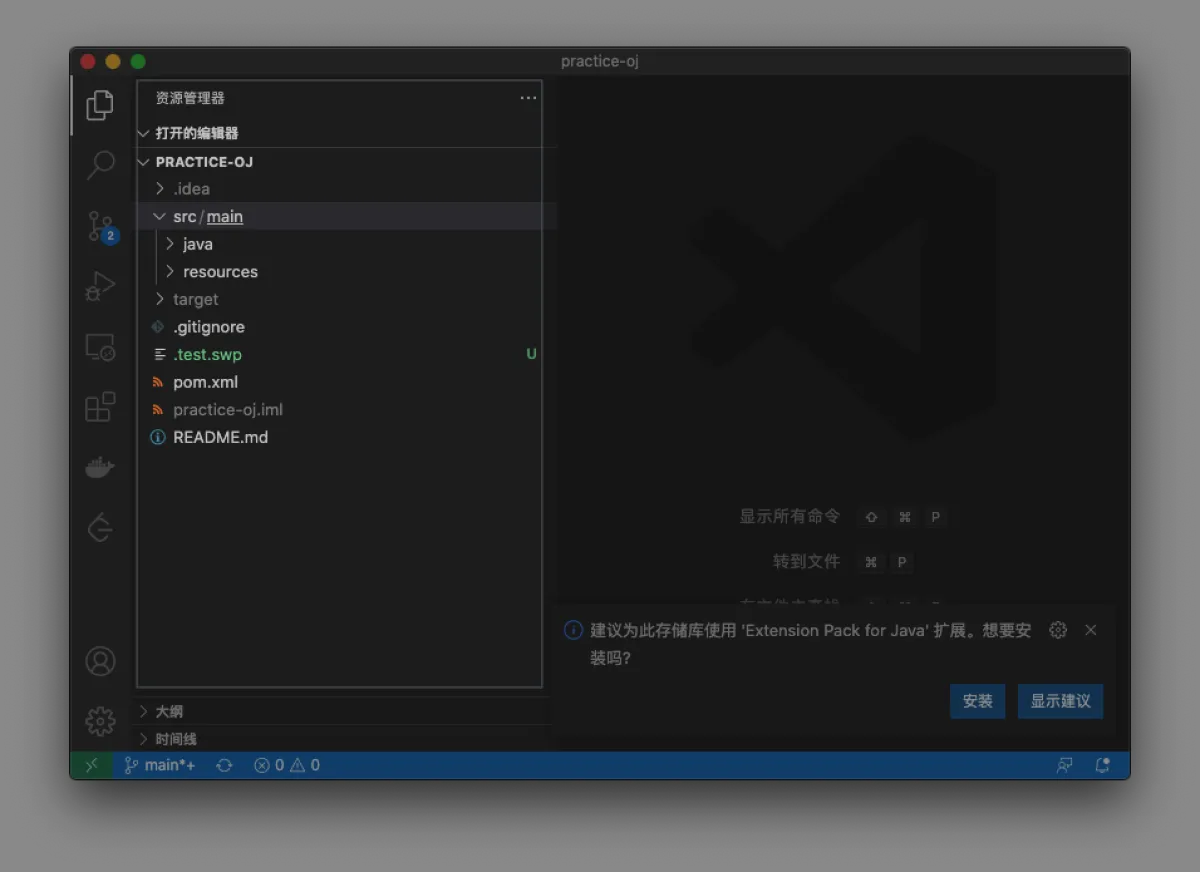
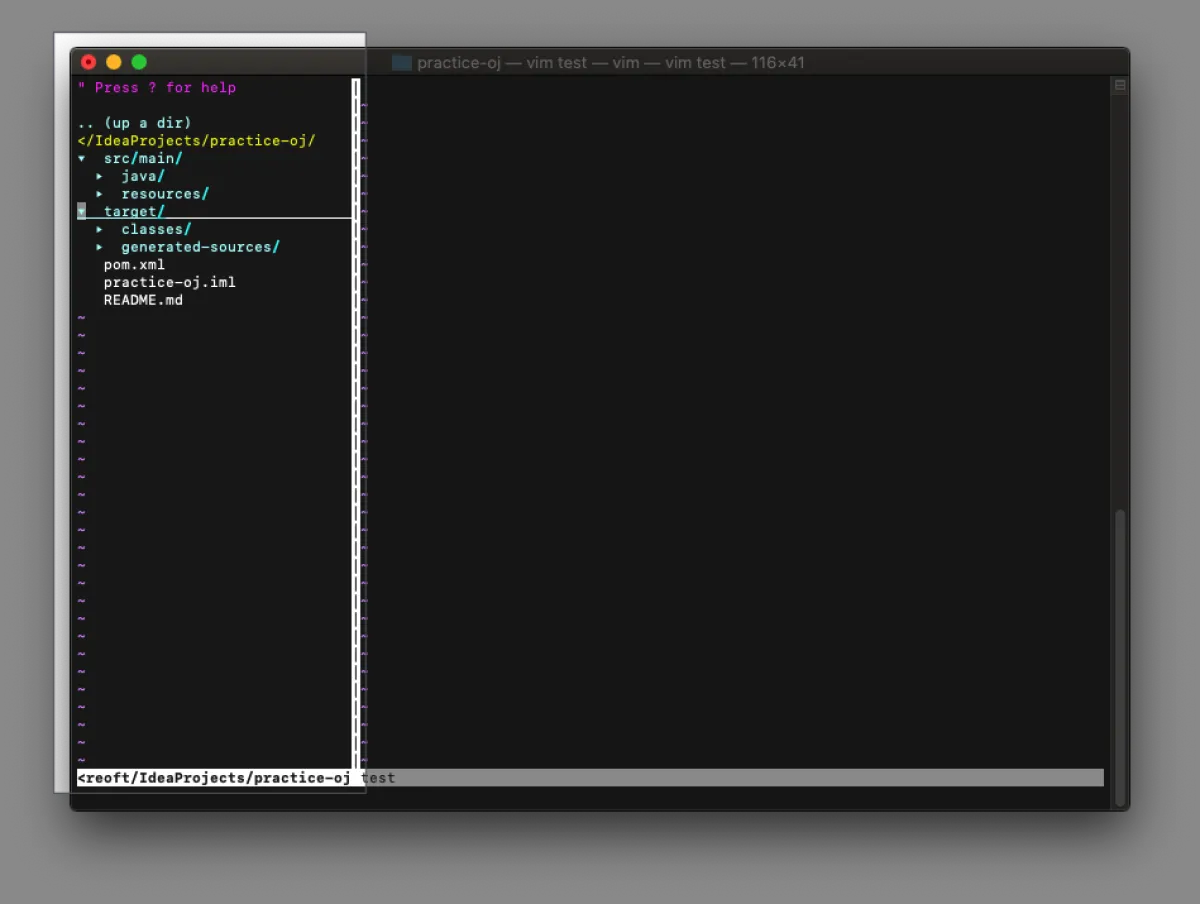
The plugin I recommend is The NERD tree. It shows a basic file explorer tree like an IDE does, for example in VS Code:
After using The NERD tree, in vim it looks like this:
Here’s how to install it
-
Go to the plugin marketplace vimawesome and find The NERD tree
-
Copy this one-line command
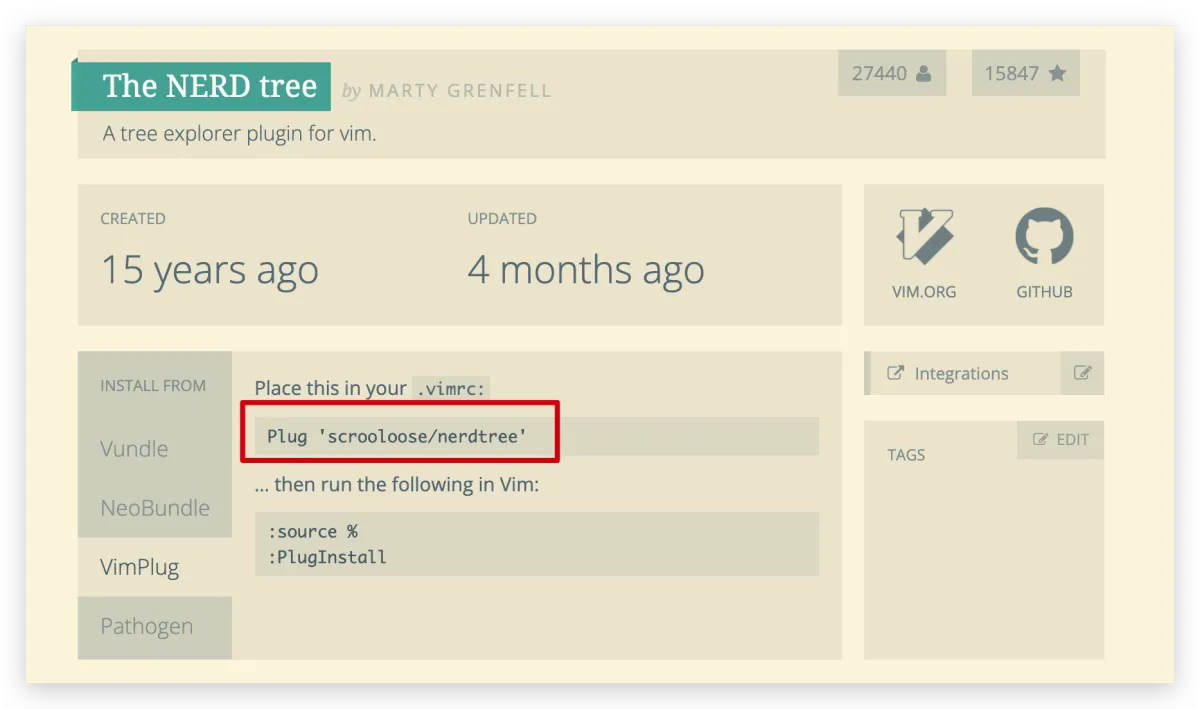
- Then open your shell and run
vim ~/.vimrc. Yes!!! This config file again. Then add:
call plug#begin('~/.vim/autoload')
call plug#end()
- Then paste the command you found on vimawesome between those two lines, like this:
call plug#begin('~/.vim/autoload')
Plug 'scrooloose/nerdtree'
call plug#end()

- Then switch to command mode and enter
PlugInstall(note: you must have vim-plug installed, otherwise it’ll say the command can’t be found)
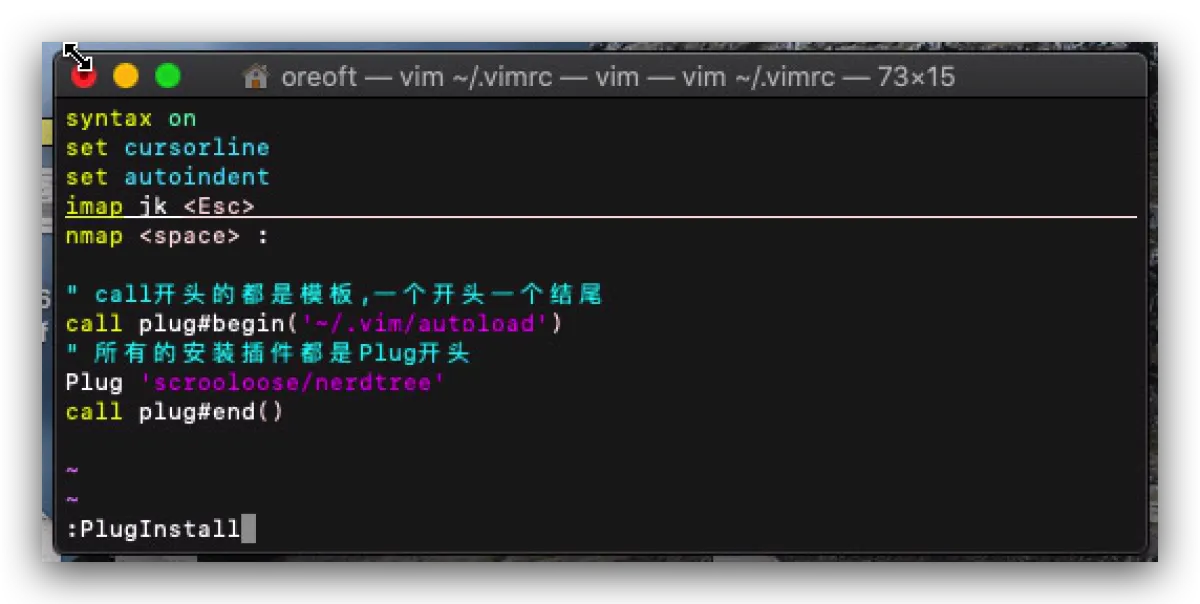
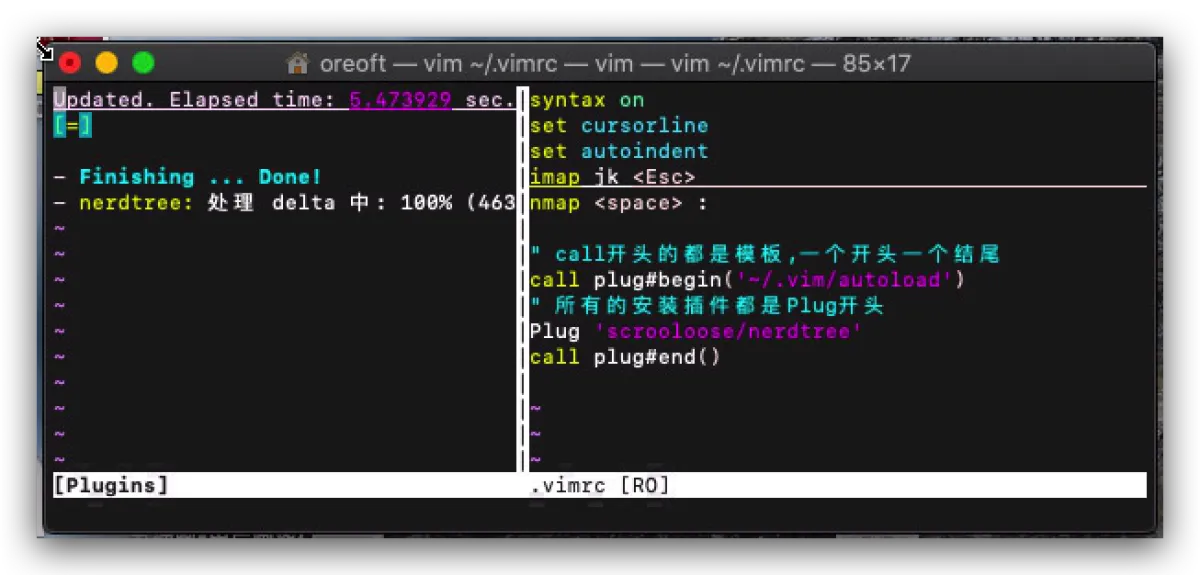
- Then in vim you can press
ctrl+tto view the directory tree for the current file. The plugin’s documentation on vimawesome is way more detailed than what I’m writing here.
At this point, the plugin is installed. If you need other plugins, the process is the same: copy the command you find on vimawesome into the two call lines, then run PlugInstall.
END
Recommended resources
- Lanqiao Cloud Course: basic vim
- Vim adventure mini-game
- vim-plug
- Vim official manual plugin guide
- Recommended plugin repository - vimawesome
- Ruanyifeng’s intro to vim configuration
All articles in this blog, unless otherwise stated, are licensed under @Oreoft . Please indicate the source when reprinting!