
Preface
Since I usually want to share some Hackintosh build tutorials, well… my uncontrollable hands keep buying stuff on Xianyu. And every time I write a “this model” sharing post, the very first step is always making the installer USB. But I’ve already made the images every single time. Making everyone go dig up my very first post doesn’t feel great, so today I’m writing a standalone one. That way you won’t keep coming to ask and ask. And I can just quote it directly later (quoting myself, is that allowed? 😂)
There are basically two “modes” for making the installer:
- One is making a macOS recovery (rec) online installer. This only contains the installer environment; the system files are downloaded online during installation. Apple’s servers are already in Guizhou now, so the speed is pretty good.
- The other is a full offline image. I usually use the full image made by “Xiaobing”. You just flash it to a USB drive, and at the installer screen you can install directly.
I’ll cover both below.
Online installer USB
I’ll share how to make a macOS online installer USB on both Windows and macOS. It’s basically the same—only the flashing tool differs (since the OS is different). No matter Windows or macOS, first prepare the main character: 10.15 Online Installer Environment. This is the macOS 10.15 image (codename Catalina).
Win
- Insert the USB drive.
- Download imageUSB, then open it.
- Select the image and the USB drive.

- After it’s done, open “This PC”. You’ll see a drive named
boot. Copy yourEFIfolder into it. - That’s it. You can use this USB to boot and install macOS (as long as you put the right EFI in place).
Mac
- Insert the USB drive.
- Download balenaEtcher, then open it.
-
Select the 10.15 boot image, and choose your target drive.
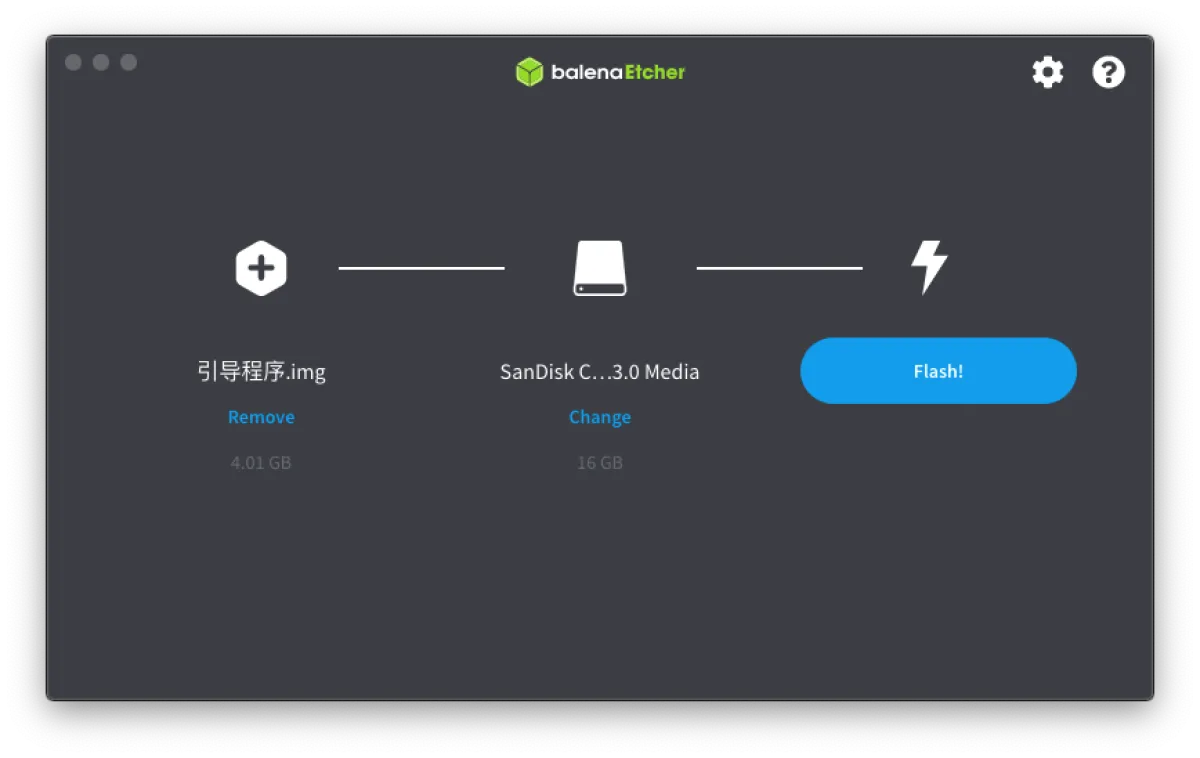
- After it’s created, a
bootdisk will appear on your desktop. Just copy yourEFIinto it. - That’s it. You can use this USB to boot and install macOS.
Full offline image USB
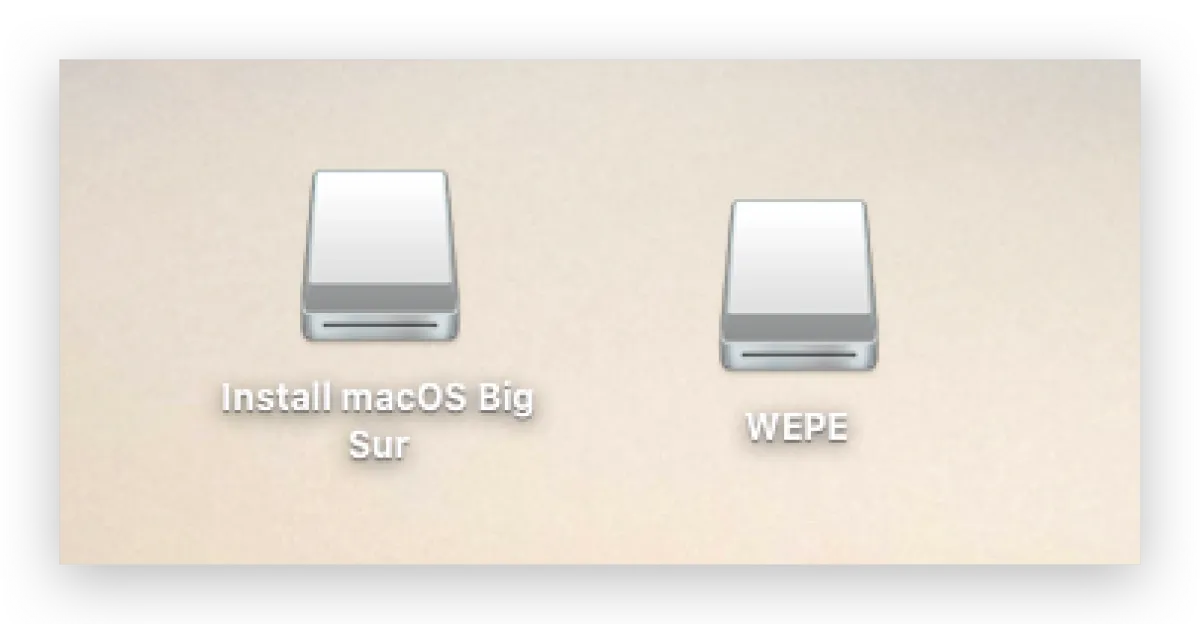
Xiaobing’s full image USB has two visible partitions and one hidden partition:
- The first visible partition is the macOS installer image volume—all installation files are inside.
- The second visible partition is a PE boot volume. Xiaobing thoughtfully includes PE—you can even use it to install Windows.
- The third hidden partition is the EFI partition. You need to mount it and then put your EFI in there.
Whether you’re making it on Windows or macOS, the main thing is to download the image you like from Xiaobing Image Repository. Prepare a USB drive larger than 16GB, because the image is huge (over 10GB). Once you’re ready, let’s start—this is actually very similar to the online installer above.
- Insert the USB drive.
- Download imageUSB or balenaEtcher (pick based on your OS), then open it.
- Select the image you downloaded, select your USB drive, then write/flash it.
Win
- On Windows, this step requires a reboot into the PE system. In “This PC” you’ll see an
EFIdrive—just copy yourEFIinto it. Sorry, I don’t have a Windows PC here so I can’t provide screenshots.
Mac
- On macOS, at this point you should see two visible partitions on the desktop.
- Download and open Hackintool
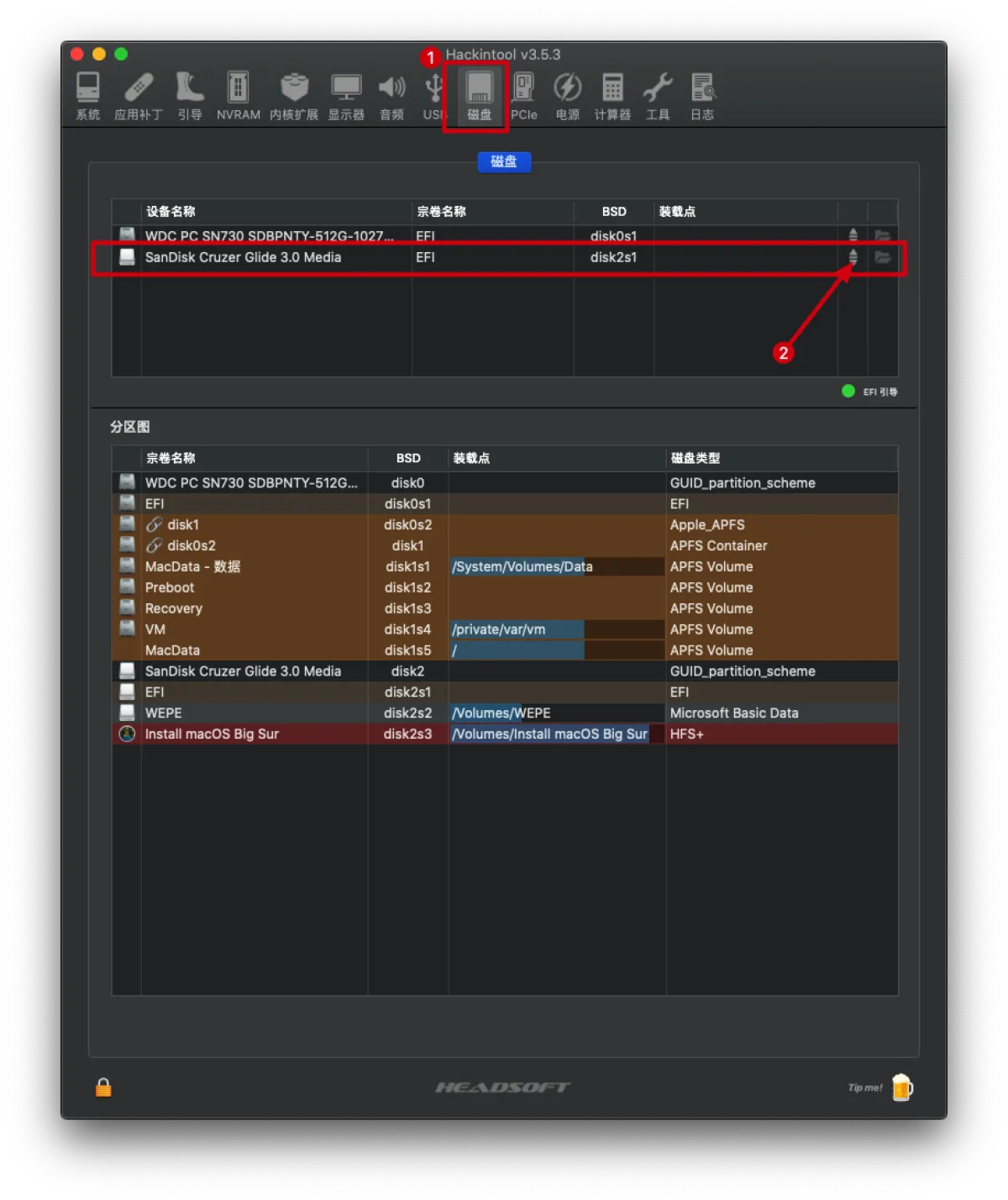
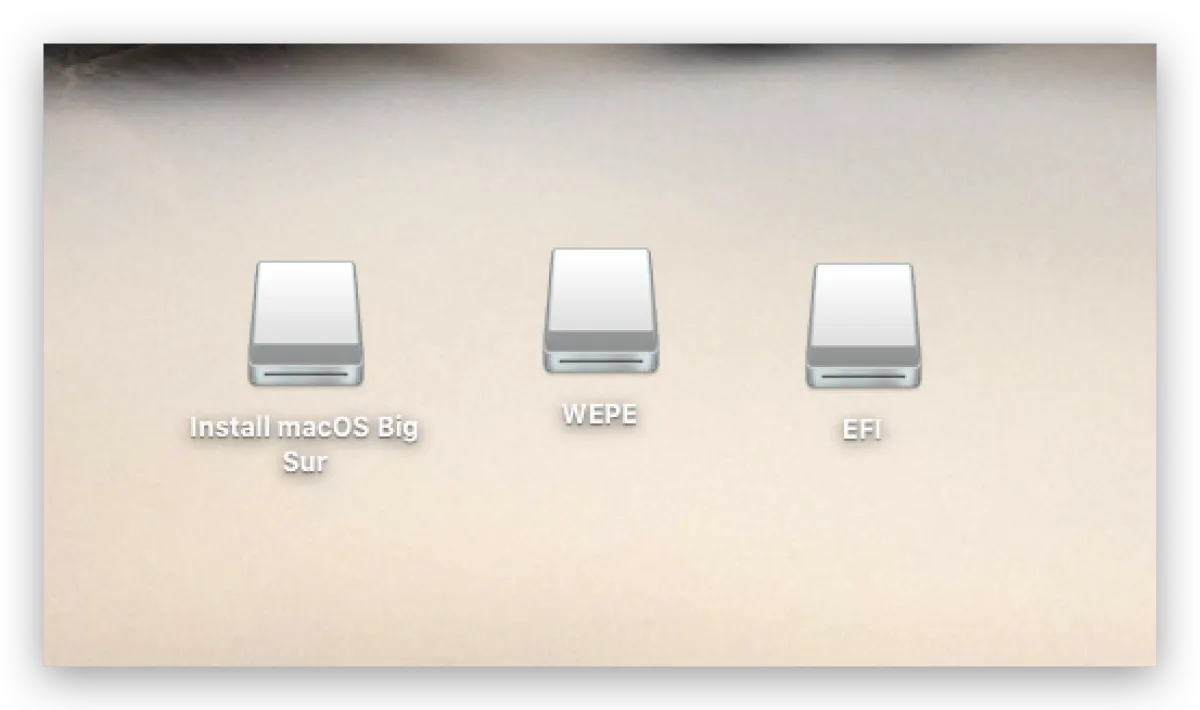
- Now you’ll have three partitions on the desktop. Copy your
EFIfolder into the EFI partition and you’re done.
Afterword
It’s actually super simple. Most of the difficulty is finding image resources. Xiaobing has already provided a great “idiot-proof” package for us—we just flash it, then copy in our own EFI. Hope this helps everyone. If you have any questions, feel free to contact me.
References
All articles in this blog, unless otherwise stated, are licensed under @Oreoft . Please indicate the source when reprinting!