
Preface
Developers in China more or less get annoyed by network issues. For some special reasons, when the network is bad you sometimes need a proxy to get things done. I used to run a Phicomm router flashed with Merlin firmware, and set up proxy forwarding at the router level so that some hard-to-access sites would always go through the proxy. The nice part was that I didn’t have to configure SSR on every single device.
After I started working, that setup wasn’t as convenient anymore. But my work devices are pretty fixed, so turning on SSR isn’t a big deal. Later I ran into something weird: the same Git URL worked fine in Chrome (I could even download the zip), but in the terminal it kept returning 503. After digging around, I learned that SSR’s proxy doesn’t take effect in the terminal. That makes a lot of things super painful: updating oh-my-zsh depends on luck, Homebrew downloads basically fail all the time, git clone depends on the weather, Docker pulls take forever, and the various “community-powered” mirror sources in China are hit-or-miss. No matter how you use it, it just feels bad and seriously impacts development. So I looked into it and wrote this down here.
Check whether it’s working
Since we’ll use this later, let me mention it upfront: to confirm whether the proxy is working, we can use the curl command to hit some public IP-check websites. After curl’ing, the site returns the public IP it sees from your request, so you can verify whether you’re successfully going through the proxy. Here are two options, because sometimes these sites go down (they’re community-run after all).
curl cip.cc
curl ip.sb
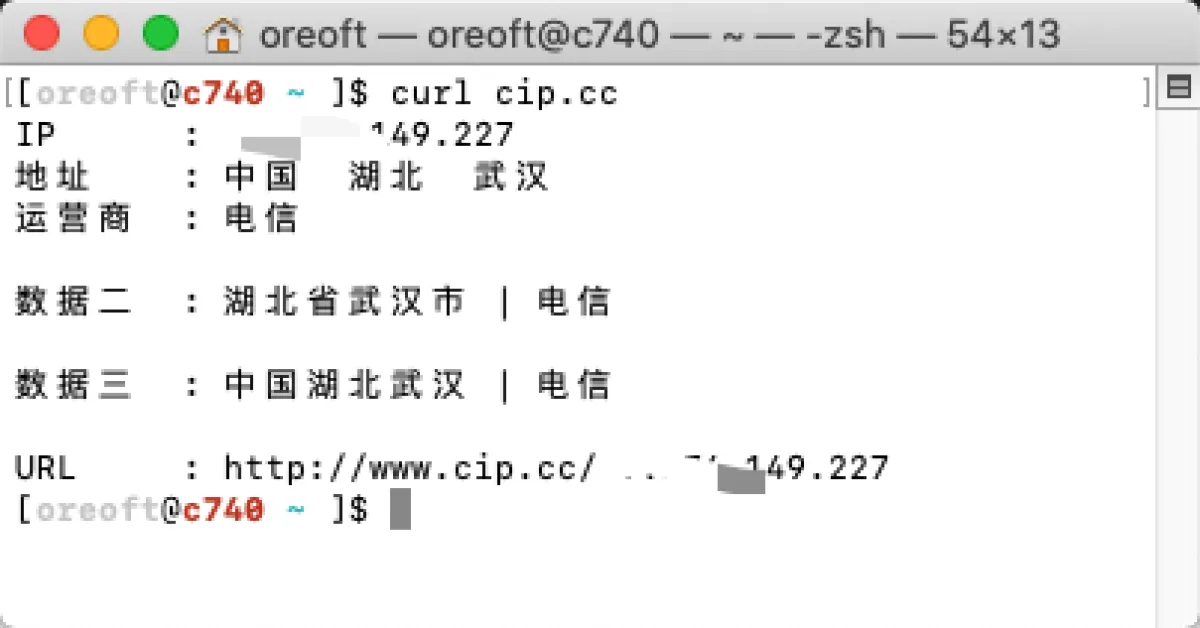
Why the terminal doesn’t use the proxy
What’s certain is: on macOS (and actually Windows too), after enabling SSR, whether you use global mode or rule-based mode, it won’t take effect in the terminal. As for the reason, there are lots of different opinions. The most commonly accepted explanation is that SSR-type proxy apps default to SOCKS5, while the terminal uses HTTP. Is that really the case? Let’s take a look.
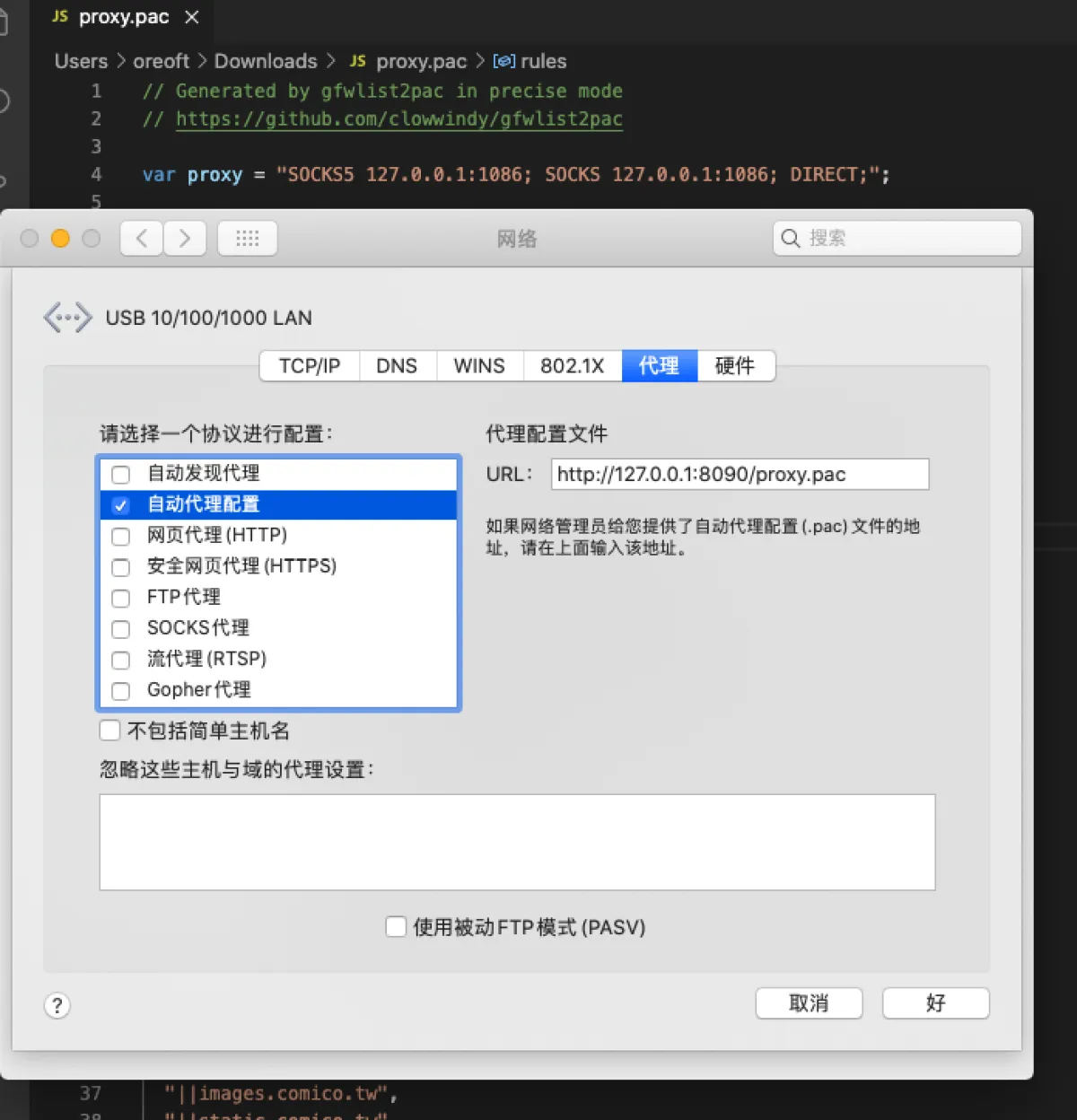
Set it to rule-based proxy, then check the proxy protocol in the rules. You can see it’s indeed SOCKS5.
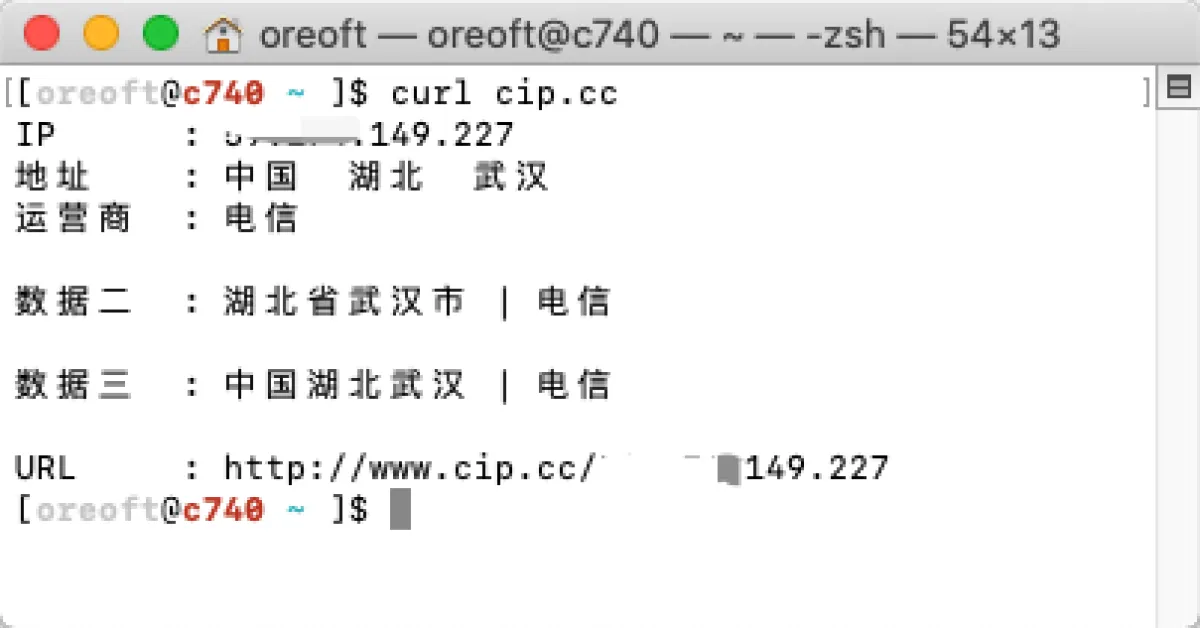
But when I switch to global proxy and also enable SSR’s HTTP proxy setting, the terminal still doesn’t work. It doesn’t really help.
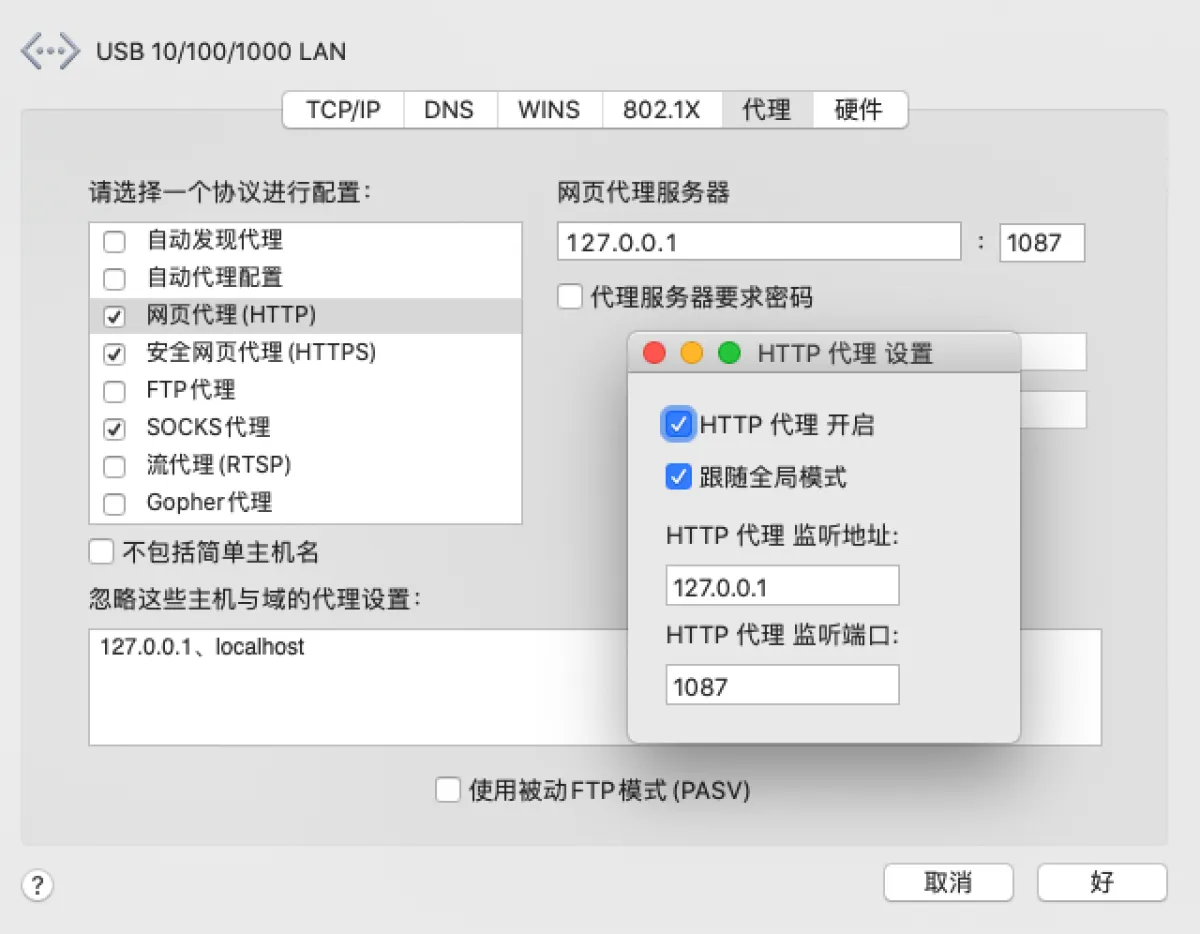
So what’s the real reason? Honestly, I don’t know either. But I agree more with an explanation from a StackExchange expert: they said macOS shells and system settings are two separate sets of rules. The shell existed before macOS, and proxy settings configured in System Settings don’t take effect in the terminal. The system also won’t help you apply those settings to terminal rules. If you want the terminal to use a proxy, you need to configure the terminal separately.
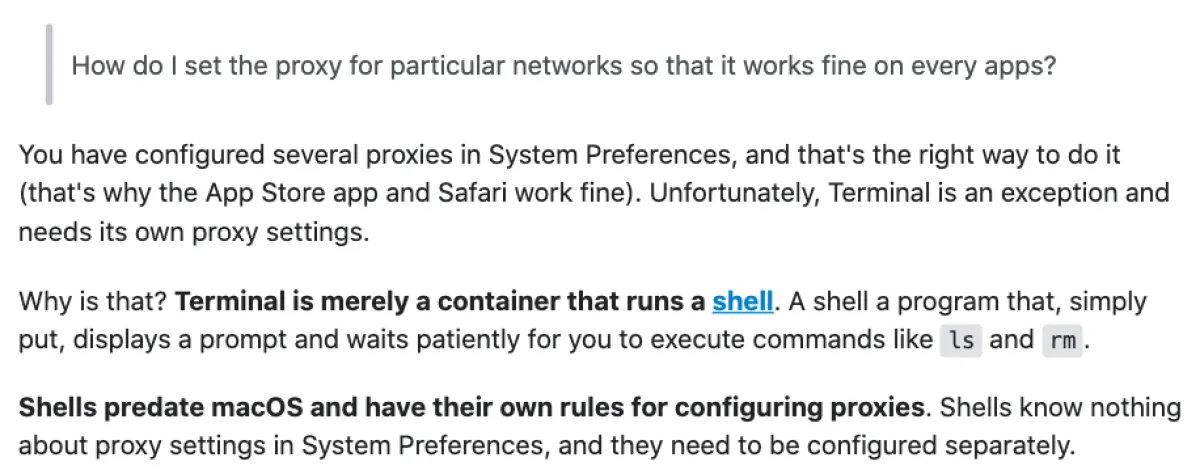
Why do I find this convincing? Because SSR itself is basically a local proxy service. Only requests sent to its local port will be proxied and forwarded, then returned. System settings do configure network forwarding to that port, but maybe that configuration doesn’t apply to the terminal. If you want it to work in the terminal, you need to configure the terminal separately—forwarding terminal network requests to the port SSR is listening on.
Make the terminal use the proxy
A fully “real” proxy setup in the terminal usually needs plugins and is kind of a hassle. And… mainly because my proxy needs are usually temporary, I’m going to introduce a simple approach here.
Most mainstream shells have several proxy-related environment variables, and most applications follow them. I’ll mention three here. I’m using the export command—I’ve talked about it in another post, feel free to look it up. This command sets an environment variable in the current shell window. It only takes effect in the current shell session; once you close the window and open a new one, it’s gone. If you want the proxy to always be enabled, you can write these variables into a startup file (like ~/.zshrc). I’ve also written a post about startup files—feel free to check that out too.
# Proxy HTTP
export http_proxy="socks5://127.0.0.1:1080"
# Proxy HTTPS
export https_proxy="socks5://127.0.0.1:1080"
# Proxy all protocols, including FTP, etc.
export ALL_PROXY="socks5://127.0.0.1:1080"
For the reasoning, you can check references 2 and 3. Many common tools/commands will use these environment variables: if they’re empty, they connect directly; if they have values, traffic is forwarded to the proxy specified by the variables. Git also provides application-level configuration. Setting it makes Git always use the proxy you specify, and it persists across sessions because it’s a global Git config.
# Set like this
git config --global http.proxy 'socks5://127.0.0.1:1080'
git config --global https.proxy 'socks5://127.0.0.1:1080'

# Unset like this
git unset http_proxy
git unset https_proxy
After setting it up, test again—you’ll see it’s now using the proxied IP.
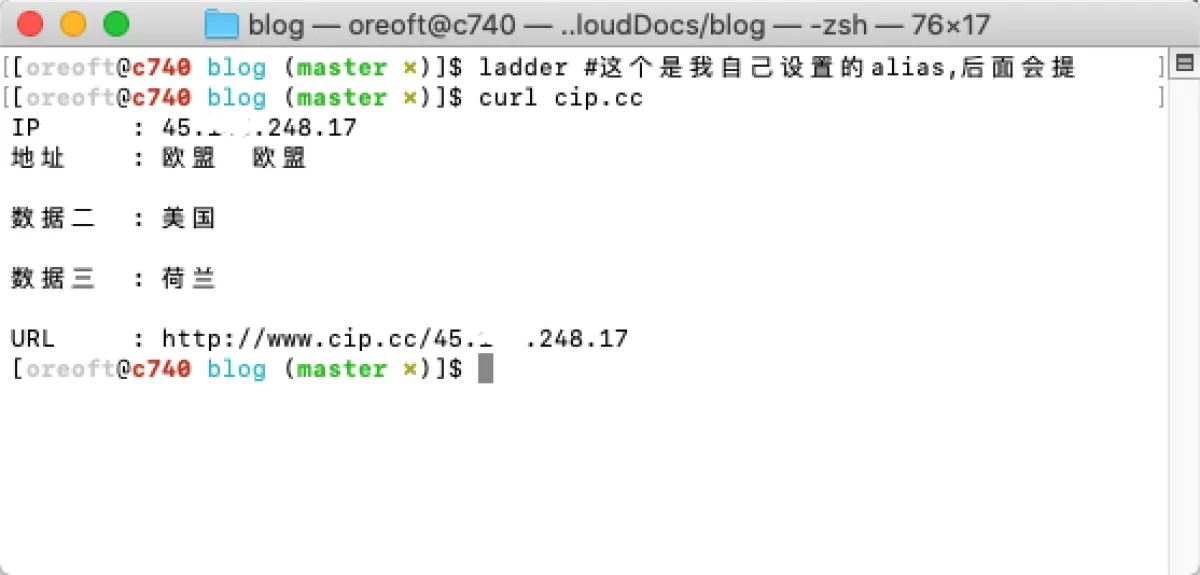
Combine with alias for flexible proxying
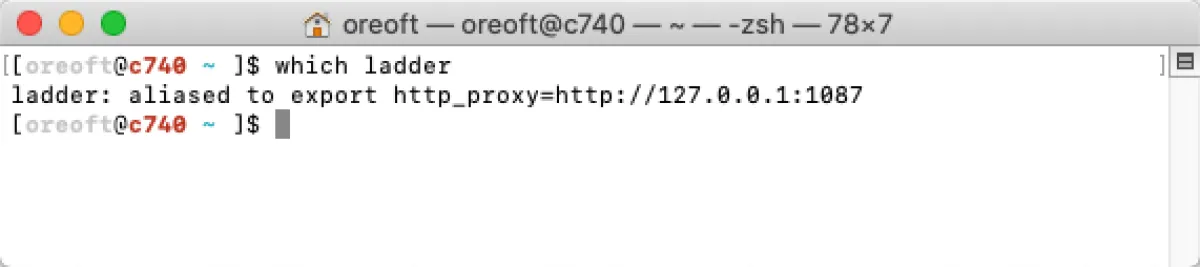
If you’ve read my previous post about Linux shortcut commands, you can combine alias to make proxying more flexible. Considering our usage scenario: aside from Git (which can be configured globally per-app as mentioned above), we don’t really need the terminal to always be proxied. Proxy bandwidth and latency are usually worse than direct connections, but sometimes the tools/framework servers you need are overseas, so you have no choice but to use a proxy.
The commands above solve the problem, but I’m lazy. Running a whole bunch of commands every time is annoying. So I use alias to create a shortcut command. Then I can enable it with a single input, and after I’m done I just close the window—next time I open a new terminal, the proxy is gone. Only type it when you need it, instead of typing a long string (and usually for commands like this, you end up opening a notes app and copy-pasting anyway).
alias ladder='export http_proxy=http://127.0.0.1:1087'
References
All articles in this blog, unless otherwise stated, are licensed under @Oreoft . Please indicate the source when reprinting!