
Preface
The meaning of life really is in the tinkering, so let me first talk about why this post exists. I used to have a laptop, but after graduation my rented place was super close to the company, and the company provided a PC plus two monitors—studying and working was ridiculously convenient. With that “learn for free” mindset, I got used to spending most of my time at the office. So the laptop sitting at home felt pretty useless; keeping it myself meant it would just sit there and depreciate. As a qualified “e-waste scavenger,” how could I let that happen? So I sold it.
But—but—but—Chinese New Year was coming and I was about to take time off, plus it was pretty cold, and sometimes I didn’t feel like staying at the office too late. Back home I still wanted to type some code, write some stuff, and watch some IMOOC courses. Gradually it became a real need, so I decided to buy another laptop. Since I don’t have that many usage scenarios and it’s mainly just to get me through day-to-day stuff, I didn’t set the budget very high. In the end I settled on the Xiaoxin Air 13 IWL. Cheap, strong performance—perfectly matched what I wanted. And of course, once it arrived, I had to tinker with it and install Hackintosh. I just didn’t expect it to turn out this perfect.
Appearance
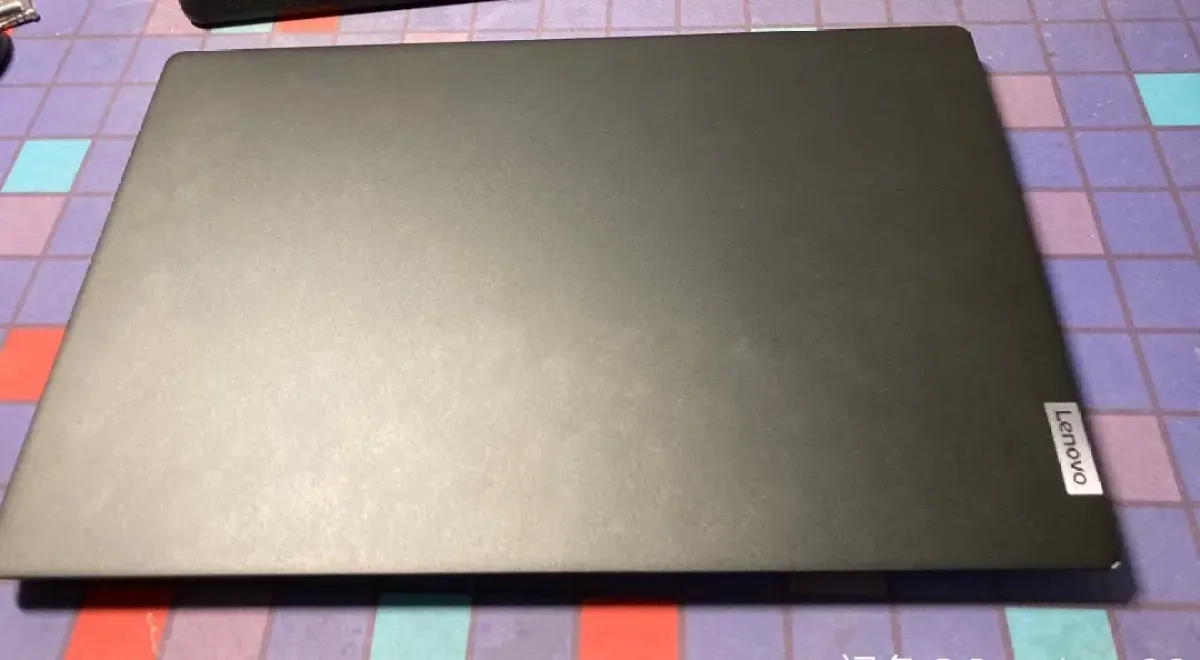
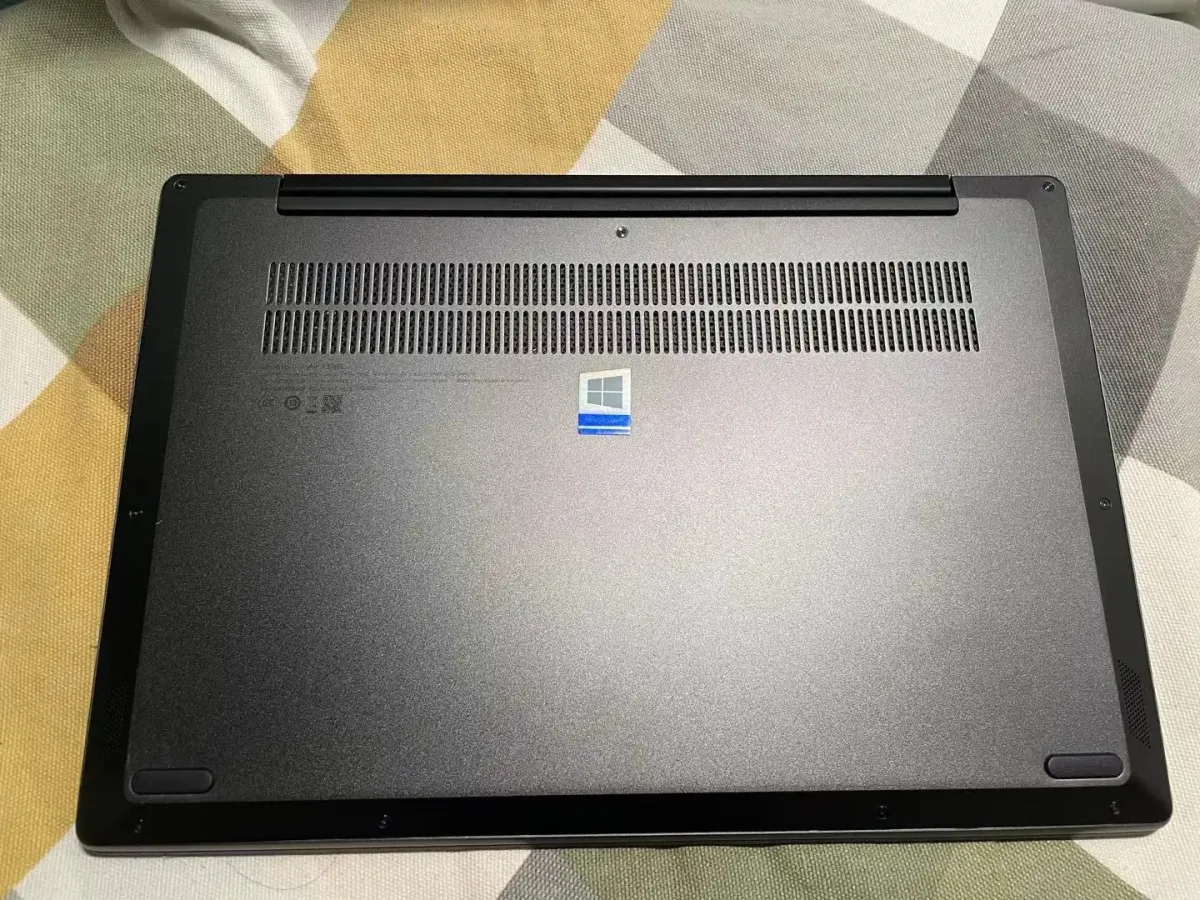
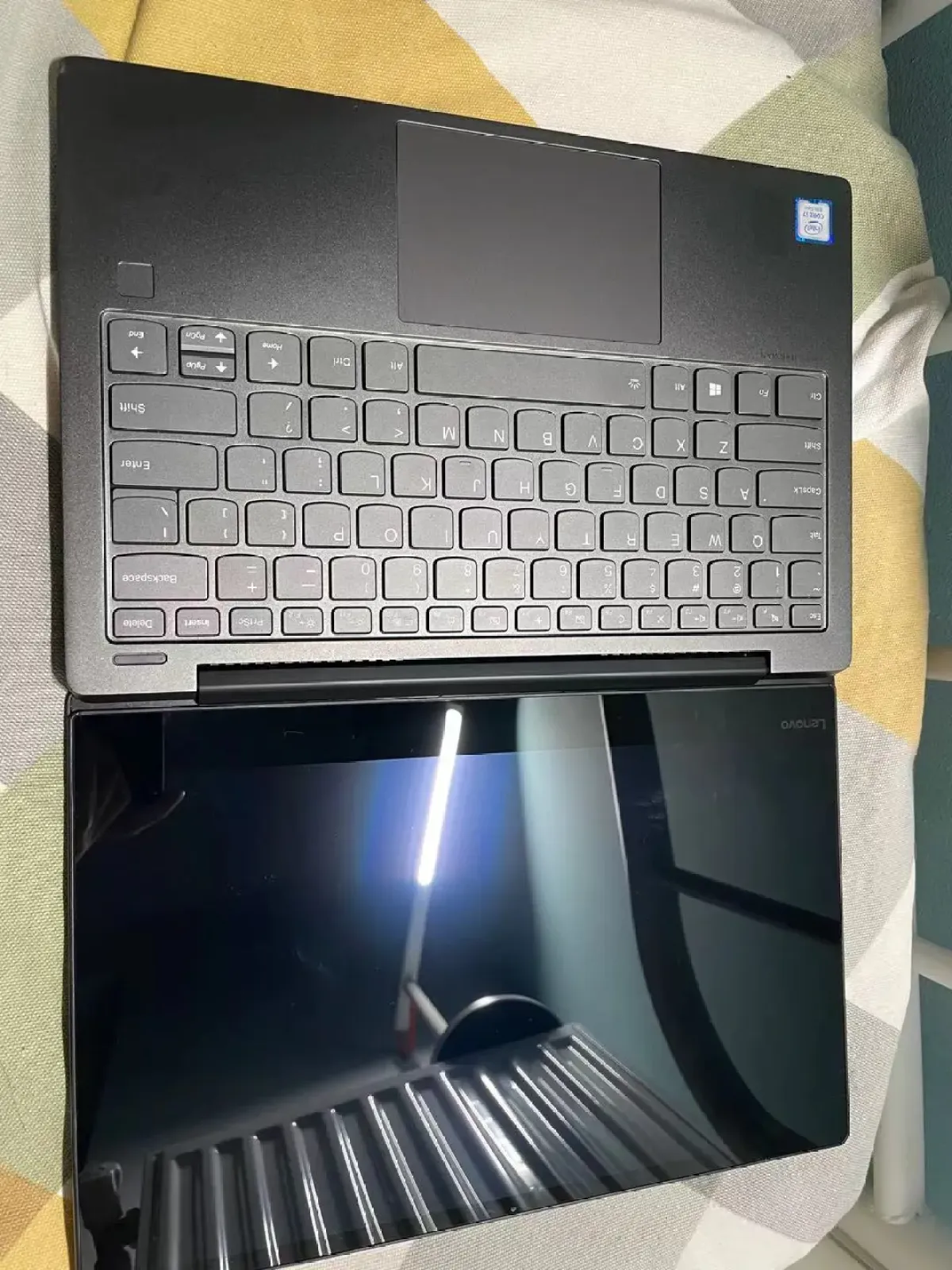
Specs
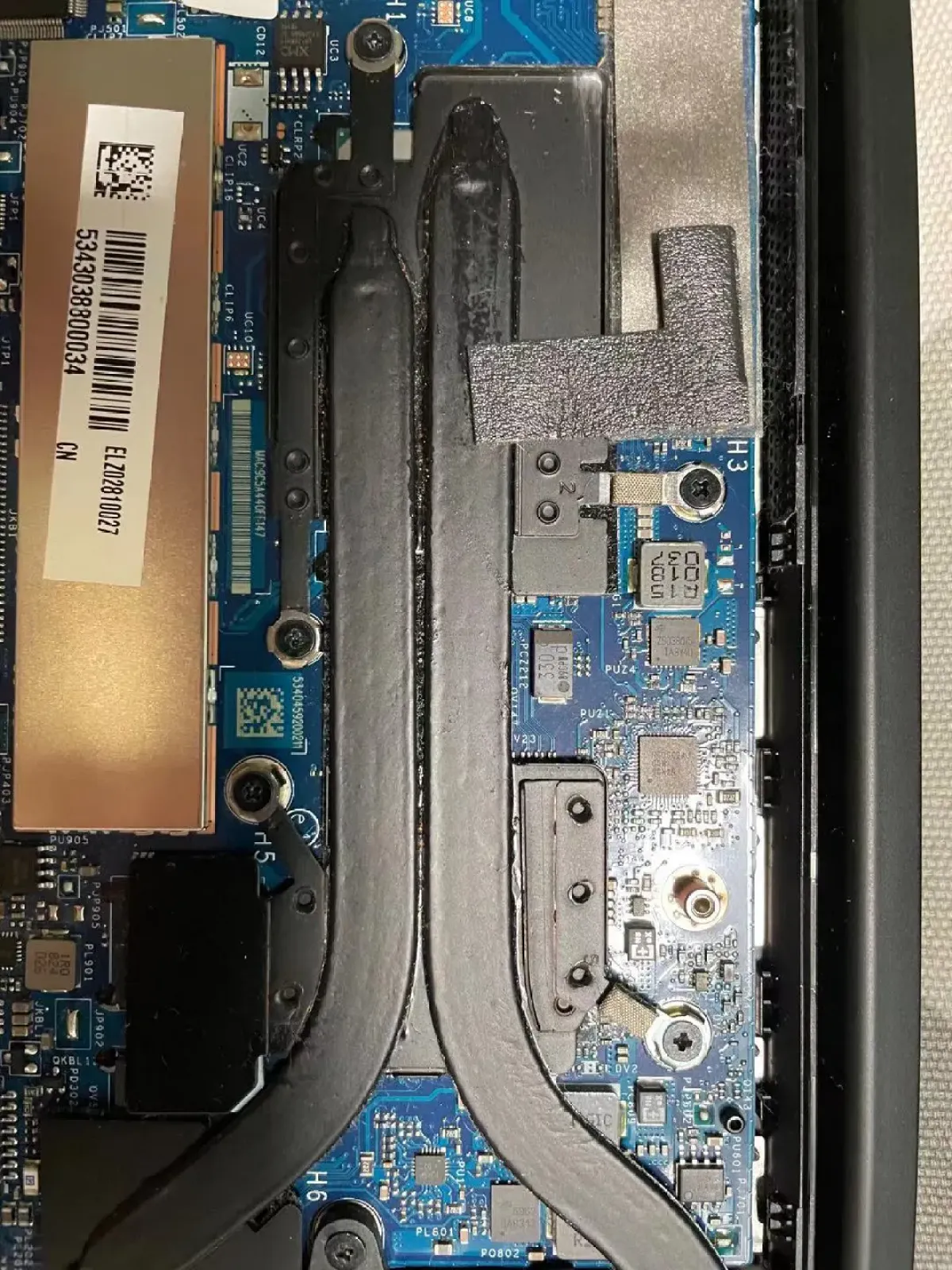
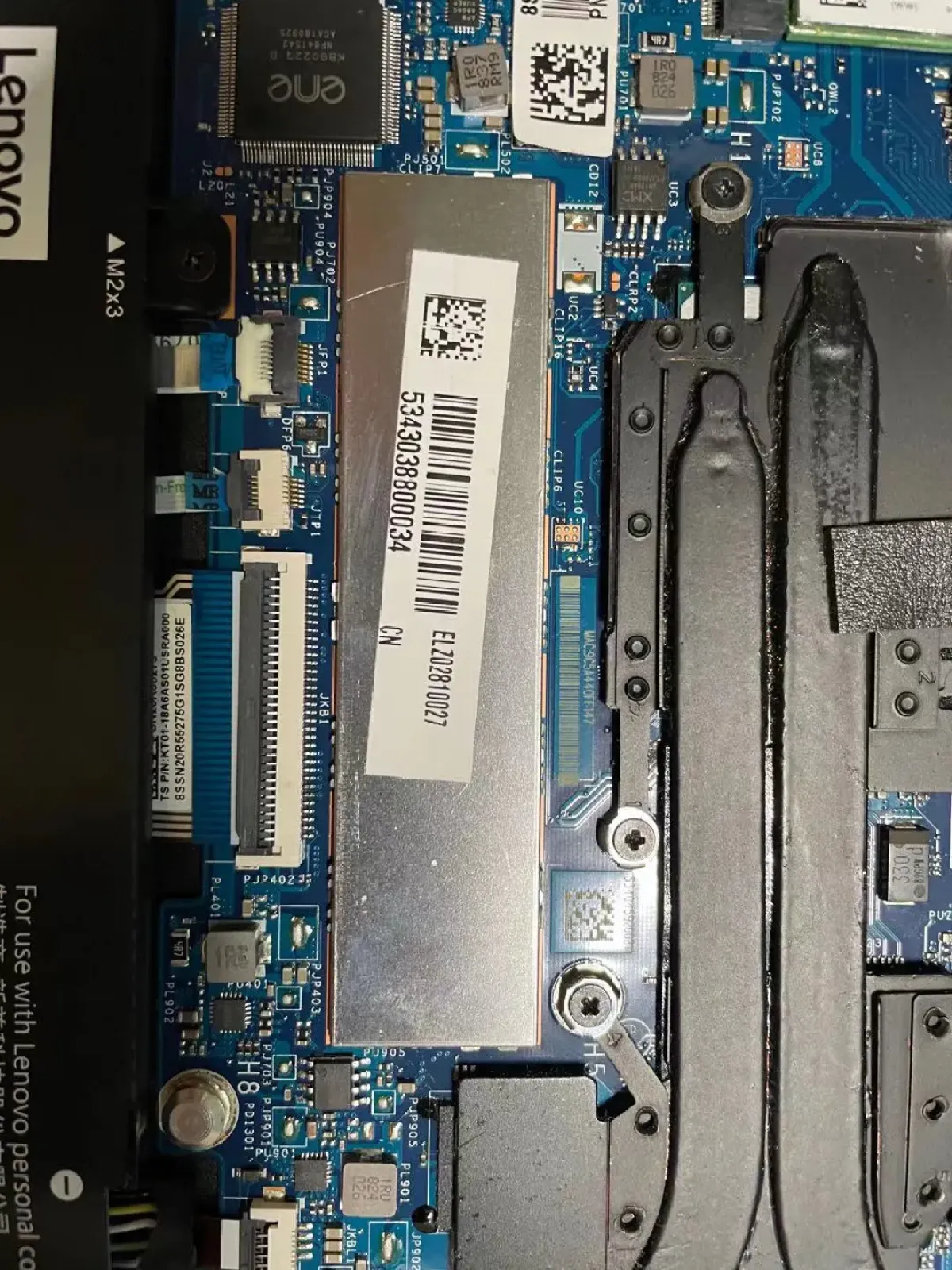
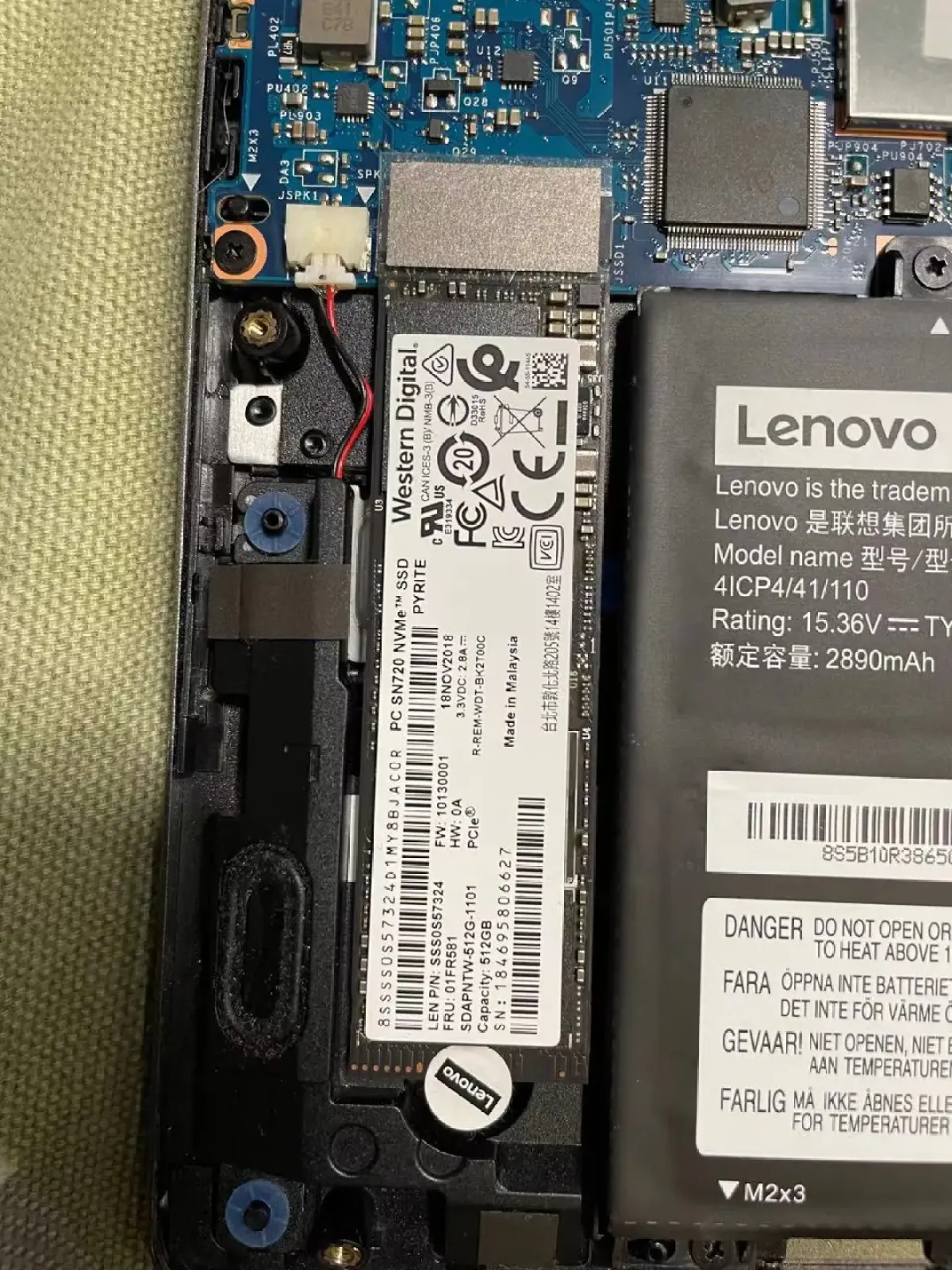
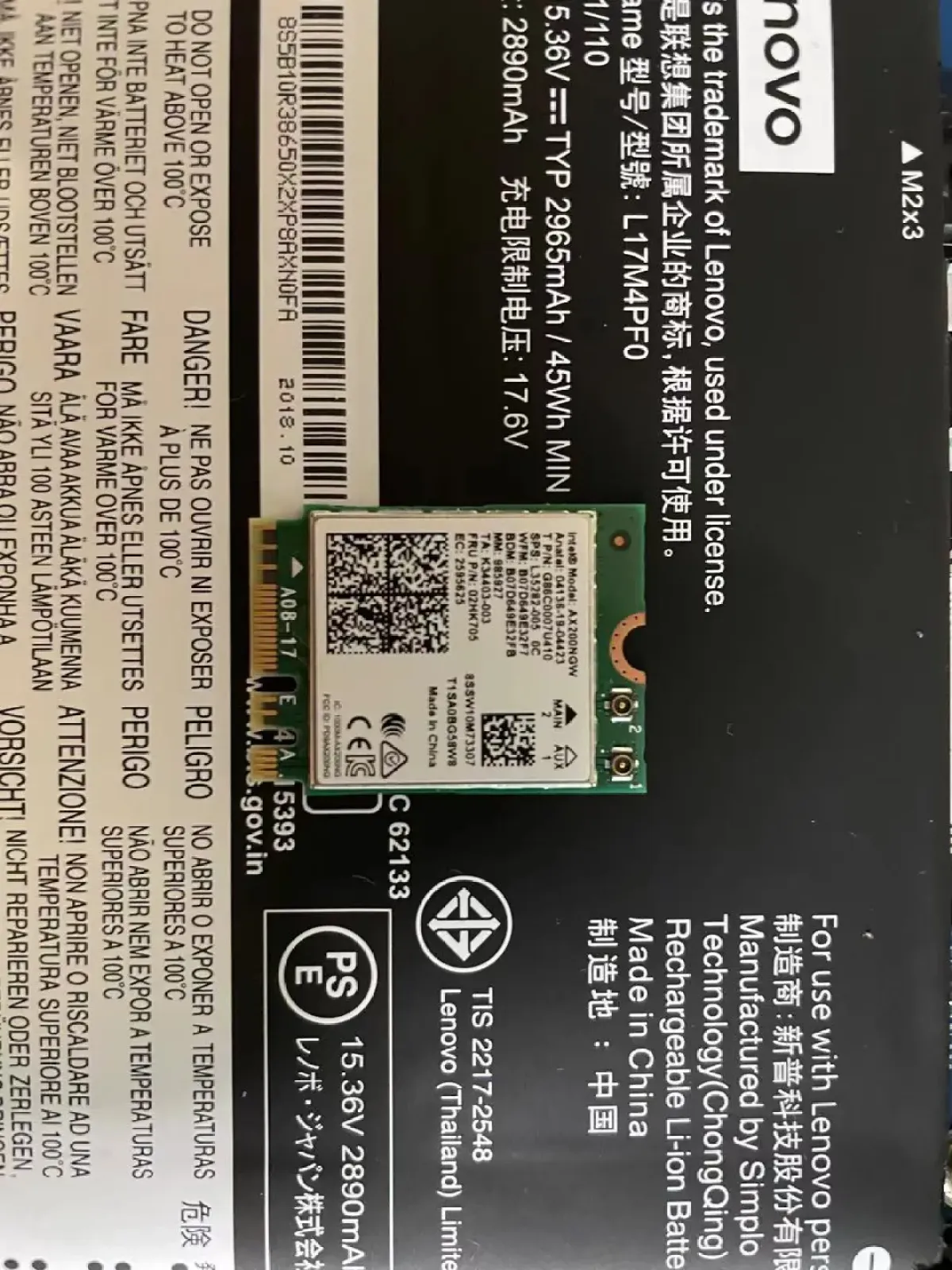
| Spec | Details |
|---|---|
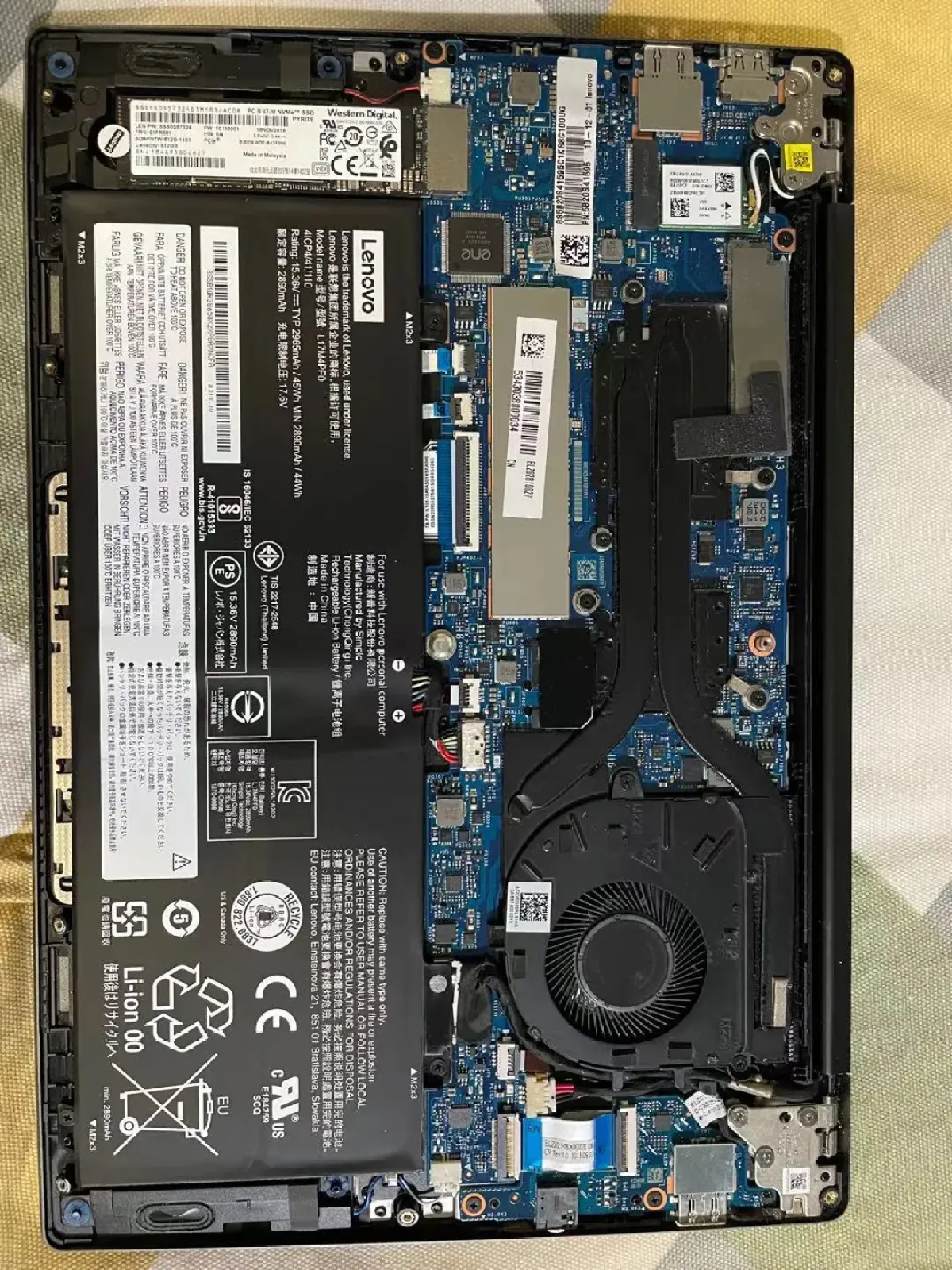
| Model | Lenovo Xiaoxin Lenovo Air 13 IWL laptop |
| OS | macOS Catalina 10.15 (I used Big Sur before, but there were too many system bugs so I rolled back) |
| CPU | Intel Core i7-8565U |
| RAM | 16GB 1867MHz |
| Storage | WD SN720 NVMe SSD 512G |
| GPU | Intel UHD Graphics 620 Whiskey Lake - U GT2 (dGPU disabled) |
| Display | 13.3” FHD 1920x1080 |
| Audio | Realtek ALC236 |
| Wi‑Fi | The stock one is a Qualcomm card of some unknown model I replaced it with an Intel AX200 that can be driven under Hackintosh. I didn’t go with a “native” card because my usage intensity isn’t that high, so this Intel card is already enough for my needs—no need to spend extra money. |
BIOS Setup
To get a better macOS experience, you need to tweak some BIOS parameters so the hardware plays nicer with macOS. I’ll go step by step below. Note that we need to enter the hidden BIOS settings, which include some more advanced options—so it’s not just pressing F2.
-
Press F2 at boot to enter BIOS
-
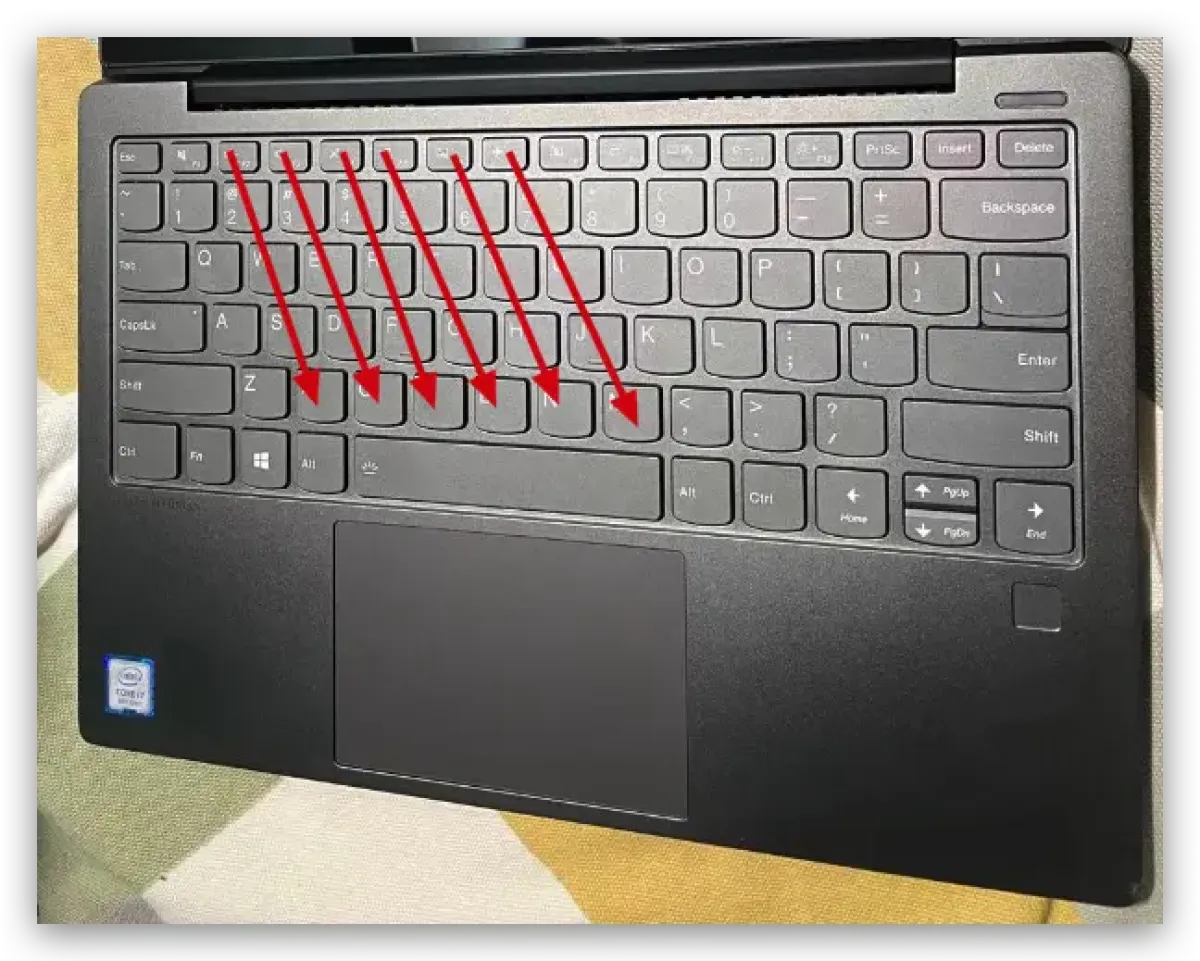
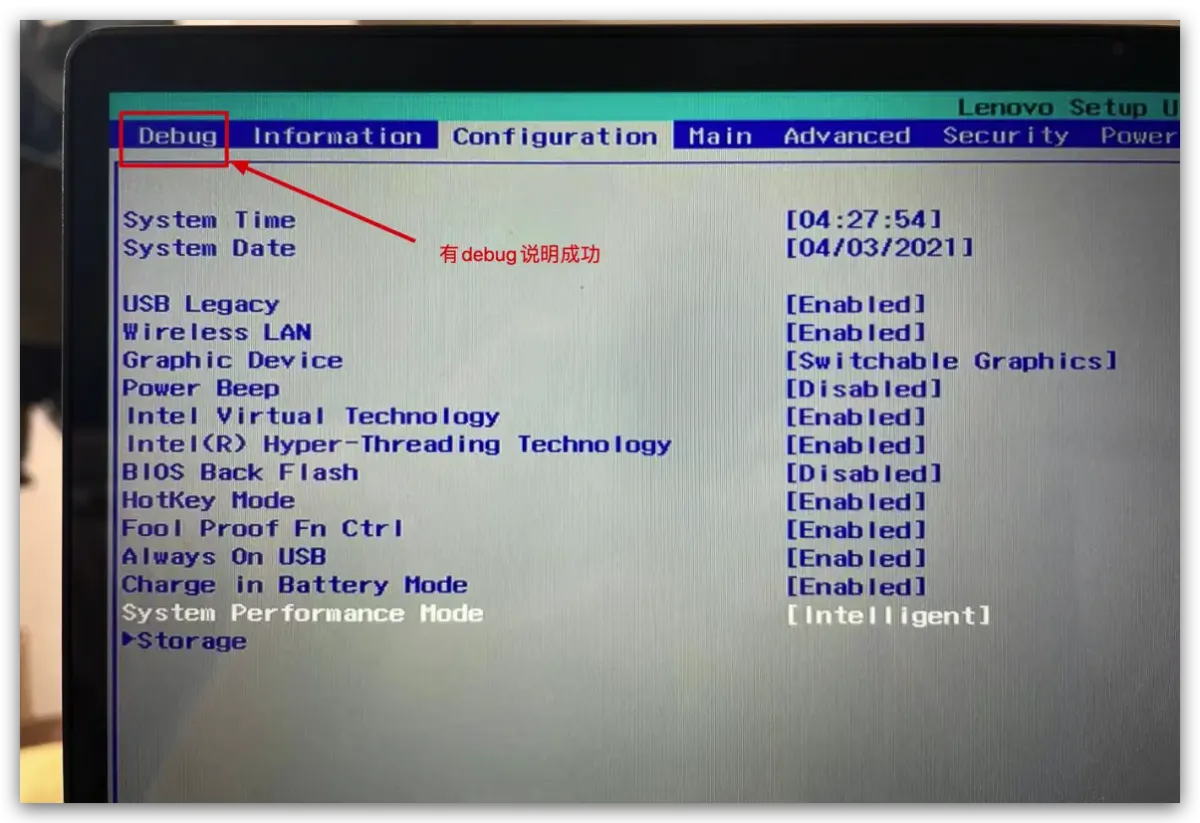
Then shut down. During shutdown, press the keys in the direction of the arrows below. You don’t need to press them one by one—you can slide across them—but you have to be fast. If it doesn’t work, go back to step 1 and try again.
- Start configuring
-
Configuration->System Performance Mode:
Intelligent// Fixes driver failure when battery is low -
Security->Intel SGX:
Software Control// Let software control the trusted execution environment for encryption -
Exit->OS Optimized Defaults:
Disabled// Disable default optimizations -
Advanced->Power & Performance->CPU - Power Management Control->CPU Lock Configuration->CFG Lock:
Disabled// Strongly recommended to disable for OC, so the OS can take over sleep control, power management, and CPU turbo control -
Advanced->System Agent (SA) Configuration->Graphics Configuration->DVMT Pre-Allocated:
64M// Dynamically allocated shared VRAM—give as much as possible; this affects whether macOS drops frames -
Boot->Fast Boot:
Disabled// Disable Windows fast startup
-
Creating the Installer and Installing
Creating the installer and installing are pretty similar, but I didn’t take photos during the installation. Hopefully you can refer to my previous tinkering post:
Click: Why e-waste often gets a second spring
Resources
- XiaoBing Blog - Lenovo Xiaoxin Air 13 Hackintosh + macOS Mojave Installation Tutorial
- My personal EFI
All articles in this blog, unless otherwise stated, are licensed under @Oreoft . Please indicate the source when reprinting!