
Preface
A few days ago, a good friend asked me for help. The issue was roughly: on his computer, QQ could access the internet just fine, but the browser couldn’t—specifically not IE, but Chrome. My first reaction was that it might be a DNS problem. Then he sent me a screenshot—man, it scared me—something like the one below.
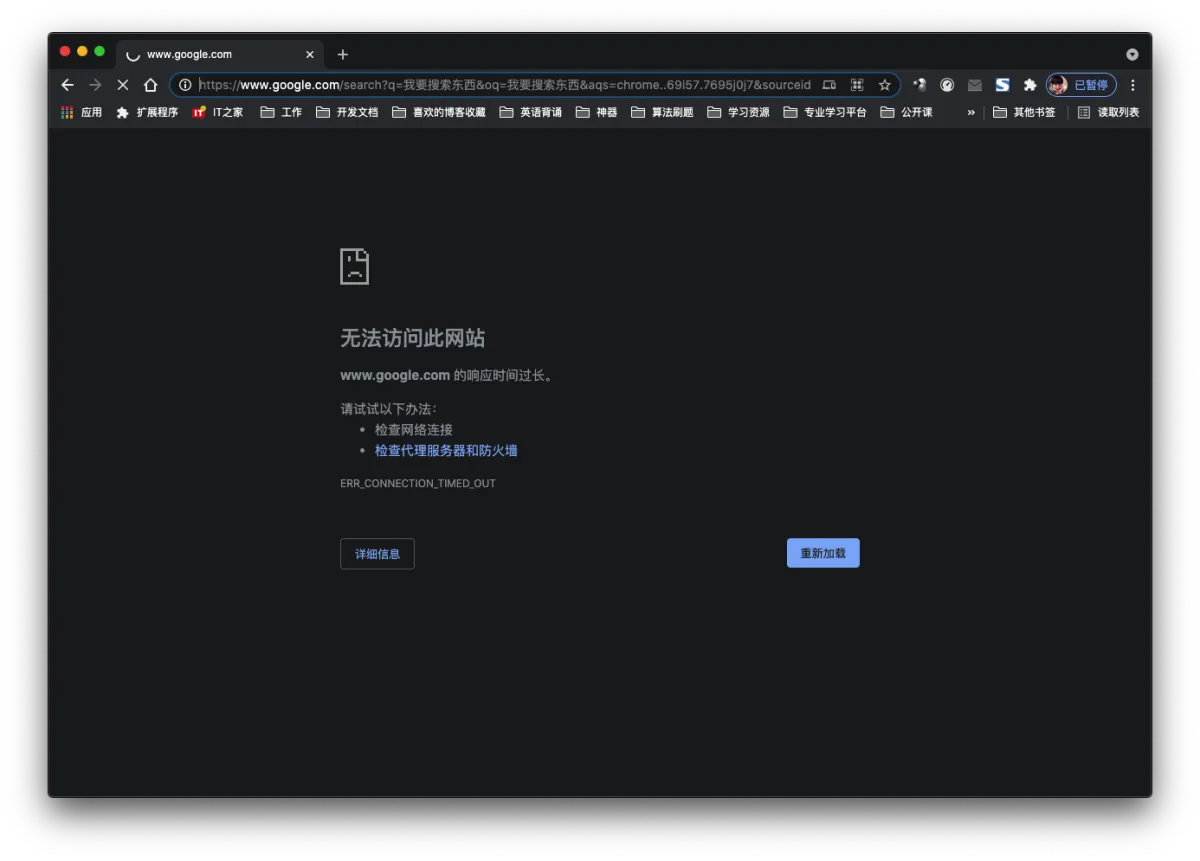
Of course my friend isn’t dumb—he’s a master’s student. He bought a new computer and installed Chrome because of its reputation, which honestly made me laugh and cry at the same time. And I’ve also seen plenty of coworkers or friends who don’t use Google Search at all—they type www.baidu.com into the address bar every single time, wait for the site to pop up, and then search from there. That approach is definitely not wrong; it just feels slow. But hey, it’s a habit—if they don’t want to break it, there’s no need to force it. Here I’m sharing a few Chrome search settings that I personally find super useful. If you think they’re handy, feel free to explore and set them up yourself.
Change the Default Search Engine
What is the default search engine?
Even though Chrome is Google’s own “favorite child,” because of antitrust regulations, Chrome still lets you change the browser’s default search engine. Here, “default search engine” means: when you search directly from the address bar without first going to a specific website, and also the quick search option that pops up when you right-click selected text on a webpage.
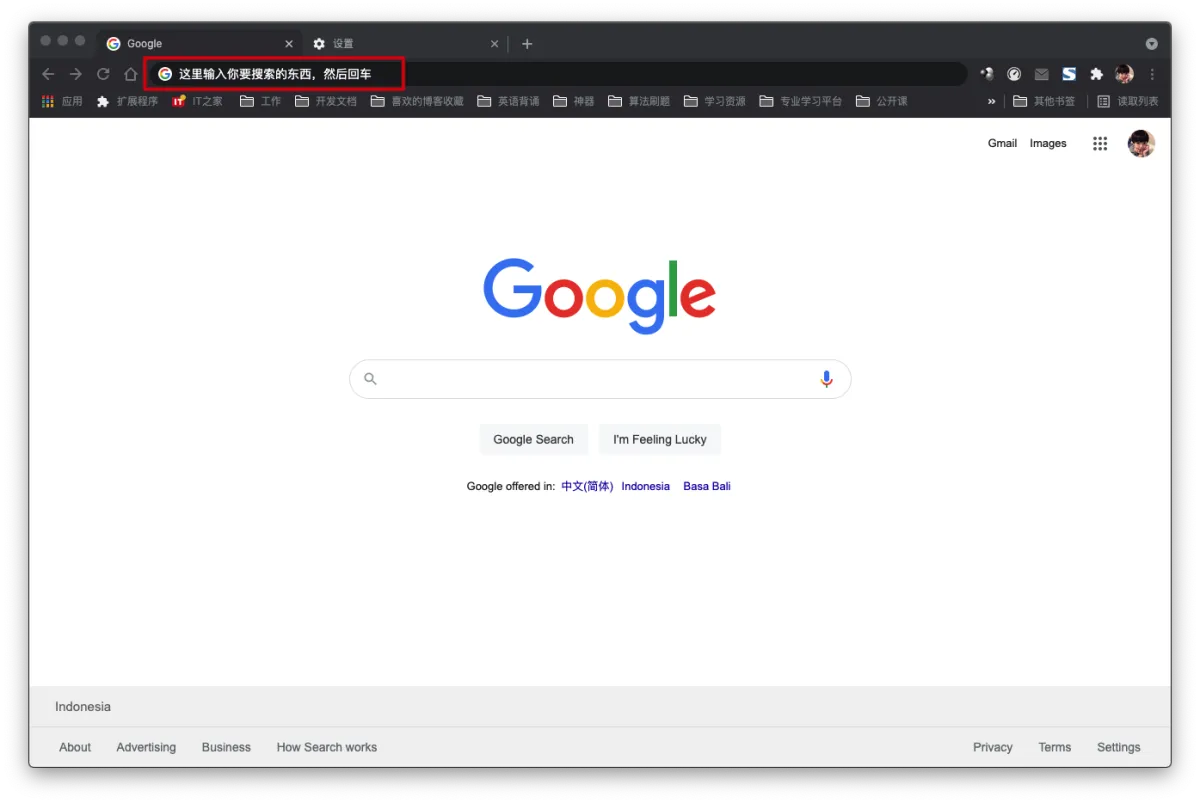
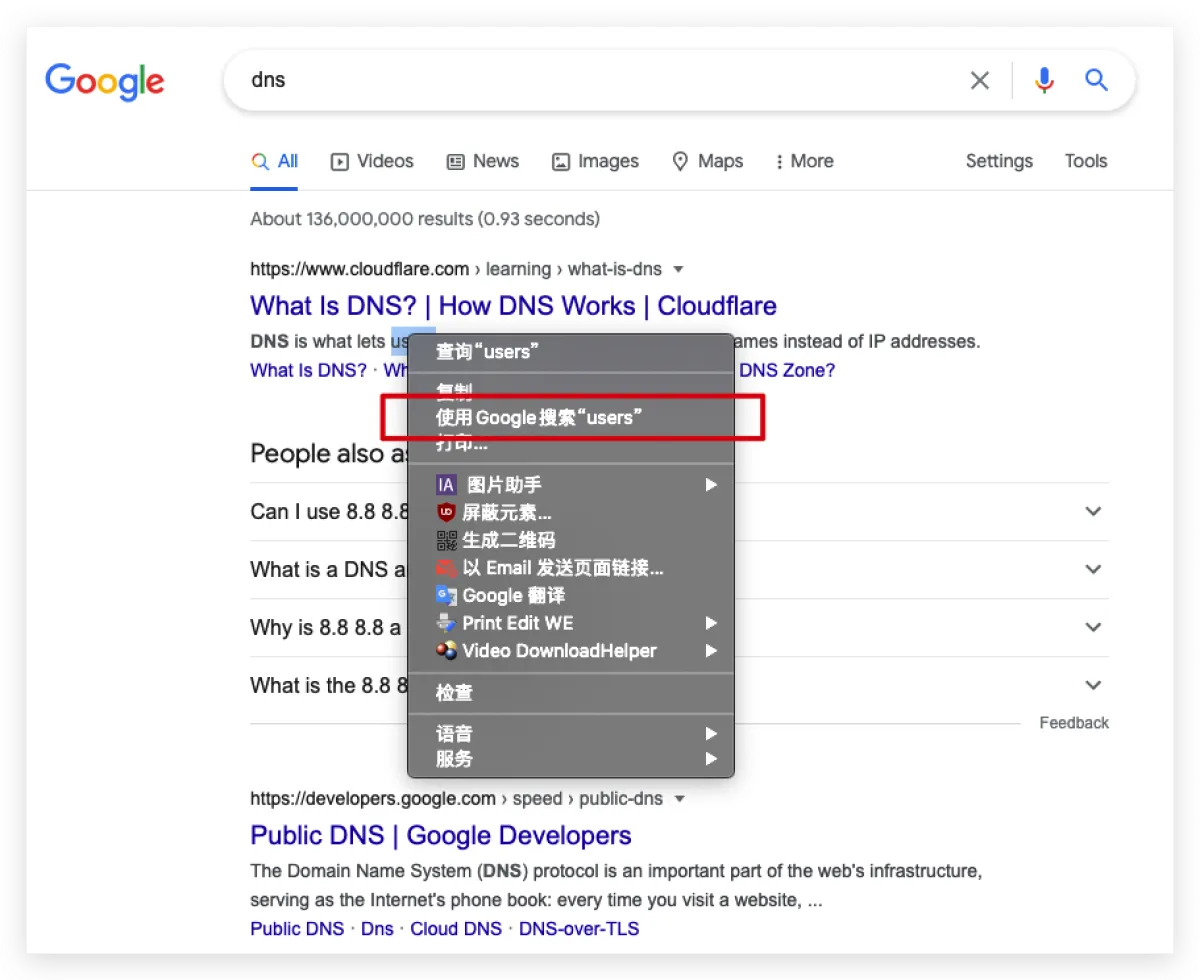
How to change the default search engine
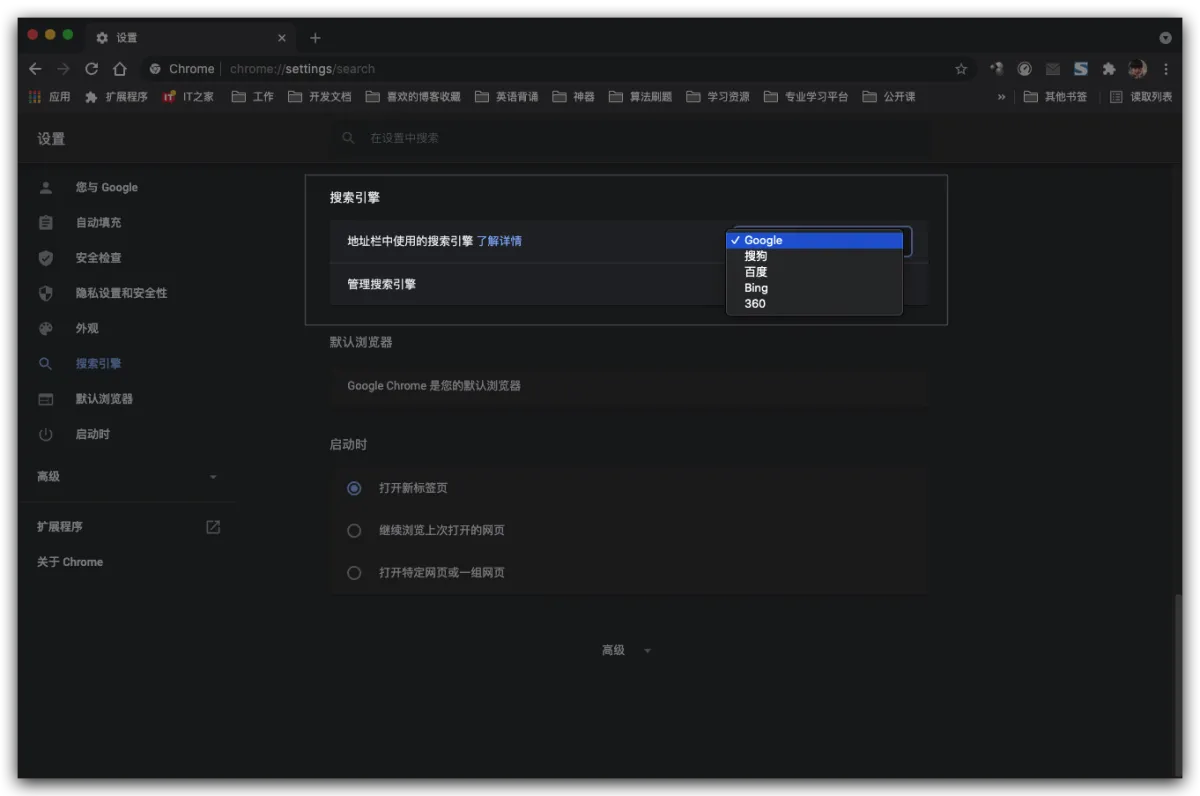
Open Chrome, click the three dots in the top-right corner, choose Settings, then go to Search engine settings.
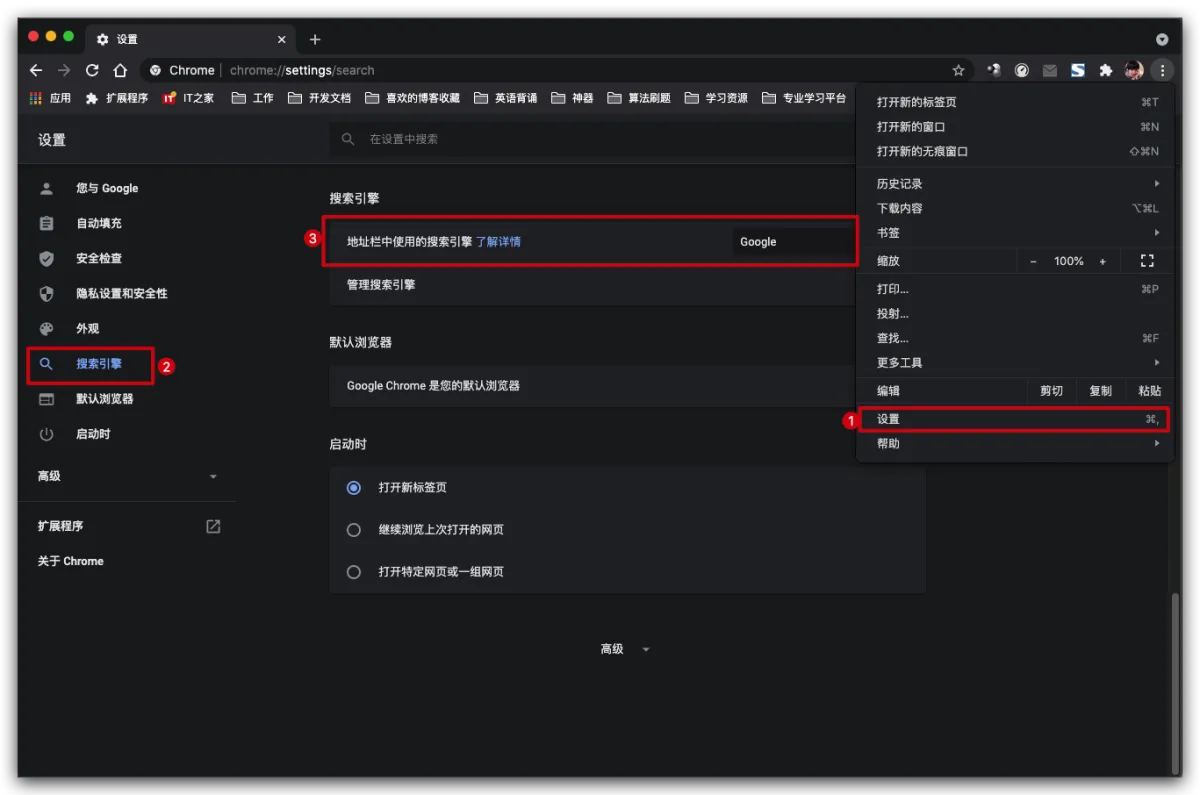
Here you can choose the default search engine.
“Bench” Search Engines
What is a “bench” search engine?
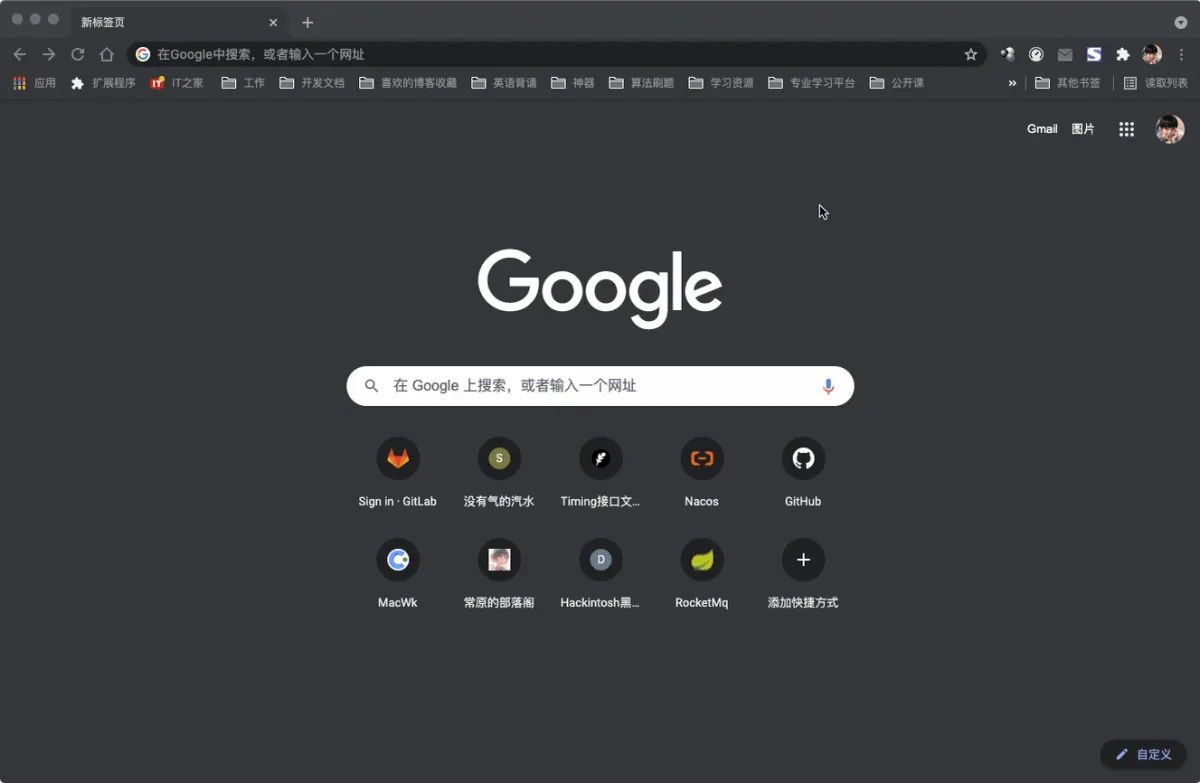
I made up the name “bench search engine” because I don’t know what this feature is officially called. Let me explain what I mean: it’s not your default search engine, but when you need it, you can switch to it instantly. One GIF is worth a thousand words.
How it works
So how does this work? All search queries on search sites are GET requests. The request URL is fixed; the only thing that changes is the keyword you search for.
For example, searching Baidu for 1024 uses this URL: https://www.baidu.com/s?wd=123
Another example: searching Baidu for 996 uses this URL: https://www.baidu.com/s?wd=996
So for Baidu search, you just need to replace the value after wd= to search quickly. Chrome provides a really convenient way to switch these “bench” searches.
Here are some wildcard query URLs for sites I use a lot:
// 百度
https://www.baidu.com/s?wd=%s
// 京东
https://search.jd.com/Search?keyword=%s&enc=utf-8&wq=%s
// 淘宝
https://s.taobao.com/search?q=%s
// 网易云
https://music.163.com/#/search/m/?s=%s
// 微博
http://s.weibo.com/weibo/%s?frm=opensearch
// 值得买
https://search.smzdm.com/?c=home&s=%s
// 知乎
http://www.zhihu.com/search?q=%s
// B站
http://www.bilibili.com/search?keyword=%s
// maven中央仓库
http://mvnrepository.com/search?q=%s&ref=opensearch
// P站(当然我自己是不用的,特意给你做的)
https://www.pornhub.com/video/search?search=%s
Setup
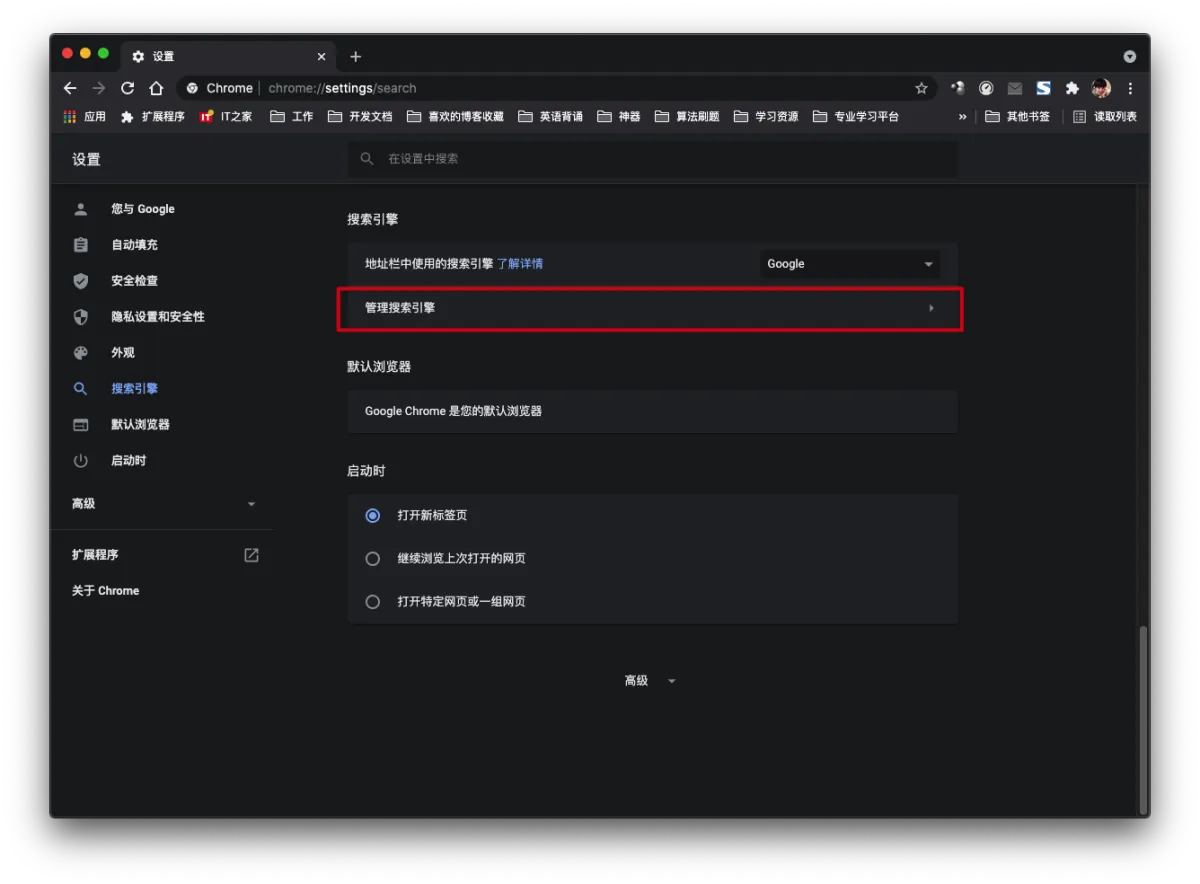
- Open and click here directly, or click the red box in the screenshot below.
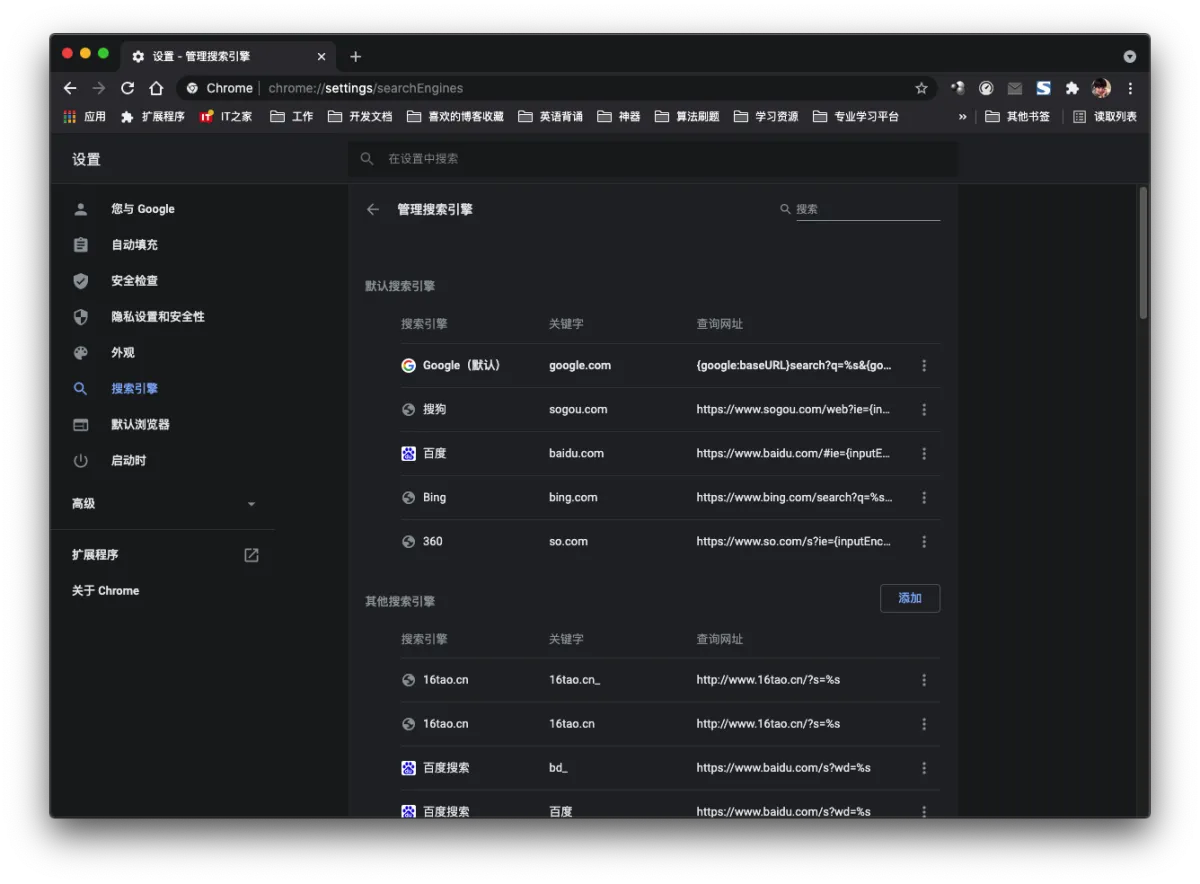
- In the screenshot you can see the search engines that are already set up. Click Add to add your custom ones.
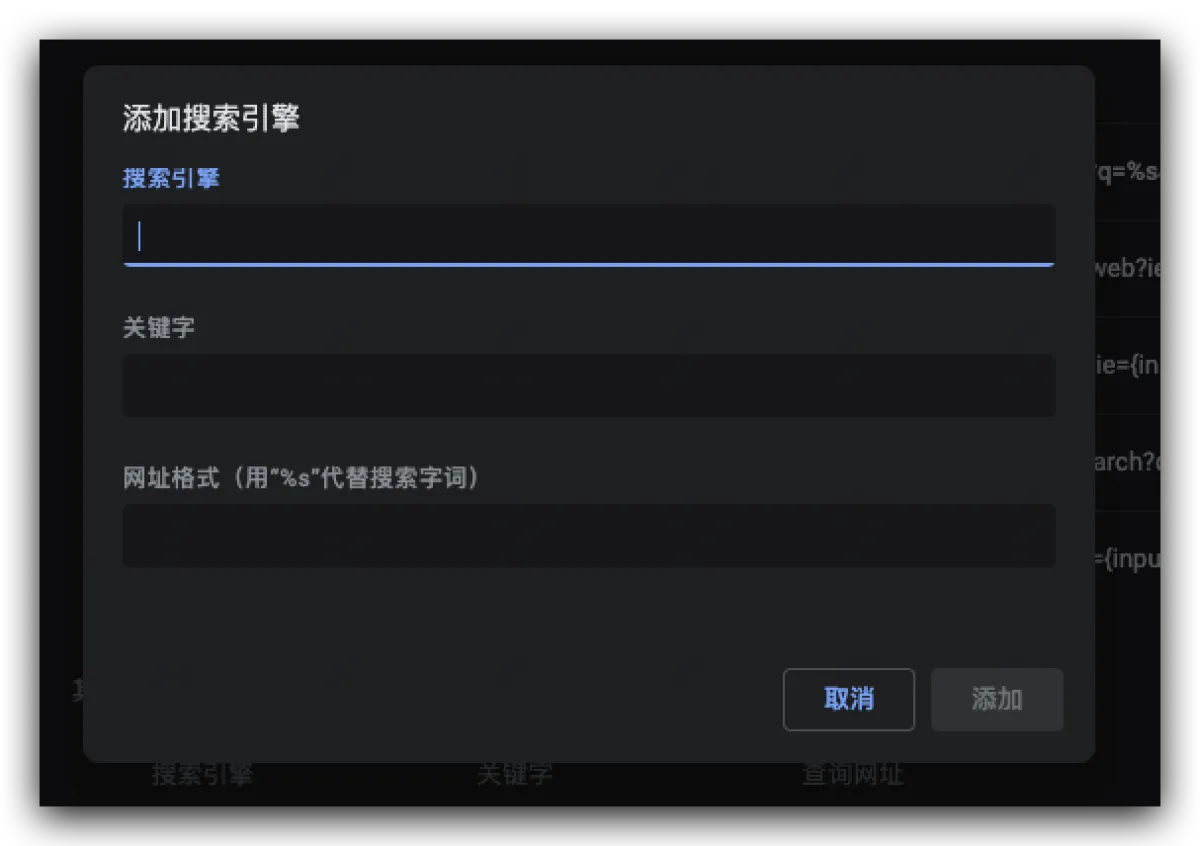
- There are a few input boxes here. I’ll explain each one—this is important because it determines how you search.
The first input box: it’s just a name. You can type anything, as long as you remember it.The second input box: this is the keyword that activates the “bench” search engine in the address bar. After typing your keyword, press Space to enter that “bench” search engine. Chinese is supported, lowercase letters are supported, but uppercase letters are not.The third one is the URL format. I listed my commonly used ones above. If you have your own site, just search for something on that site and replace your keyword with %s.
- After you click Add, you can use it. This is very flexible: for the same site you can add multiple entries. For example, for Baidu I usually set
bd,baidu, and百度—any of them can activate it. PressEscto return to the default search engine.
Afterword
It’s actually pretty simple, but it’s a super practical feature. Once you get used to it, there’s basically no going back. I’m not against Baidu—I use a lot of search engines. I think Baidu does some localized stuff better, and the accuracy can be higher in some cases, because a lot of results are from its own ecosystem. That’s not me praising it—just reality. I use other search engines too. Anyway, my goal is just one thing: solve my problem.
All articles in this blog, unless otherwise stated, are licensed under @Oreoft . Please indicate the source when reprinting!