
Preface
In this post I said you could use ssh-add to stash the private key delivered by OSS into a high-speed cache and then never have to type it again. After a coworker reminded me (and after my own “facepalm” test)… it stops working after a reboot… you have to do it again.
My coworker said they keep the private key passphrase in their notes, and after every reboot they run ssh-add, then copy the passphrase in to verify it. I literally teared up after hearing that— is that really how programmers solve problems? There has to be a way to make it one-and-done, so here’s this little research post.
Research begins
Looking at the manual, you’ll find that ssh-add is basically putting the private key into a cache.
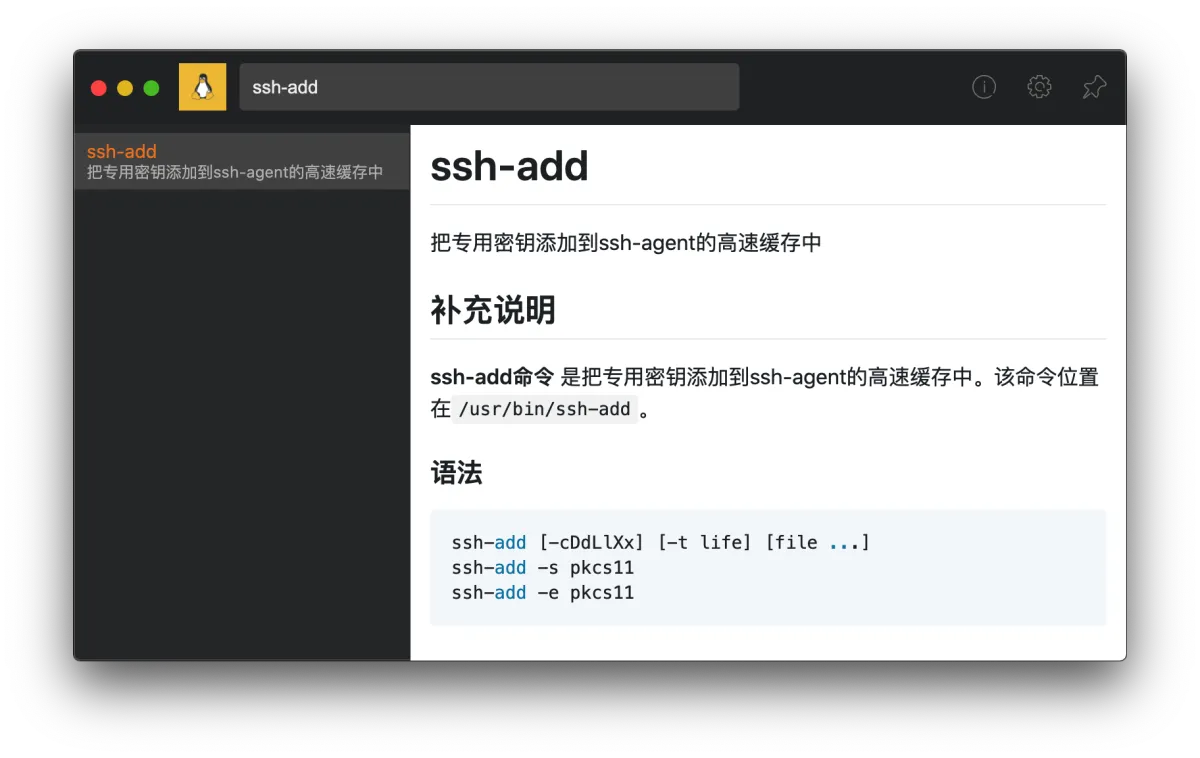
Every time SSH does authentication, as long as you specify that private key it can verify quickly. Since it becomes invalid after reboot, it’s pretty much confirmed that this “cache” is stored in memory.
There are two directions here. The first: since the private key is already local, is there a way to avoid adding it to the cache at all? The second: since it dies on power-off, can we auto-load it at boot? Following these two lines of thought, I ended up with two solutions.
Note: my private key is passphrase-protected, so my steps include a preparation step. If your private key has no passphrase, congrats—you can skip the preparation.
Preparation
My initial idea was to run ssh-add at startup, but it requires entering the passphrase, which is super annoying. I tried a bunch of ways and couldn’t find a way to automatically feed the passphrase into ssh-add—unlike the common sudo xxx pattern. sudo also needs a password, but if you don’t mind having it in plaintext, you can combine it into a single line and run it automatically.
But in the ssh-add manual I saw that ssh-add has an option that can save the passphrase into the keychain, and after that you only need ssh-add.
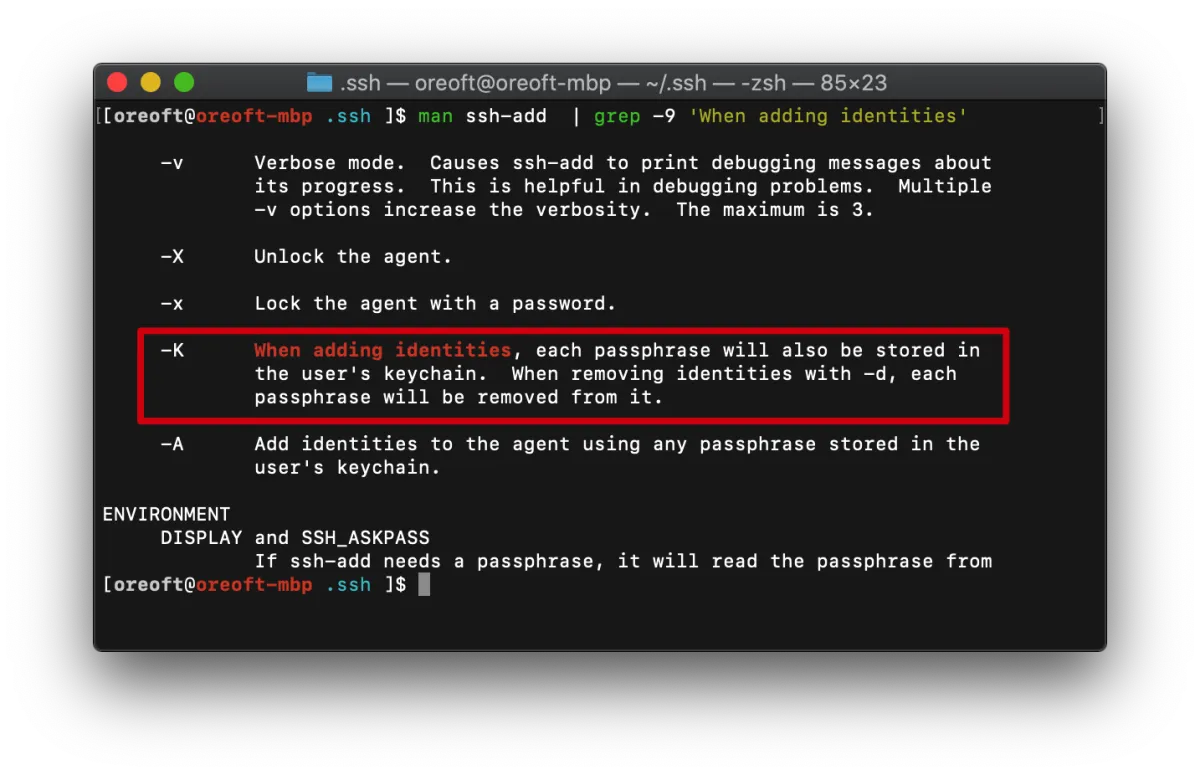
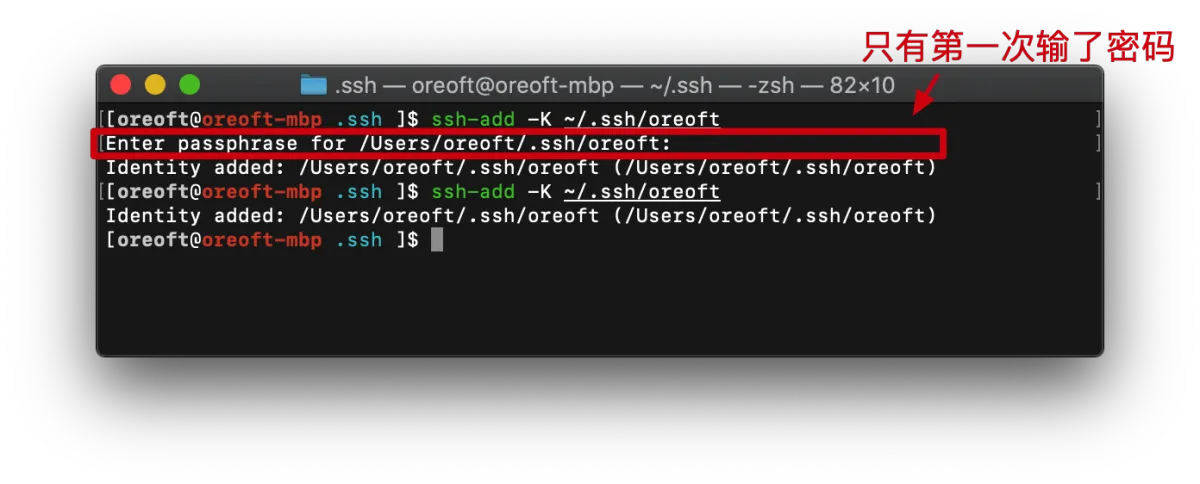
So first, run it once:
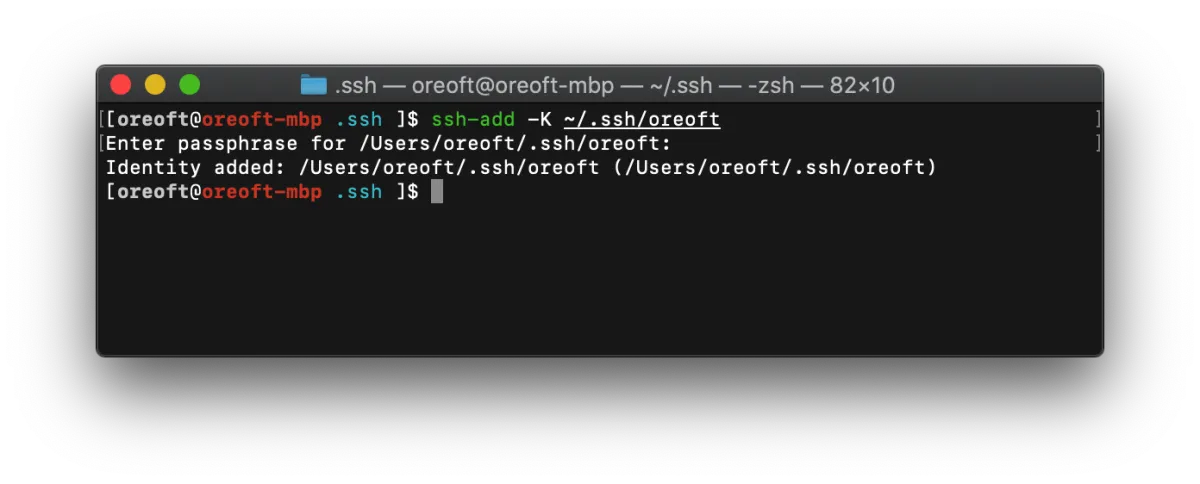
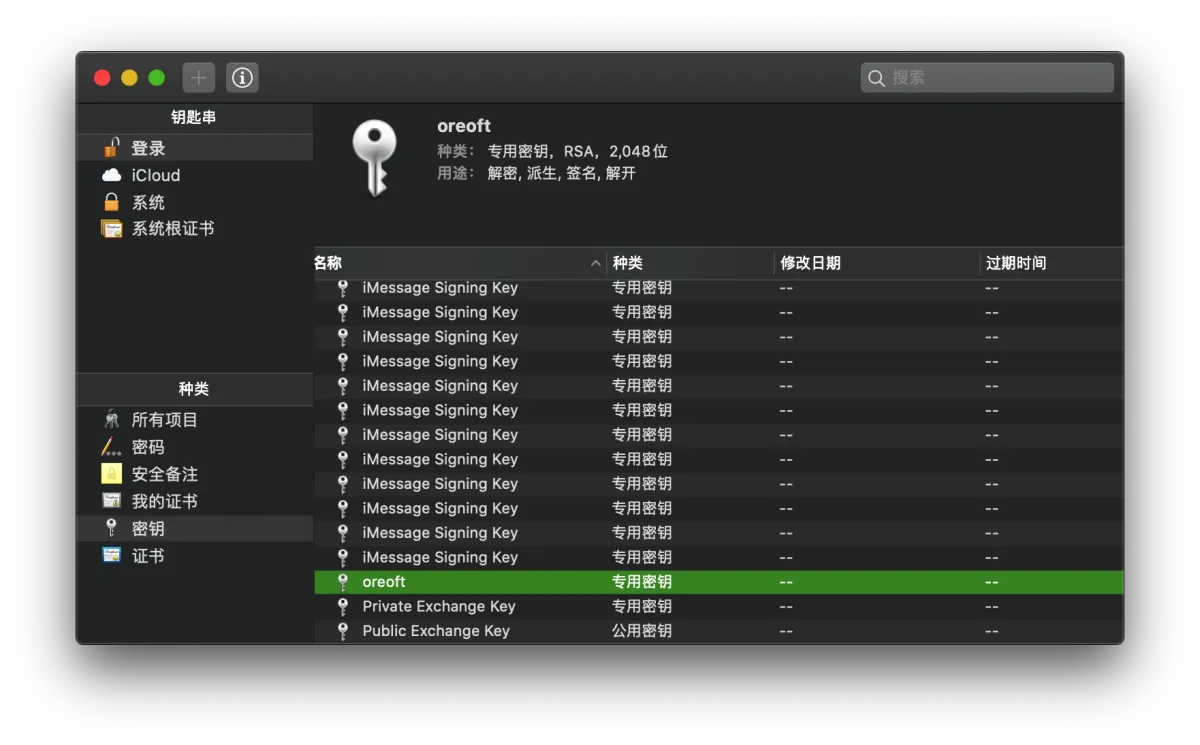
Then the second time you use ssh-add -K xxx, it won’t ask you for the passphrase anymore. (Note: when using it, you must include -K. Otherwise it won’t pull the passphrase from the Keychain by default, and it will still prompt you.)
Method 1 (using a startup file)
Remember startup files? Click here to refresh your memory. Every time you open a terminal, zsh loads and executes the startup file. That means we just need to add ssh-add -K xx into the startup file—no need to run it manually, it’ll run every time, reboot-proof.
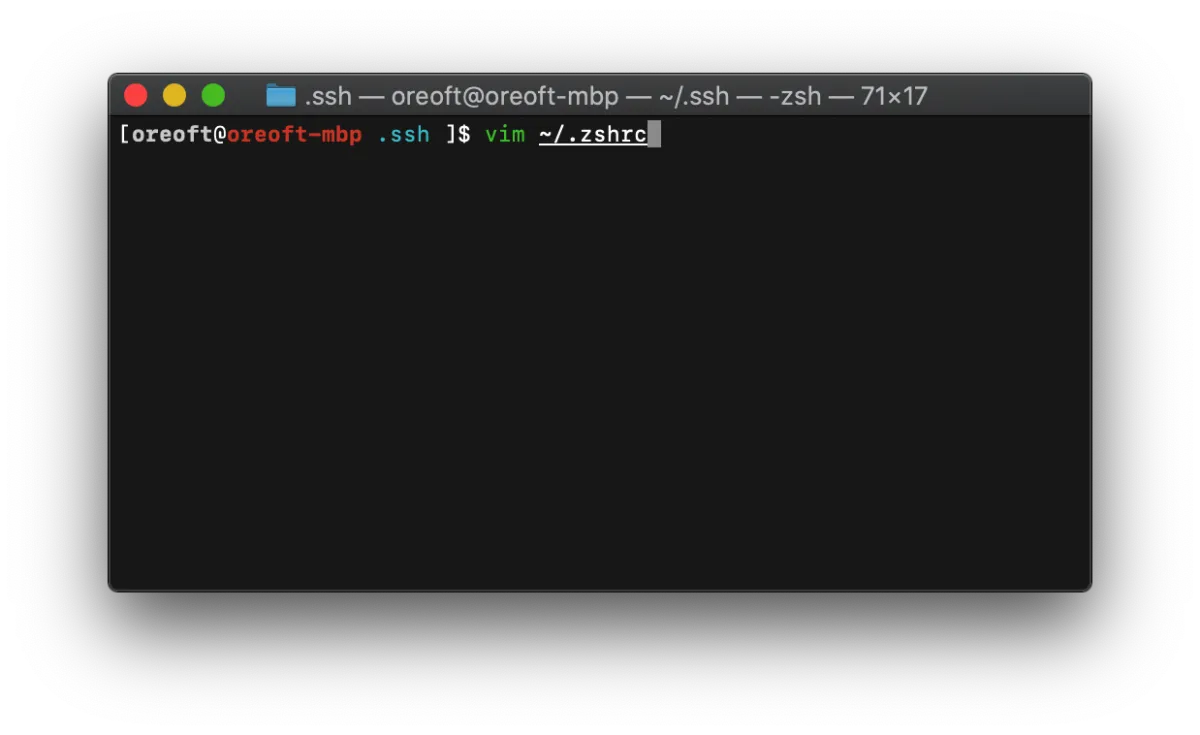
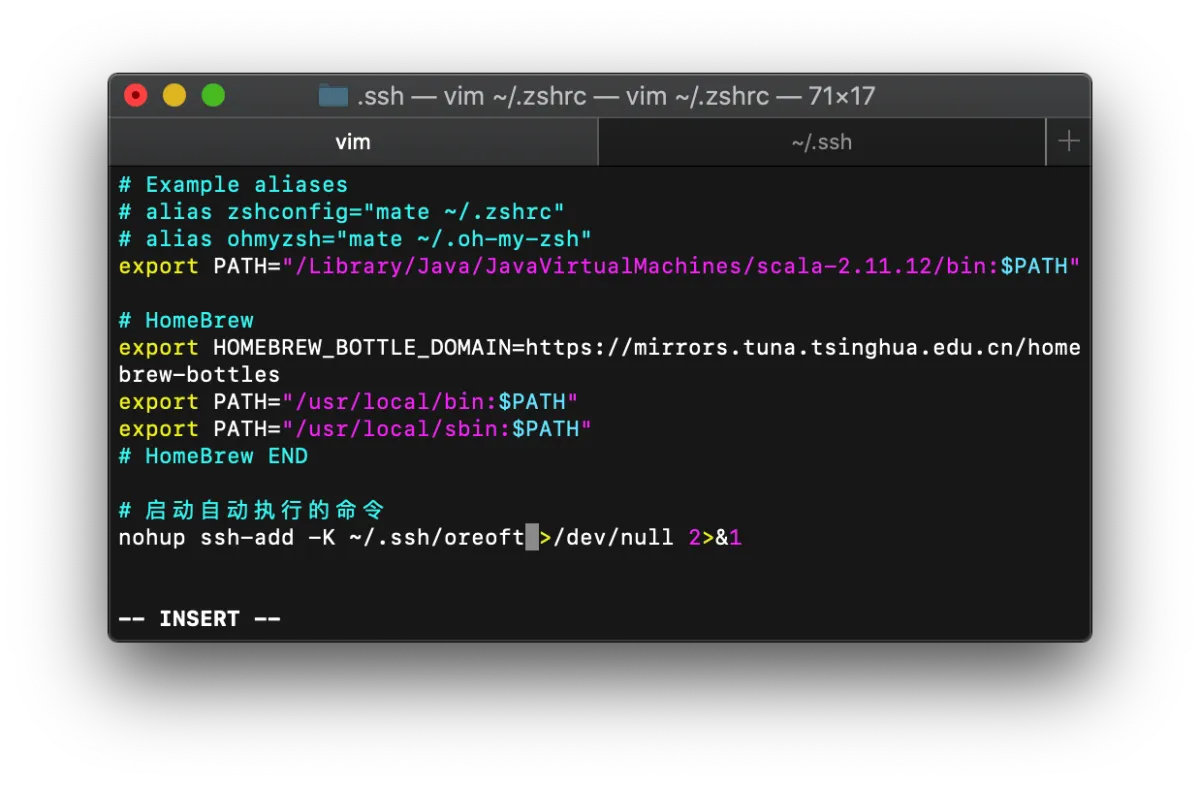
Here I’m using .zshrc. In the terminal, run vim ~/.zshrc, then add ssh-add -K ~/.ssh/oreoft (use your own private key path).
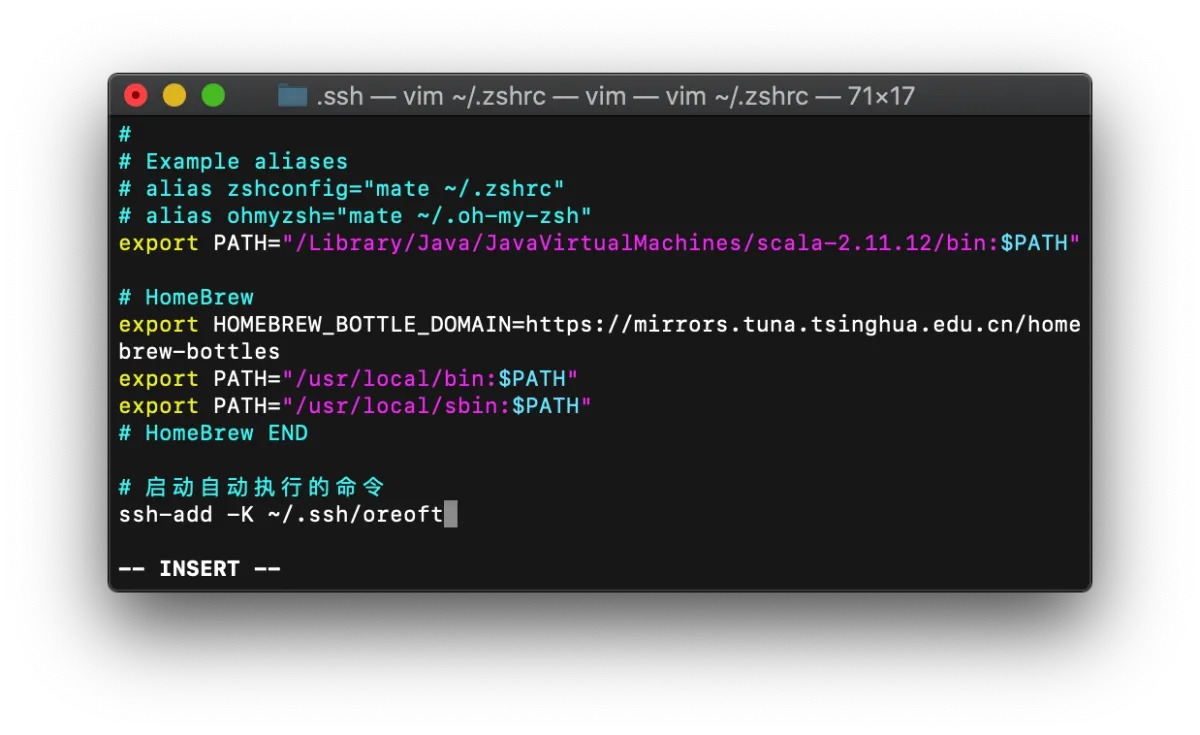
Remember to :wq to save, then open a new window to test:
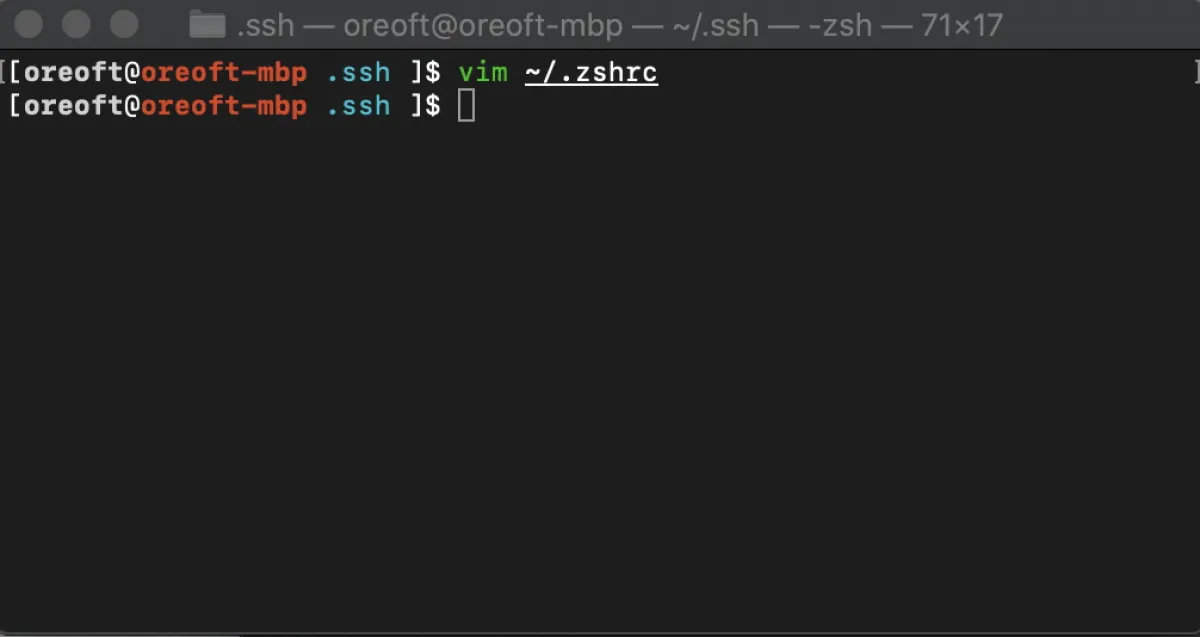
You can see that when I open a window, the “added successfully” message pops up. Every time I open a window it auto-adds—let alone after a reboot. Of course, with my mild OCD, I want it to be silent and not tell me “added successfully” every time. So I changed it to nohup ssh-add -K ~/.ssh/oreoft >/dev/null 2>&1. Basically add nohup and >/dev/null 2>&1 around it. This sends the output logs into the “black hole”.
Method 2 (run automatically at boot)
The method above is simpler and more “Linux style”. The next one is more “Mac style”. Because the key only becomes invalid after a reboot, reloading it every time you open a terminal is redundant. And as you can see, opening a new terminal becomes slightly slower—sacrificing a bit of performance just because a reboot causes a one-time loss, and then every terminal open has to add again. That’s not a great design.
The minimal performance cost should be: run it once at boot. On CentOS you can use /etc/rc.d/rc.local. On macOS there’s no equivalent file, but it has a GUI tool for this: Automator.
- Press cmd+space and type Automator
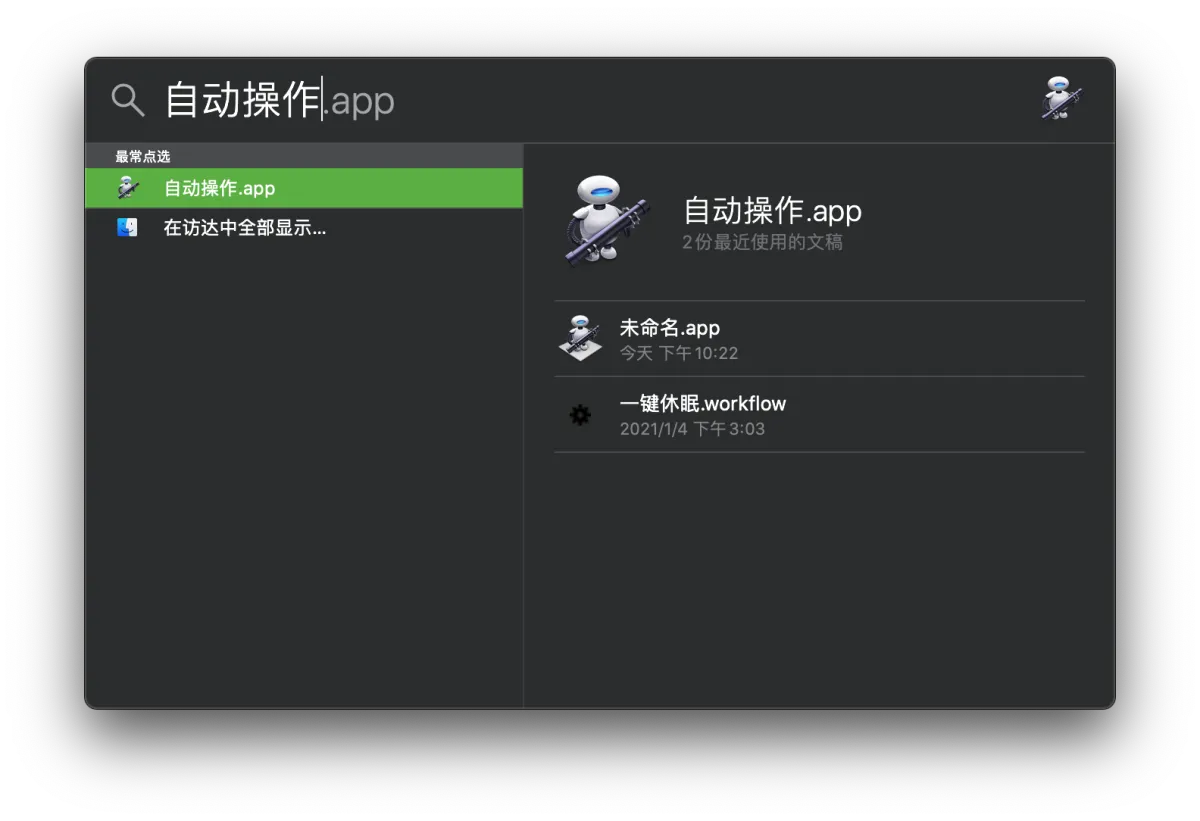
- In the popup, choose New Document
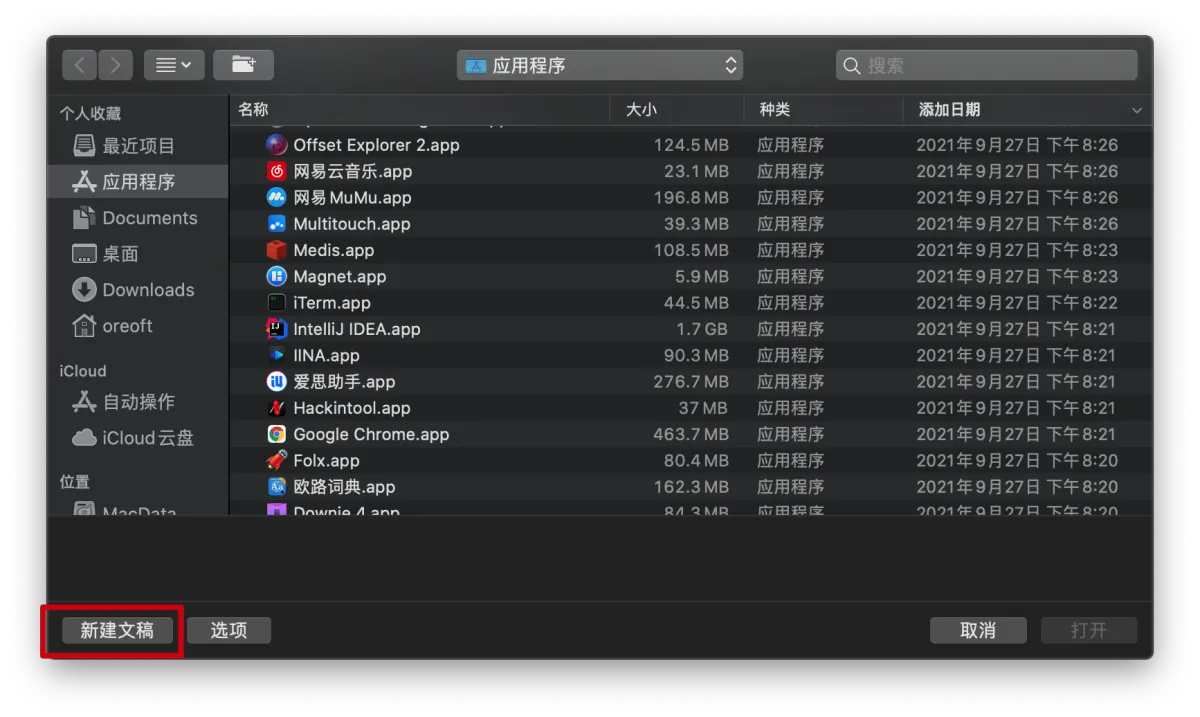
- In the next popup, choose Application

- Then search for “shell” and select it
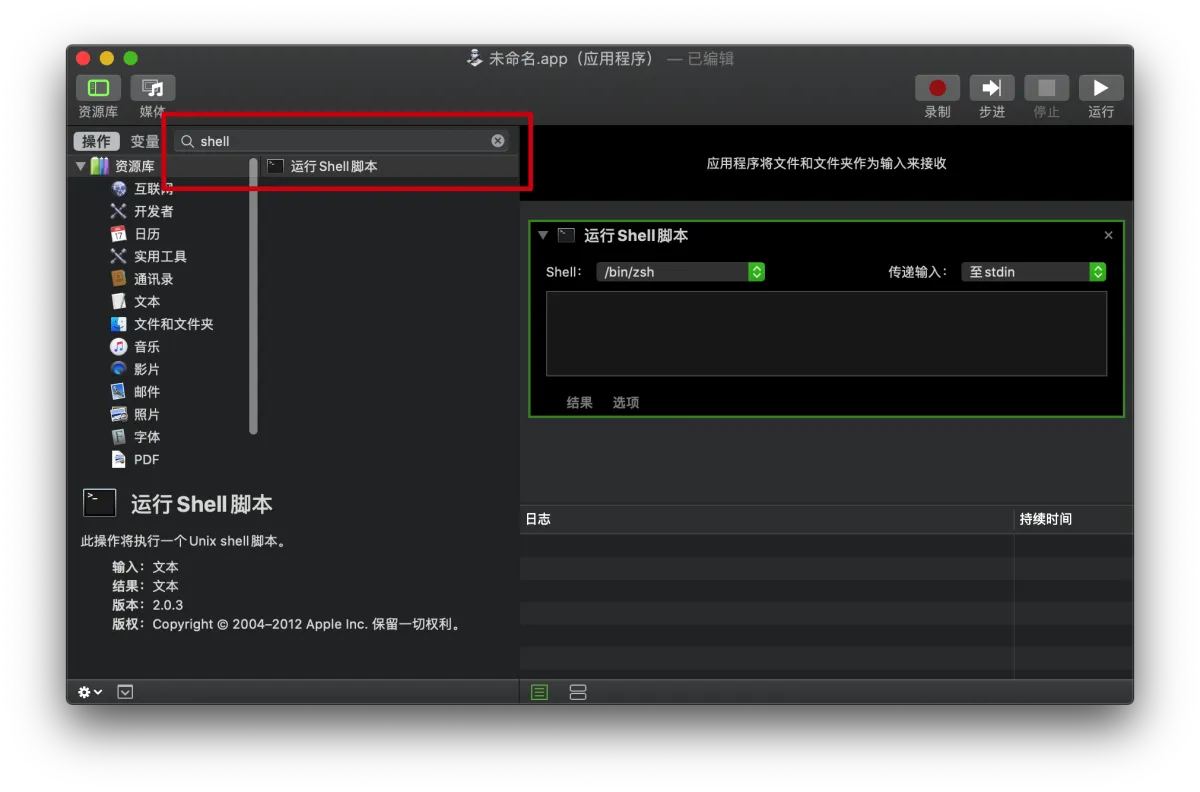
- Enter
ssh-add -K ~/.ssh/oreoft(use your own path, and you need-K), then click the triangle in the top-right to run it once and see if it works. (If it prompts for a passphrase, check whether your command includes-K, or whether you’ve already saved the passphrase into Keychain.)
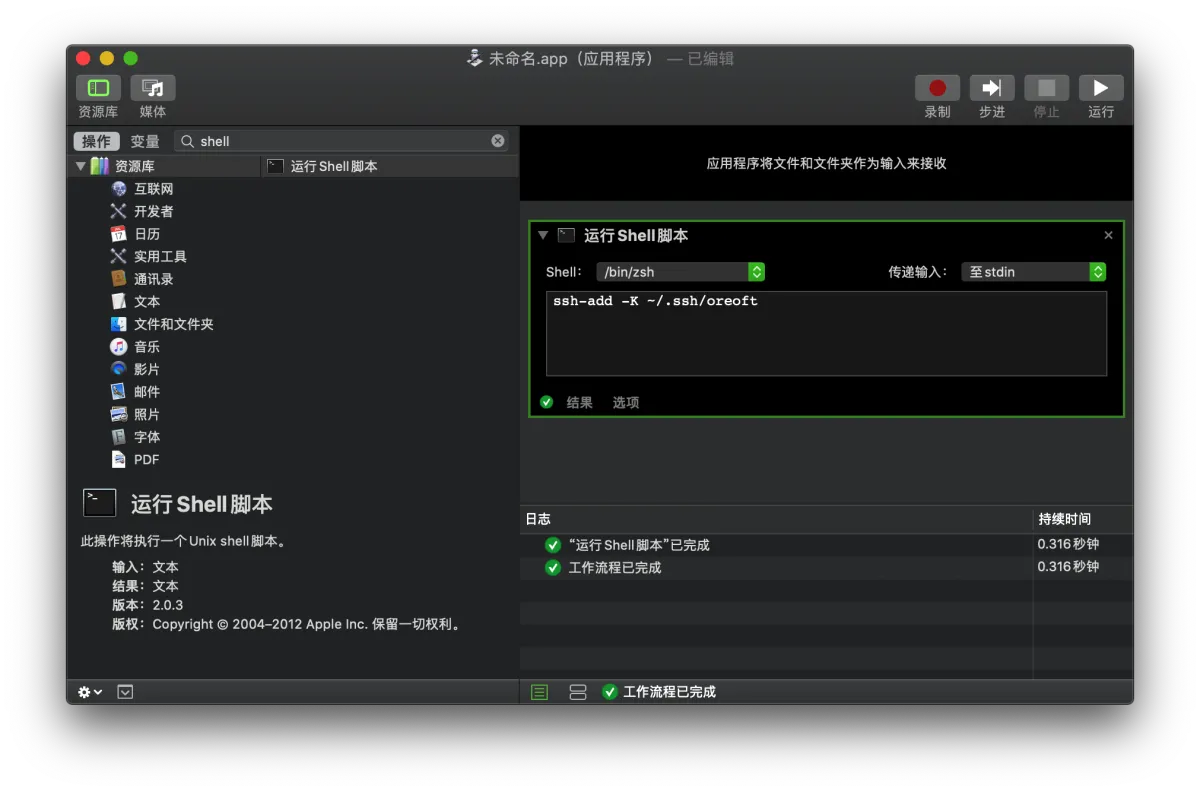
- Then cmd+s to save, and pick a location to save it
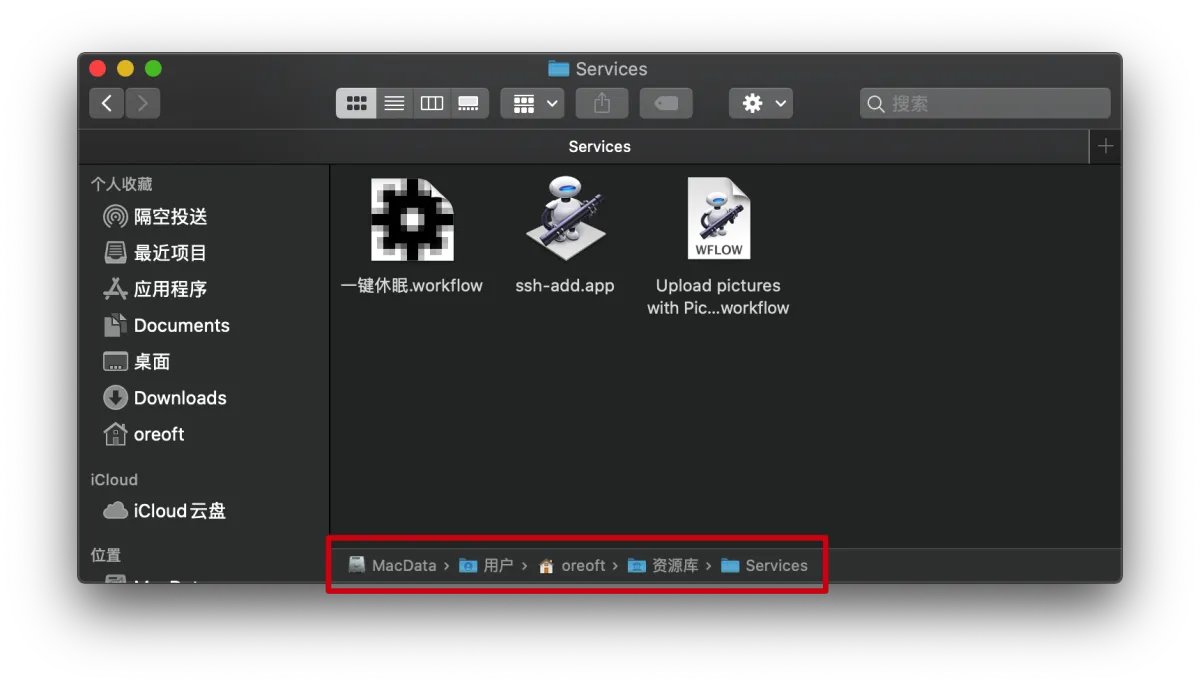
- Apple menu (top-left) - System Preferences - Users & Groups - Login Items
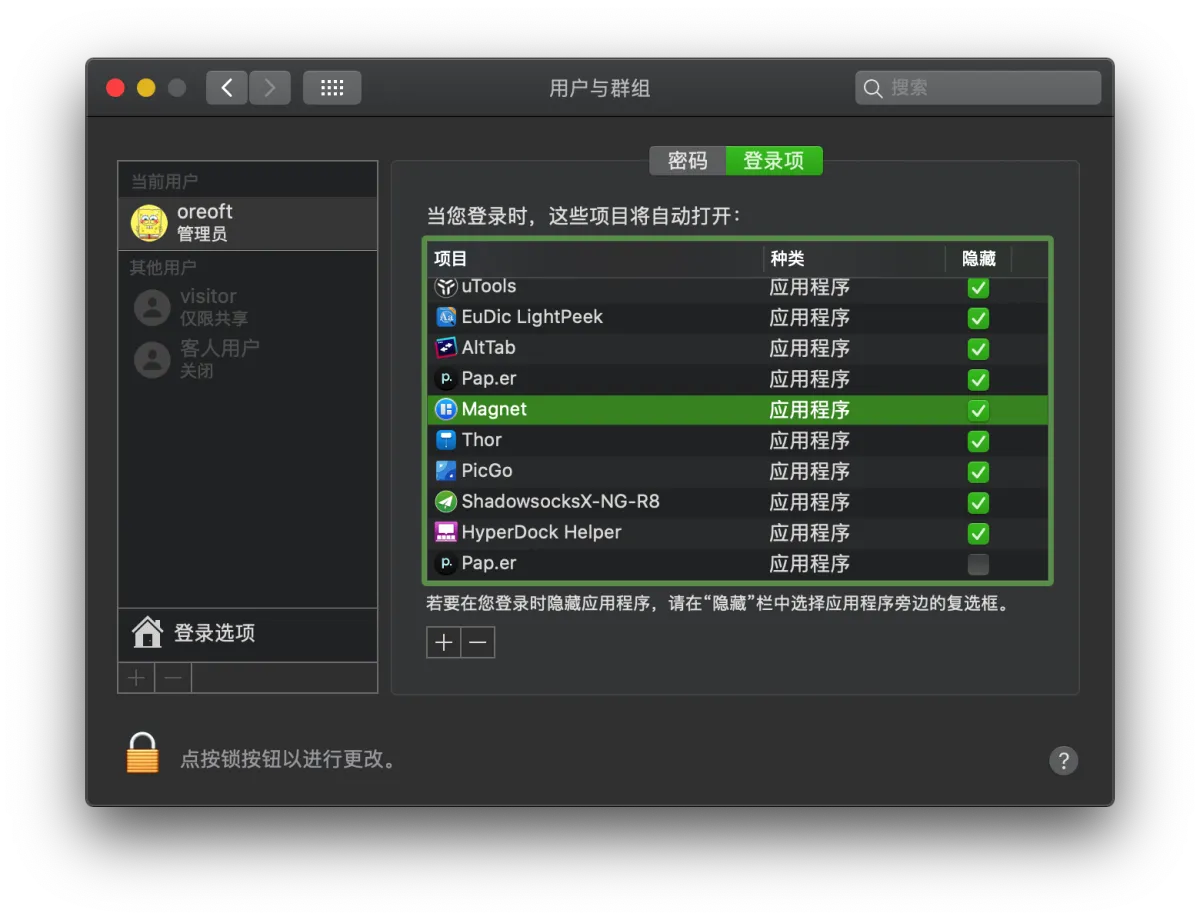
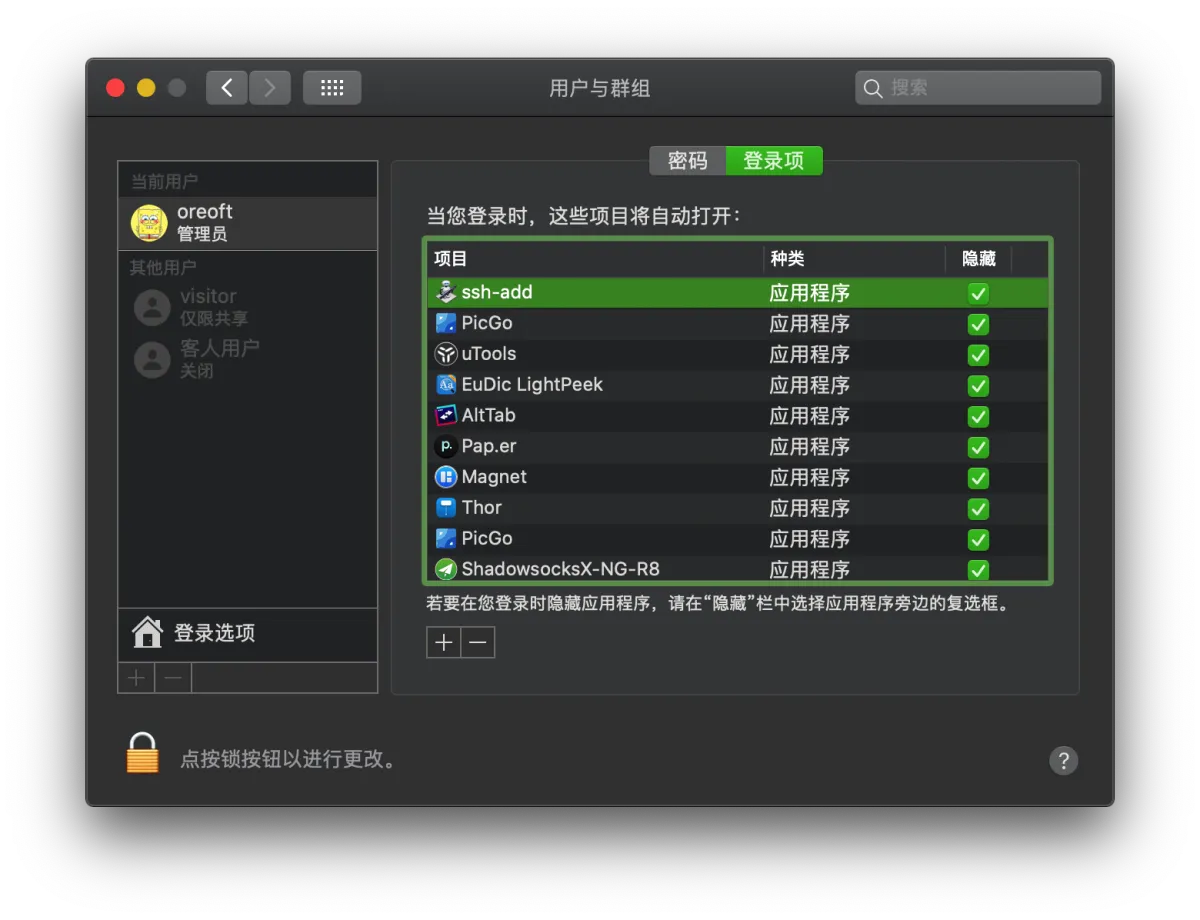
- Click the plus button, then add the script you just created. This is like Windows startup items. Select Hide so it starts in the background at boot, with no visible impact.
Afterword
In the end, this problem is solved pretty elegantly. For me, having to run ssh-add after every boot is just unacceptable… because I’m lazy. The whole idea is actually simple: since my private key has a passphrase, I use the -K option of ssh-add -K to store it, then use macOS Automator plus a login item to automatically run ssh-add -K every time.
All articles in this blog, unless otherwise stated, are licensed under @Oreoft . Please indicate the source when reprinting!