
Preface
If you’ve read my previous posts, you’ll know I don’t like using third-party clients to connect to remote servers—I prefer the built-in Terminal on macOS. Once you’ve configured your authentication public key on the remote server, it’s super convenient to just ssh xxx. At my previous company, logging into servers was all key-based, and password login was disabled. But since we were doing DevOps as one team, I was managing the whole production environment and data clusters, so configuring public keys on the machines was something I handled myself.
At my new company, the overall tech system is more mature. We have a dedicated ops team, so naturally they won’t let you log onto machines and configure your own public key. This keeps permissions and passwords fully isolated, Linux account login records are traceable, and after you leave the company you can’t access anything anymore. Since the ops team won’t allow direct root login, the process is slightly different, and the setup is a bit more tedious—but the principles are the same, so I’m writing this down.
Process
Let me first walk through the whole process:
-
Use your employee account to access the internal SSO (our internal server access request platform). The SSO generates a unique public key and a unique private key for you, and the private key is protected with a second layer of encryption.
-
Then you request access to the servers you need. After approval, an ops engineer will create your username on the target machine and put the SSO-generated public key into your account’s
authorized_keys. After approval, this is probably all done via scripts (just guessing). -
At this point you have permission to access the server—you just need to configure your local environment (the client side) and you can log in.
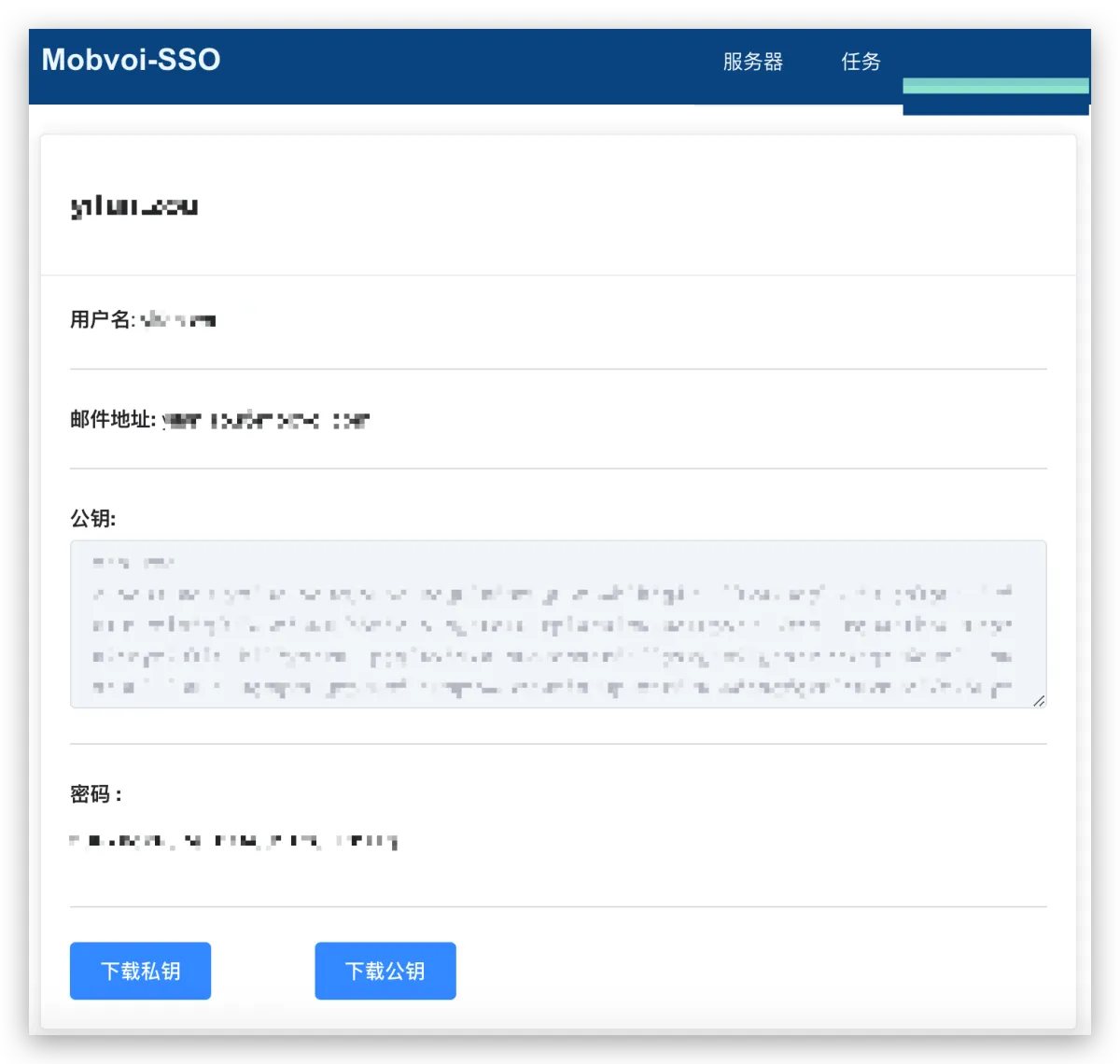
Once ops has created your account and configured your public key on the server (since the public key is generated by SSO, they can fetch it directly), and because both the public and private keys are generated by SSO, you need to place the private key onto your computer (the login client—macOS by default in this example). Typically the downloaded private key file is named after your employee name; I’m desensitizing it here and renaming it to othersKey. The simplest approach is to rename the downloaded private key to id_rsa and put it under ~/.ssh. That’s the system default private key, and by default the system will use it for every connection. This is usually generated via ssh-genkey, and you may have already configured the public key it generated somewhere else.
Configuration
The best solution is to configure each host connection to use a specific key. In my earlier post on quick connections, I mentioned that you can configure quick connections in etc/ssh/ssh_config. Actually there’s also a parameter called IdentityFile that lets you specify which private key to use for that connection, for example:
# The name you want to use for ssh xxx; in theory anything memorable works
Host nikeName
# Your server host
HostName 172.0.0.1
# The default username you log in with
User root
# Specify the private key path; default is ~/.ssh/id_rsa
IdentityFile ~/.ssh/othersKey
# Explained below
ForwardAgent yes
There’s also a new attribute in the config above: ForwardAgent. I recommend adding it, because environments differ across companies, and most companies have a bastion host. That means the server you ssh into isn’t the final destination server. In that case, ops needs to store the public key on both the bastion host and the final server, and also store the private key on both your computer and the bastion host. This means your private key ends up being stored somewhere other than your local machine. Even though the bastion host definitely has access policies, it’s still a significant security risk. If your bastion host gets compromised, the remaining remote servers are basically just sitting ducks (which is also why private keys are usually password-protected—even if someone gets the private key, without the passphrase it’s hard to proceed). If you enable ForwardAgent, then you only need to store the public key on the bastion host and the target server. Since the public key is only used for decryption, it’s fine even if it’s exposed.
One more thing: private keys generated and distributed by companies usually come with a second-factor passphrase. When I generate keys with ssh-genkey, I always recommend just pressing Enter twice and leaving the passphrase empty by default. But when you use the company private key to SSH into a server, you’ll typically see a prompt like Enter passphrase for key ~/.ssh/othersKey. 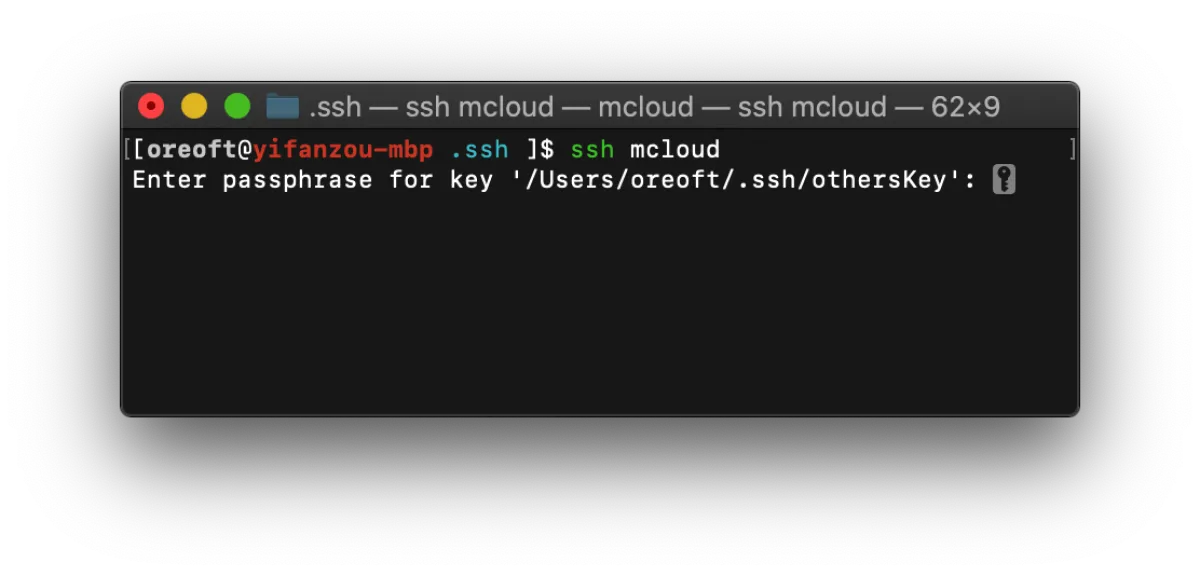
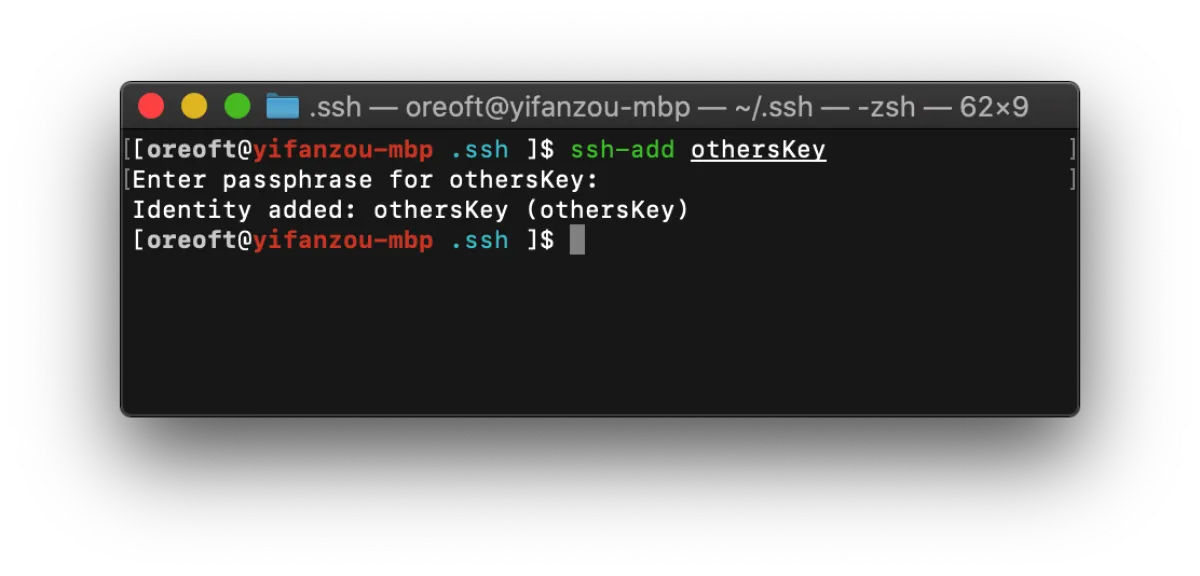
Then you need to enter the passphrase provided on the page when you downloaded the private key. This prevents serious consequences if your private key leaks by accident. But doing this every time is annoying, so we can have your computer remember the passphrase, so future uses of the private key won’t require it. Run ssh-add ~/.ssh/othersKey and it will ask you for the passphrase—enter the one provided on the page. After that, when you use this private key again it won’t ask you for the passphrase (it stops working after reboot; for the fix see this post).
Afterword
With this setup, you can ssh xxx into the corresponding configured machine. Also, modifying etc/ssh/ssh_config is just my personal habit—ssh_config is the SSH client (the side initiating the connection) configuration file, and changes there apply to all users. Your company wiki might instead recommend configuring ~/.ssh/config (if there’s no config file, just create one—the properties inside are written the same way). But that config only applies to your logged-in macOS user account. That’s basically it…
All articles in this blog, unless otherwise stated, are licensed under @Oreoft . Please indicate the source when reprinting!