
Preface
Last time I introduced the types and purposes of startup files. In this post, I’ll share how I take advantage of their behavior to implement some features I personally need—basically a few of my own practical use cases. Note that everything in this article operates on ~/.bash_profile. Starting from macOS 10.15, the default shell has switched to zsh, and shell startup no longer automatically loads and executes bash startup files. Please add the commands below to ~/.zshrc, or add source ~/.bash_profile in ~/.zshrc.
Same old routine: I’ll talk about my pain points first, then give my solutions. You can decide whether it’s useful for you before reading on.
My blog’s code is hosted on GitHub and runs on a Linux server. Every time I want to update content, I need to commit my local code to the cloud, then pull the code on the server, then stop the online service, then clean the blog cache, then pull the code, and finally start the service again. It’s a whole bunch of steps every time. As a programmer, it’s natural to think: script it. These sequential commands are pretty simple. But after writing the script, every time I need to cd into the script directory and run it with ./—kinda lazy—so I want to turn this script into a command that can be executed anywhere, like ps.
Then I have another scenario. This one might not even need a script—it’s just that a command is ridiculously long. There’s no way I can memorize it, so every time I have to copy-paste it, or use ↑ (but if you typed a bunch of other commands in between, it gets annoying; by the way, you can of course use history, but the record has a limit). For example, every time I start spark-shell I need to specify a ton of parameters and dependency paths….. more than ten lines—no normal person memorizes that. Copy-paste every time? Not very elegant.
So in this post, I’ll share how I deal with these two annoyances: adding PATH environment variables and setting aliases for commands (alias).
Adding PATH Environment Variables
Last time I talked about environment variables and the important one: PATH. In short, every time you type a command in the terminal, the system traverses all directories in PATH to see whether the command exists there. If it does, it executes it; if not, you get command not found.
So if we want to turn our own script into a command, we need two steps. Let’s use a simple script echo “echo hello someget” as an example.
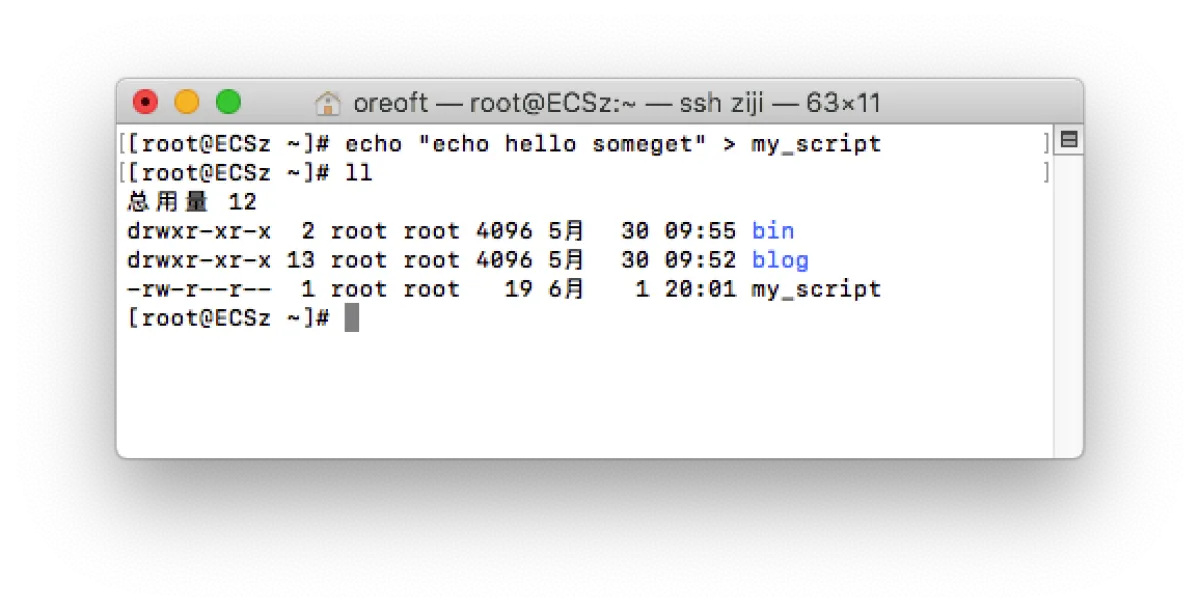
- Create a script—
echo "echo hello someget" > my_script
-
Add executable permission to the script—
chmod a+x my_scriptwhereameans all users,+means grant permission, andxmeans execute permission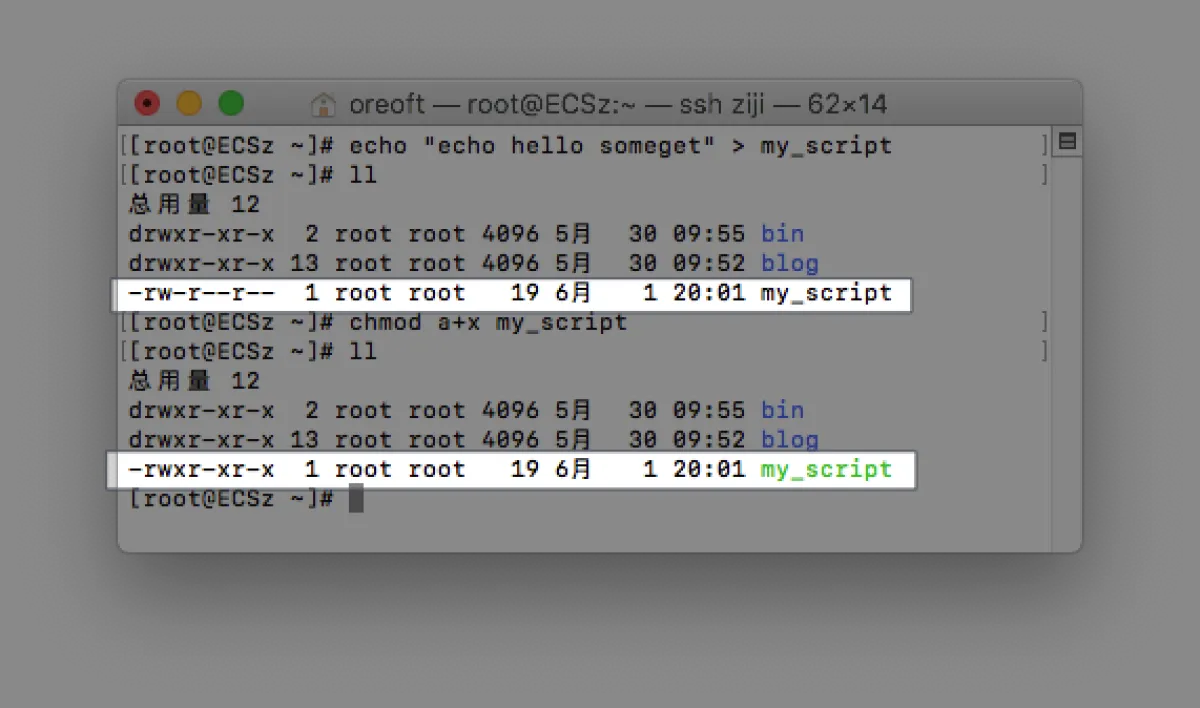
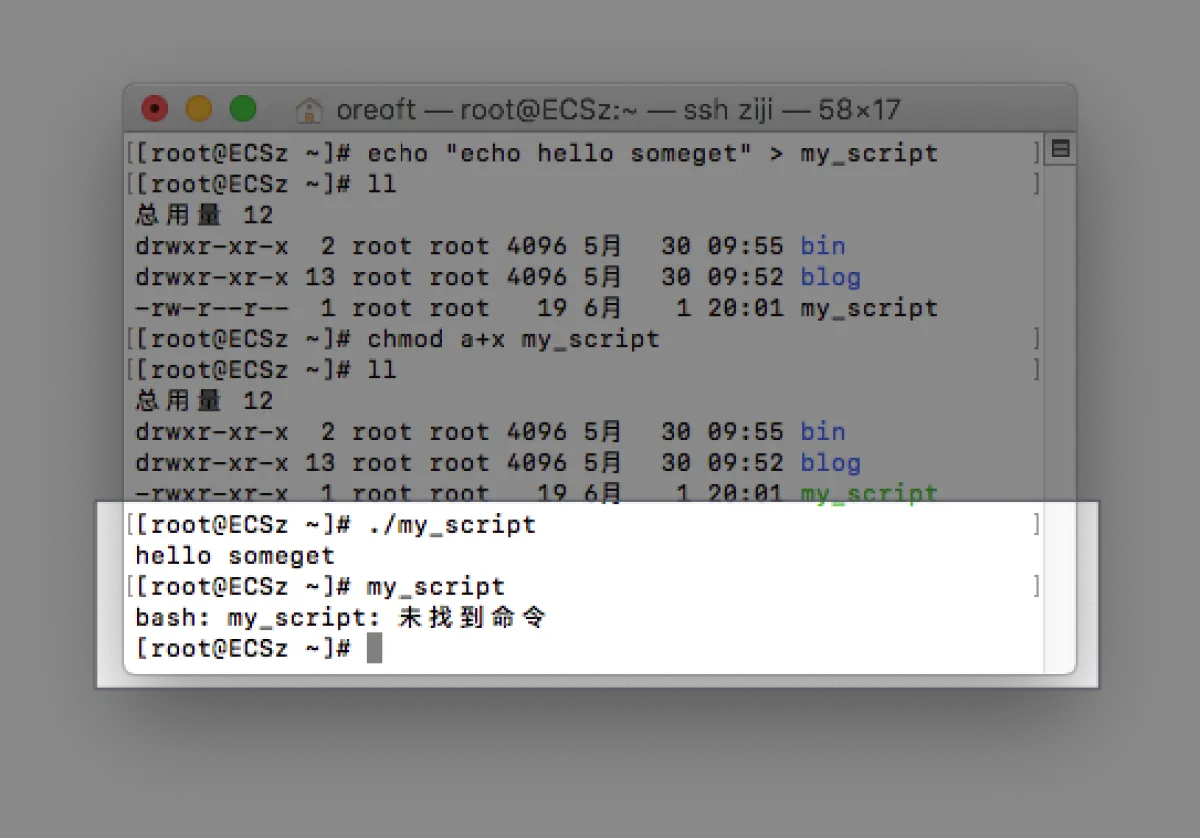
- Let’s try running
my_scriptfrom the project directory, and then try runningmy_scriptdirectly as a command
-
Add the command to PATH so it can be used anywhere. I strongly recommend creating a
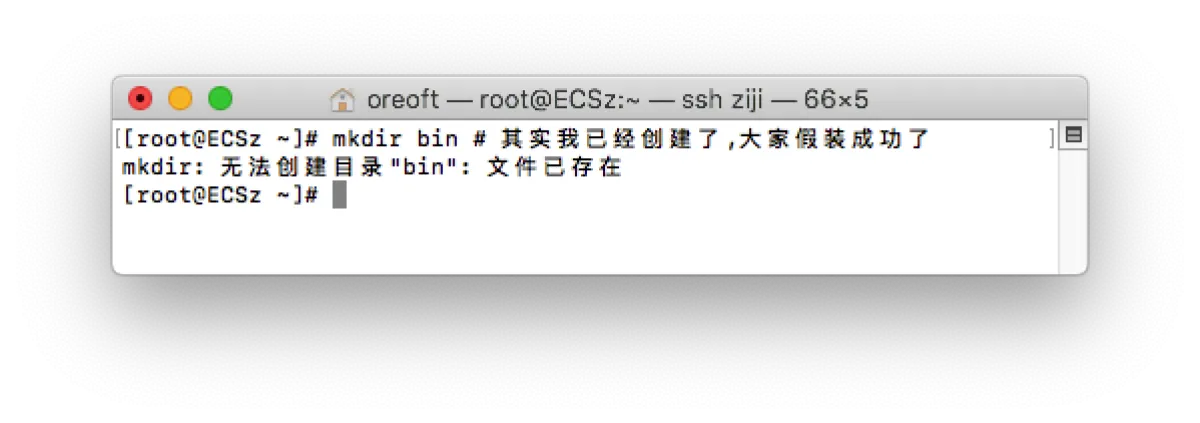
bindirectory under your home directory (name is up to you, but by conventionbinholds executables). Add thisbindirectory to PATH, and then you can put all your scripts underbinin the future.- Create the
bindirectory—mkdir ~/bin
- Move
my_scriptinto your ownbinfolder—mv my_script ./bin
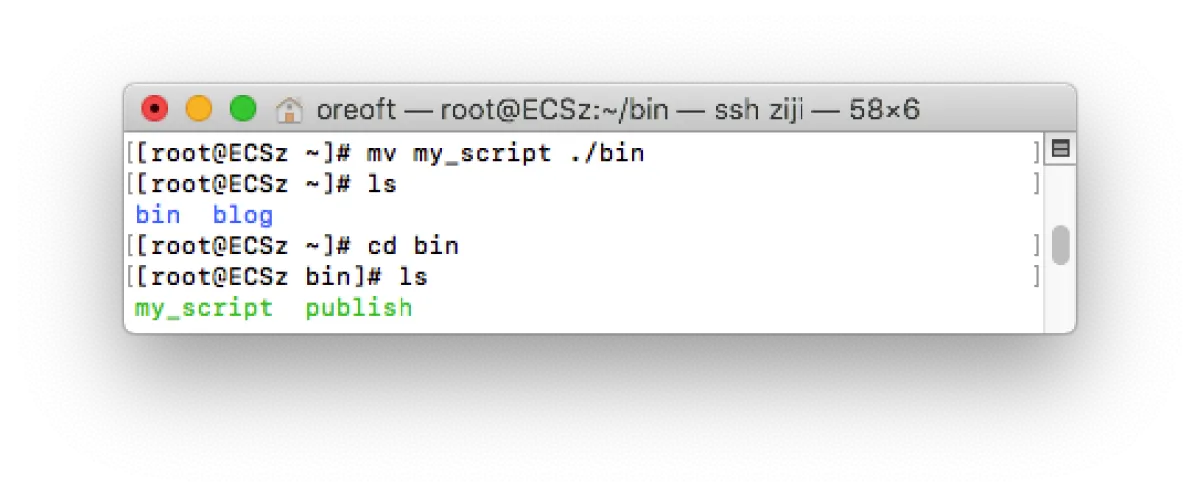
Move it into your own bin folder - Modify PATH. Since my Linux uses bash, I recommend adding the path to PATH in
~/.bash_profle. If you’re not sure what I’m talking about, you can check what I wrote before: Linux startup files and Linux environment variables—vim ~/.bash_profile
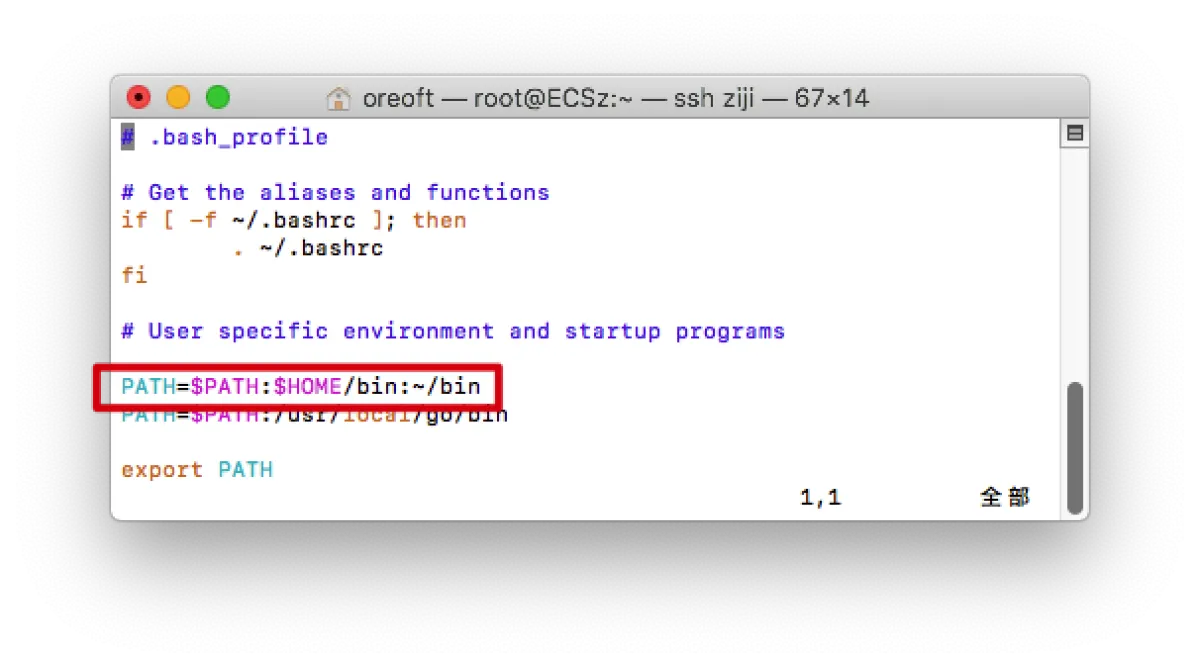
Use colons to concatenate - Use
sourceto reload the file, or reopen the terminal window, then try executing again—source ~/.bash_profile
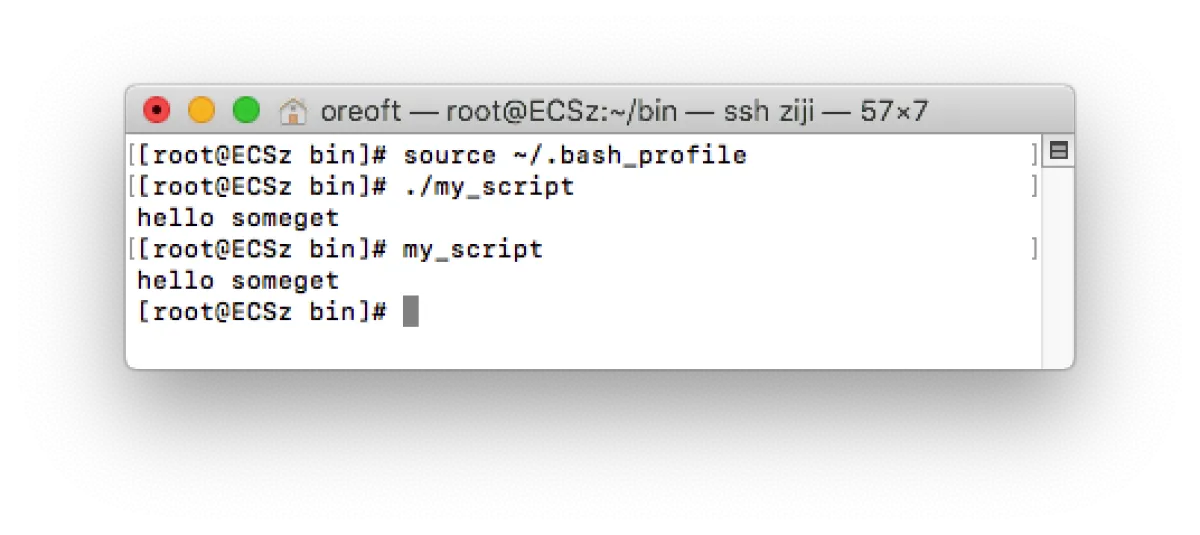
Now it works even without running it from that folder Finally, in the future you can put scripts under this
bindirectory. Once they’re in there, you can use them globally as commands.Quick recap
exportis the command to update environment variables and make them take effect. After you close the shell, it becomes invalid, so you’d need toexportagain every time. That’s why we writeexportinto startup files—so it runs whenever the shell starts.- PATH is concatenated using colons. If you define a new PATH, remember to use the
$symbol to include the previously defined PATH as well (because you can’t be sure whether other files also define PATH, I strongly recommend just appending to the existing PATH with:; if you really need to redefine PATH, reference$PATHat the beginning).
Using alias to Give Your Command a Nickname
aliasis a Linux mapping command. It allows you to map existing commands. For example, the commonly usedllcommand is actually a mapping tols -lh. Different distributions handle this differently—for example, the bash provided by Git on Windows doesn’t havell. If you want consistent habits across environments, you can add it manually (I’ll show how in a moment). Let’s verify what I just said: if you simply typealiasin the terminal, it lists all alias mappings. We can pipe and filter for records containingll, and you’ll find the last line isll='ls -lh'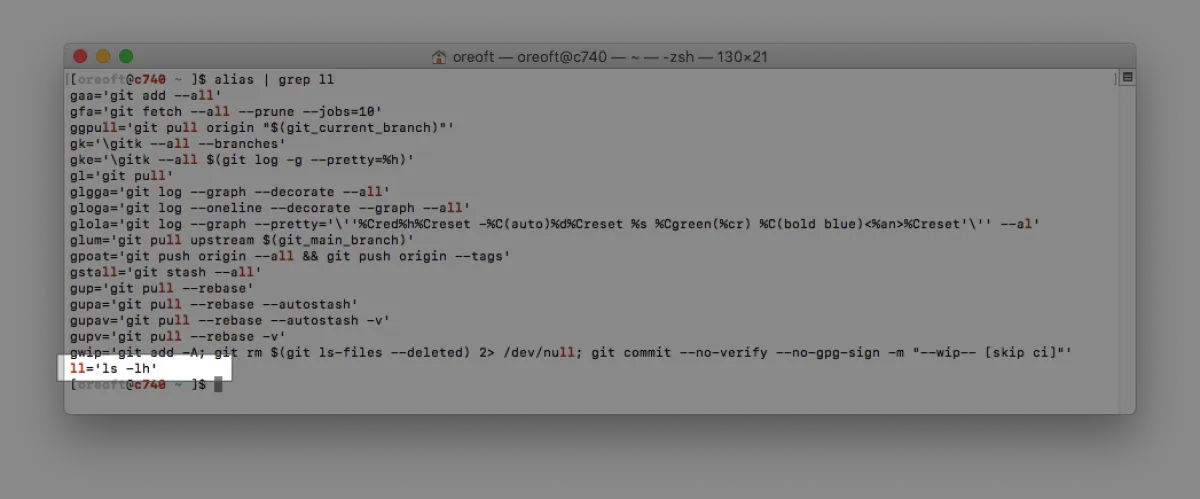
Use alias to list all mappings and filter those containing ll 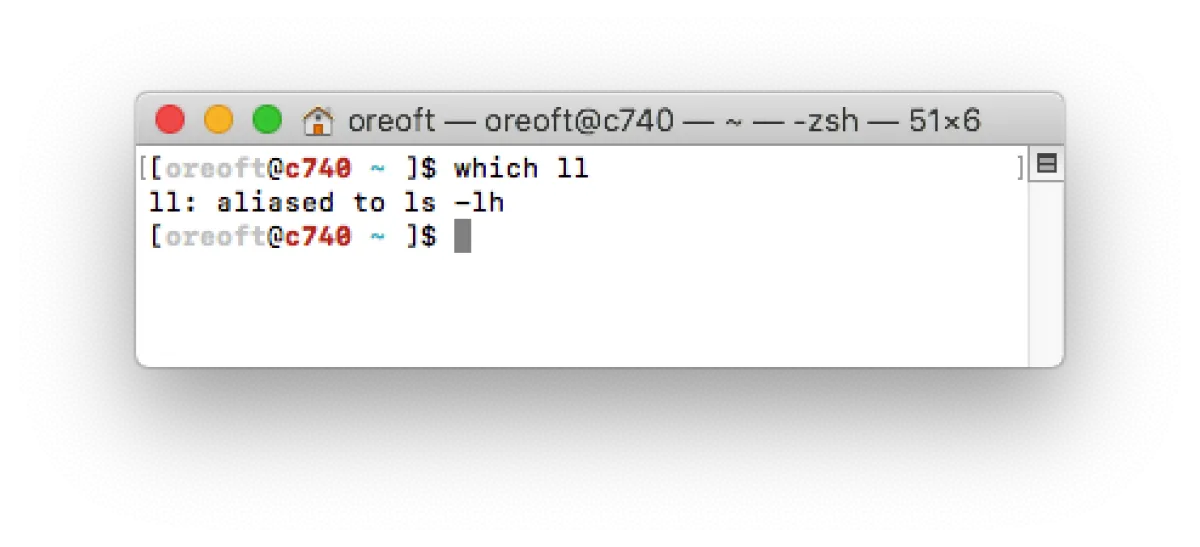
Or use which to query the mapping relationship Since we have alias mapping, handling very long commands becomes easy. We’ll still use a simple command to stand in for the real need. Map
helloto'echo hello someget'(note the difference from a script: the first one is a script, while this is a direct command).- Since alias is very simple, we can just run the command directly:
alias hello='echo hello someget'
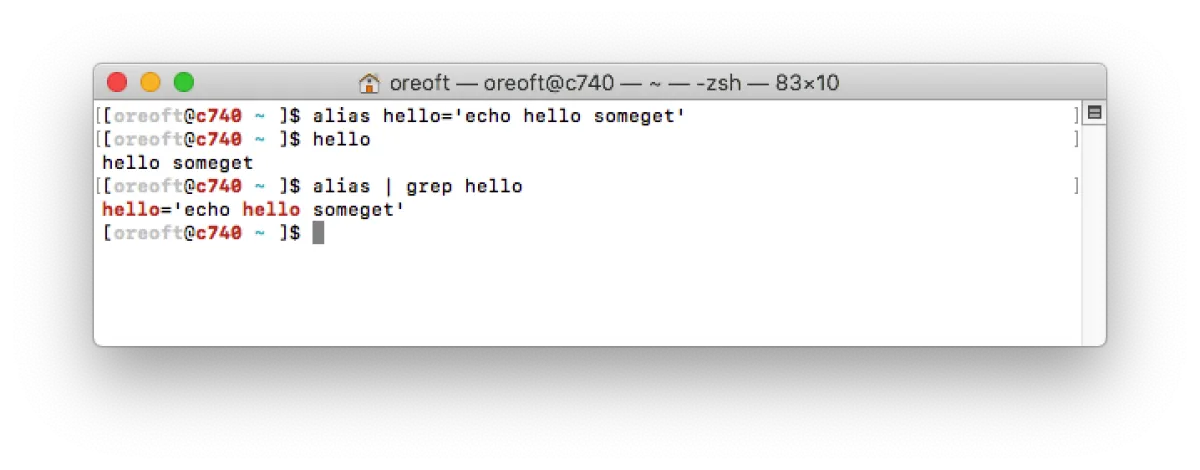
- Create the
-
But just like
export, aliases become invalid after you close the shell window. Naturally, we can write it into a startup file.vim ~/.bash_profile- Add
alias hello='echo hello someget'(note: there must be no spaces on either side of=)
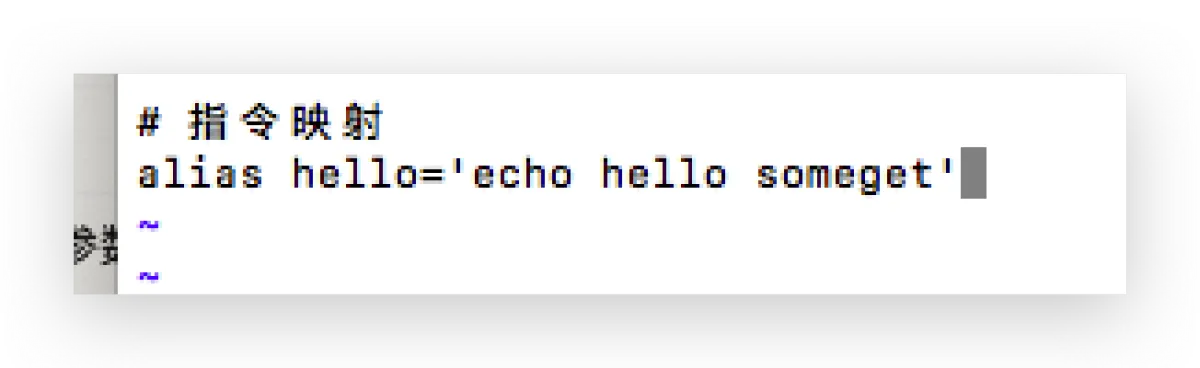
- Open a new terminal or run
source ~/.bash_profile
At this point, no matter how you open/close the shell, you can use hello to output hello someget. With this method, you can also configure ll='ls -lh', or any long command you find annoying—like common startup commands that you can’t remember by typing, but copy-pasting feels tedious.
Afterword
Startup files have a lot of other useful purposes. Because they automatically execute when the shell starts, they’re very flexible and fun to play with. These are some of my own use cases. If you also have some helpful tricks, I’d love for you to share them with me.
All articles in this blog, unless otherwise stated, are licensed under @Oreoft . Please indicate the source when reprinting!