
Preface
“Environment config files” is honestly just a name I made up. In the bash manual, files like these are called startup files. You can think of them as scripts that get initialized every time the shell starts—of course, this isn’t something bash uniquely has.
There isn’t just one startup file, and that’s exactly why things get confusing: multiple files can achieve the same goal, but every time you want to change something you’re not sure which one to edit. You might find all kinds of tutorials online about updating environment variables, and they may be modifying different startup files. That can be pretty confusing for beginners.
Bash is currently the most commonly used shell on Linux. Starting with macOS Catalina, macOS uses zsh as the default shell and interactive shell (though you can still type bash to switch back). And for compatibility with bash users’ habits, macOS still keeps bash’s startup files around—but the shell won’t automatically activate them; you need to configure it manually (I’ll talk about that later).
Shell modes
Before talking about the differences, let’s first introduce shell modes:
- Interactive shell vs. non-interactive shell
- Login shell vs. non-login shell
These are two different dimensions: one is whether it’s interactive, the other is whether it’s a login shell.
“Interactive” means the shell runs in a terminal, blocks and waits for your input, and after you press Enter it executes your command. The other kind is “non-interactive”: the shell doesn’t interact with you, but instead reads commands stored in a file and executes them. When it reaches the end of the file (EOF), the shell exits.
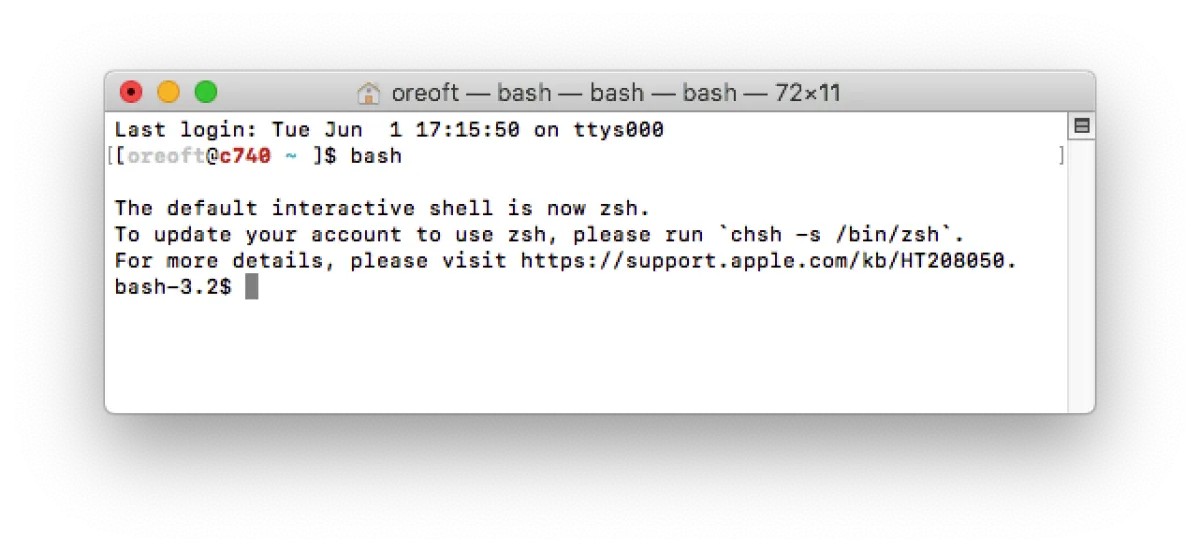
“Login” is even easier to understand: it’s about whether you need to log into the shell with an account/password. For example, if you type bash inside a shell, the interface becomes like this—this is a non-login shell:
Common startup files
Let’s list what’s available. Note that these are all startup files: they get executed on each login (note that there are also logout files that run when you exit the shell, but they’re used less often so I won’t cover them here).
- Under bash
/etc/profile
/etc/bashrc
~/.bash_profile
~/.bashrc
~/.profile
- Under zsh
/etc/zprofile
/etc/zshrc
~/.zshrc
~/.zprofile
Differences (two common shells)
Looks like a lot, but it’s much easier once you categorize them.
- Categorized by directory
- Startup files under
/etcare system initialization files (note that files under/etcare non-hidden). They run whenever you open a shell (for login shells), meaning they effectively apply to every account.
The systemwide initialization file, executed for login shells。
- Startup files under
~/are per-account initialization files (files under~/are hidden). They only run for the currently logged-in account.
The personal initialization file, executed for login shells。
Summary
They do the same thing; the difference is scope. Files under ~ only affect the current account, while files under /etc affect all accounts and are used for shared configuration across all users.
- Categorized by suffix
- You can see there’s a clear pattern above: one group ends with
profile, another ends withrc. Their functionality is very similar, but they differ based on the shell’s running mode. Bash has two attributes: “login” and “interactive non-login”. - When a “login shell” starts, it loads the “profile” family of startup files.
- When an “interactive non-login shell” starts, it loads the “rc” family of startup files.
When bash is invoked as an interactive login shell, or as a non-interactive shell with the –login option, it first reads and executes commands from the file /etc/profile, if that file exists. After reading that file, it looks for ~/.bash_profile, ~/.bash_login, and ~/.profile, in that order, and reads and executes commands from the first one that exists and is readable. The –noprofile option may be used when the shell is started to inhibit this behavior. When a login shell exits, bash reads and executes commands from the files ~/.bash_logout and /etc/bash.bash_logout, if the files exists.
Note
1. rc means "run commands"
2. Under bash, ~/.profile has a loading order: it’s the backup player. It’s only read and executed if reading/executing ~/.bash_profile fails.
- Categorized by shell
- The names are pretty straightforward: most of them are just the shell name plus
profileorrc. For example, bash has/etc/bashrcand~/.bashrc; zsh has/etc/zshrcand~/.zshrc. - Under zsh, the profile file is called
zprofile.
Note
On macOS 10.15 and later, bash config files are still kept (even though the default shell is zsh). If you want them to take effect, add this to ~/.zshrc</br>
```source~/.bash_profile```, which is equivalent to: when the system auto-loads ~/.zshrc, that file then triggers loading .bash_profile.
Afterword
Different distros may vary slightly. On CentOS it’s roughly like this. If you want to dig deeper, just echo some text inside the relevant config files and test/verify it yourself.
Finally, with so many non-unique startup files, my suggestion is: if you want to configure bash behavior or define some aliases, edit ~/.bashrc. That way, no matter how you open the shell, your config will take effect. And if you want to change environment variables, I recommend editing ~/.bash_profile. For what these startup files can do, click here.
All articles in this blog, unless otherwise stated, are licensed under @Oreoft . Please indicate the source when reprinting!