
Preface
The conceptual parts of this post apply to all operating systems. The hands-on steps and commands only apply to Linux and macOS (if I say “Linux does X by default” below, macOS usually has the same thing). Everyone’s welcome to try using a Unix-like OS for daily work—step out of your comfort zone and you might discover a whole new world~😋
One thing I really love about Linux is how powerful it is: you can do all kinds of operations through a little black window. And once you start doing that, you’ll inevitably run into configuring environment variables. Here’s Wikipedia’s definition:
An environment variable is a dynamic-named value that can affect the way running processes will behave on a computer.
They are part of the environment in which a process runs. For example, a running process can query the value of the TEMP environment variable to discover a suitable location to store temporary files, or the HOME or USERPROFILE variable to find the directory structure owned by the user running the proces
My own understanding is: just treat it like a variable. Programs we write have variables; the system also has variables—or you can think of them as constants. Some are fixed system constants, and some differ from machine to machine and need to be configured manually. For example, when installing the Golang SDK, you need to configure GOROOT and also update PATH. As Wikipedia says, environment variables are basically dynamic variables at system runtime, and they affect applications. Taking GOROOT as an example: it represents the Go installation path. Other Go-related dependencies might use this variable, but the install path differs on every computer, so everyone agrees on a variable named GOROOT. When I first learned Java, the JDK was fine and my program could run, but some components that depended on the JRE would throw errors like “cannot find JAVAHOME”.
Environment Variable - PATH
The most common environment variable is PATH. PATH is awesome: when the terminal receives a command, it first searches the directories listed in PATH to see if there’s an executable command/file. If it finds one, it hands it off to the kernel to execute; if not, it reports an error (Path on Windows, PATH on Unix-like systems). Still using the example above—why do we configure Java environment variables? Because we want the java command. If you just download the JDK and extract it, the path looks like this:
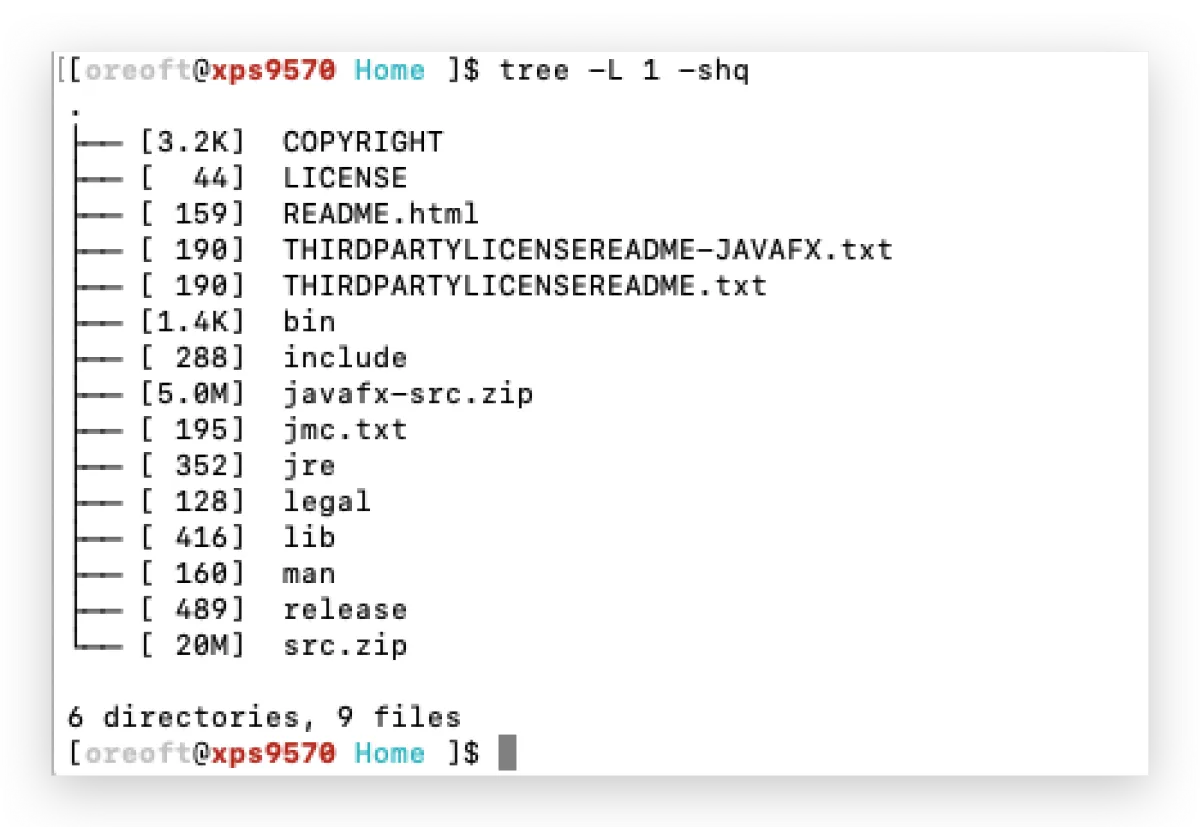
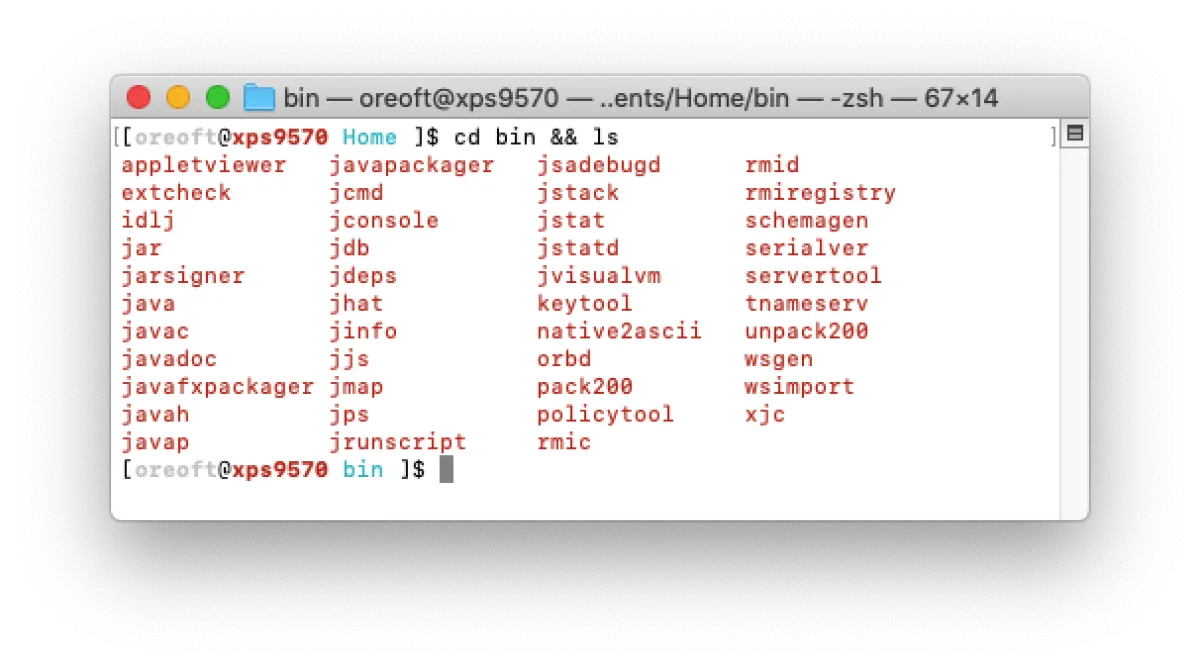
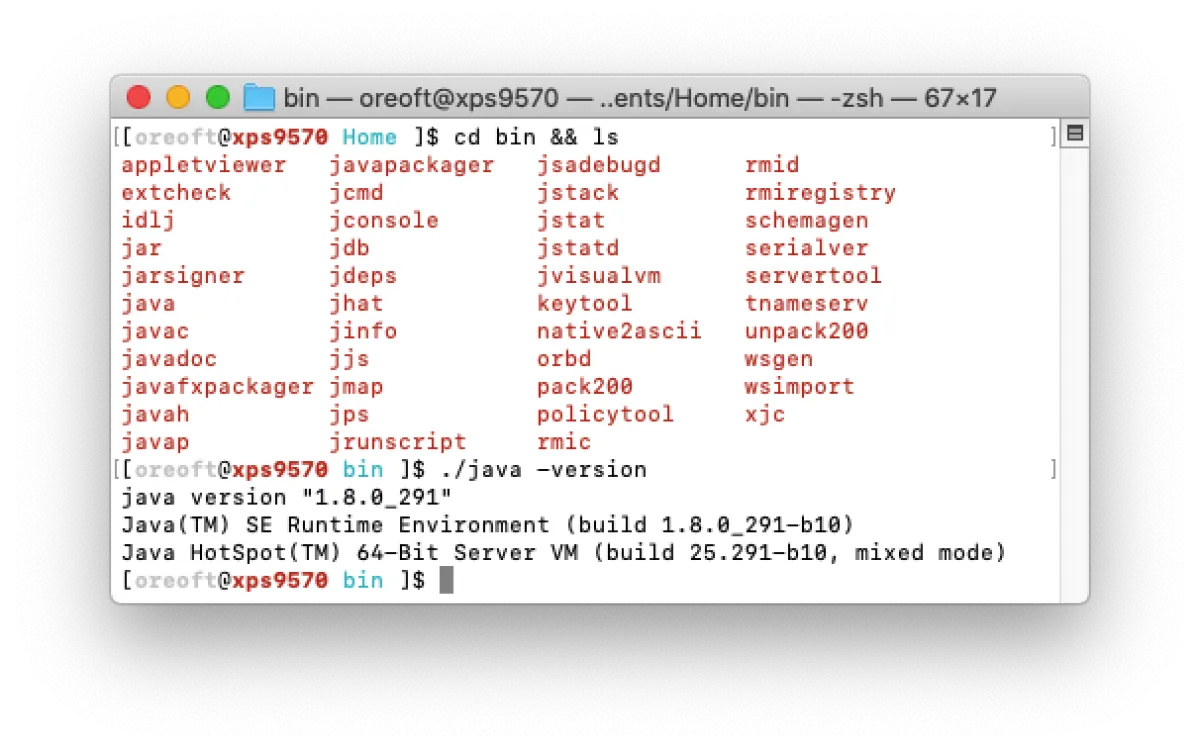
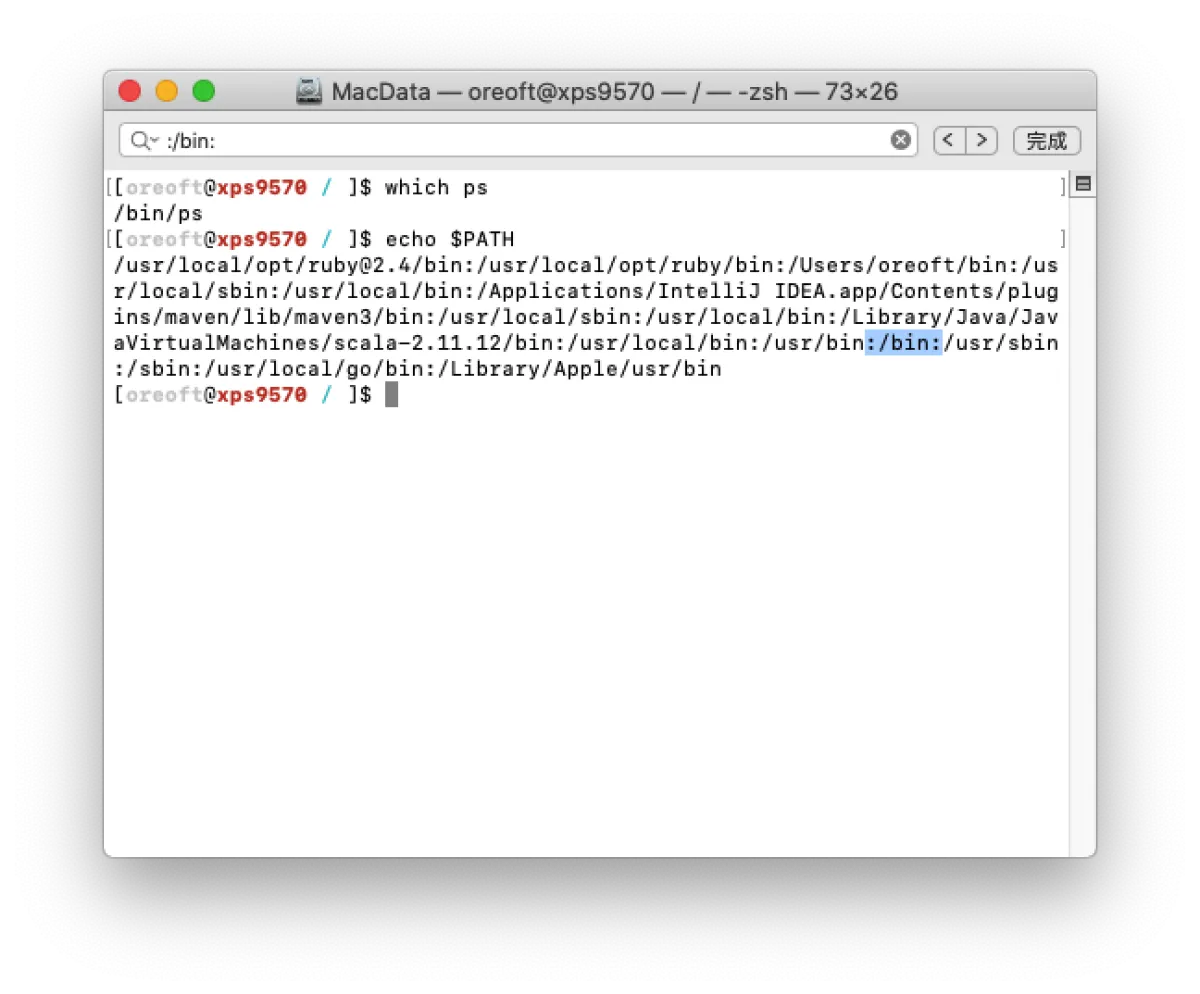
If you don’t put this bin directory into PATH, then every time you can only run the command by specifying its path—you can’t just type java, otherwise you’ll get command not found. Note that this applies to all commands. You can use which to check where a command is located, and you can be sure that directory must be in PATH.
For example, let’s check where the commonly used ps command is, and then print out PATH (I forgot to mention: using the $ symbol lets you reference a variable manually; combined with echo you can print it out):
Configuration
So how do we define or modify environment variables? We can run export -p to get all environment variables available in the current shell:
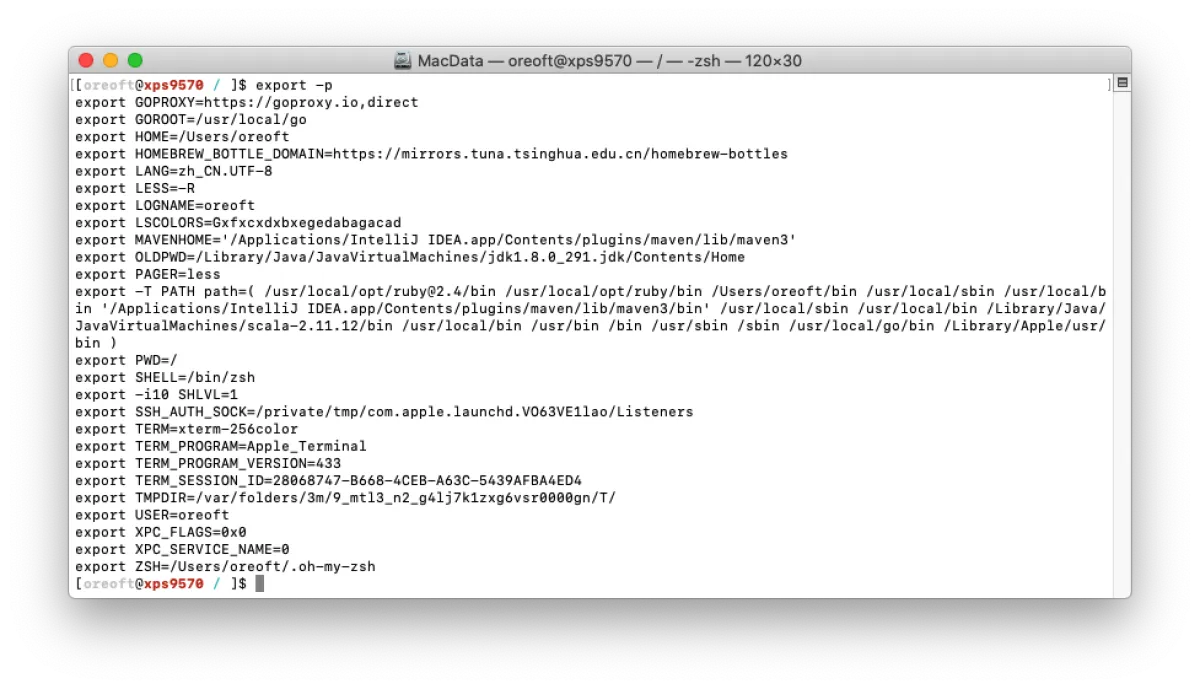
Here we used the export command. It can add, modify, or delete environment variables for programs executed afterward.
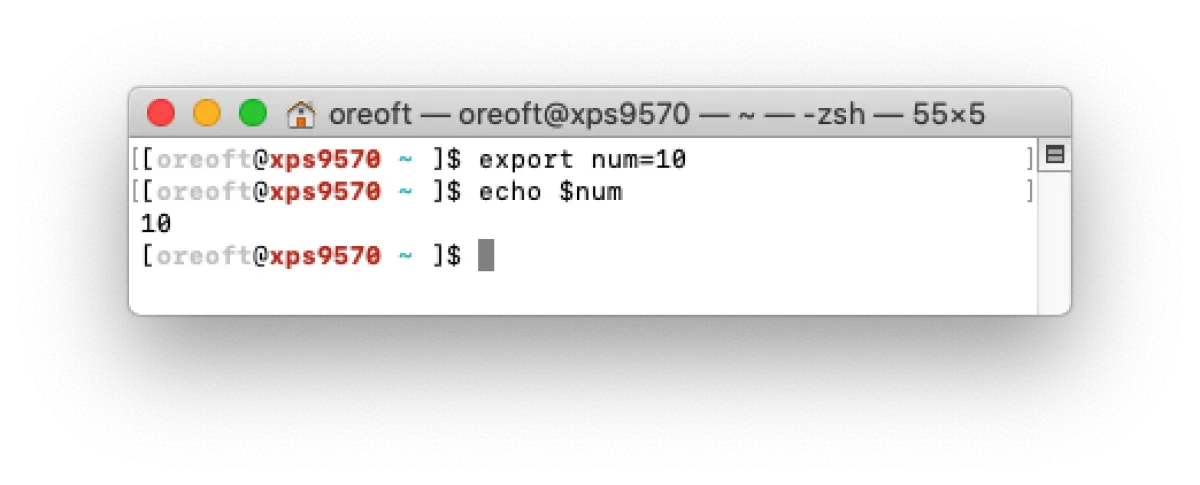
In this shell window, you can use num however you want (remember to prefix it with $ when using it). But once you close this window, the environment variable becomes invalid. On Linux, there are multiple environment configuration files that can run these export commands for you when Linux boots or when a shell window is created—so every time you open a shell, the environment variable is already there. Pretty clever, right?
Using the most common bash as an example: bash provides multiple environment configuration files. Take .bash_profile for example—this is a hidden file under your home directory. Every time the shell starts, it loads this file. If you export environment variables here, they’ll take effect every time. After editing, opening a new window will make it effective; if you don’t want to reopen, you can run source ~/.bash_profile to reload it.
All articles in this blog, unless otherwise stated, are licensed under @Oreoft . Please indicate the source when reprinting!