
Preface
This post is for folks who prefer the native terminal. If you’re a fan of third-party SSH clients, feel free to ignore this… those clients can save user info and passwords, pretty brainless. On macOS you can use Terminal; on Windows you can use Git Bash.
Last time I shared how to configure asymmetric keys for passwordless login. Connecting is already pretty convenient, but there’s still one issue: say my username is hadoop and my host is 192.168.99.6. Then the command I use in the terminal is ssh hadoop@192.168.99.6
Typing such a long string every time is annoying. At least at a basic level, the host address can be mapped by editing the hosts file. The username is usually a commonly used account—if we could have a default user when it’s omitted, that would be perfect. The good news is: all of this is doable. In the end, you can get to a point where ssh myEcs connects directly, and if you need to log in with another account, ssh root@myEcs is also pretty handy. Below I’ll share how to set it up.
Configure hosts to ‘give the host an alias’
SSH communicates over TCP. In general, when logging into a server, we directly use the server’s public IP on port 22. People rarely bind a domain name specifically for SSH login. This makes hosts hard to remember, so you either jot them down in notes or use third-party tools. We can configure a local domain (single-machine domain) for the server IP on our computer, because domain resolution will check the local hosts file first; only if it can’t resolve will it go query the DNS server. So adding a record in the hosts file achieves the effect of “giving the host an alias”. The hosts file paths for each system are:
Win:C:\Windows\System32\drivers\etc\HOSTS
Mac&&Linux: /etc/hosts
On macOS, just run sudo vim /etc/hosts to edit it. The specific operation and format are as follows:
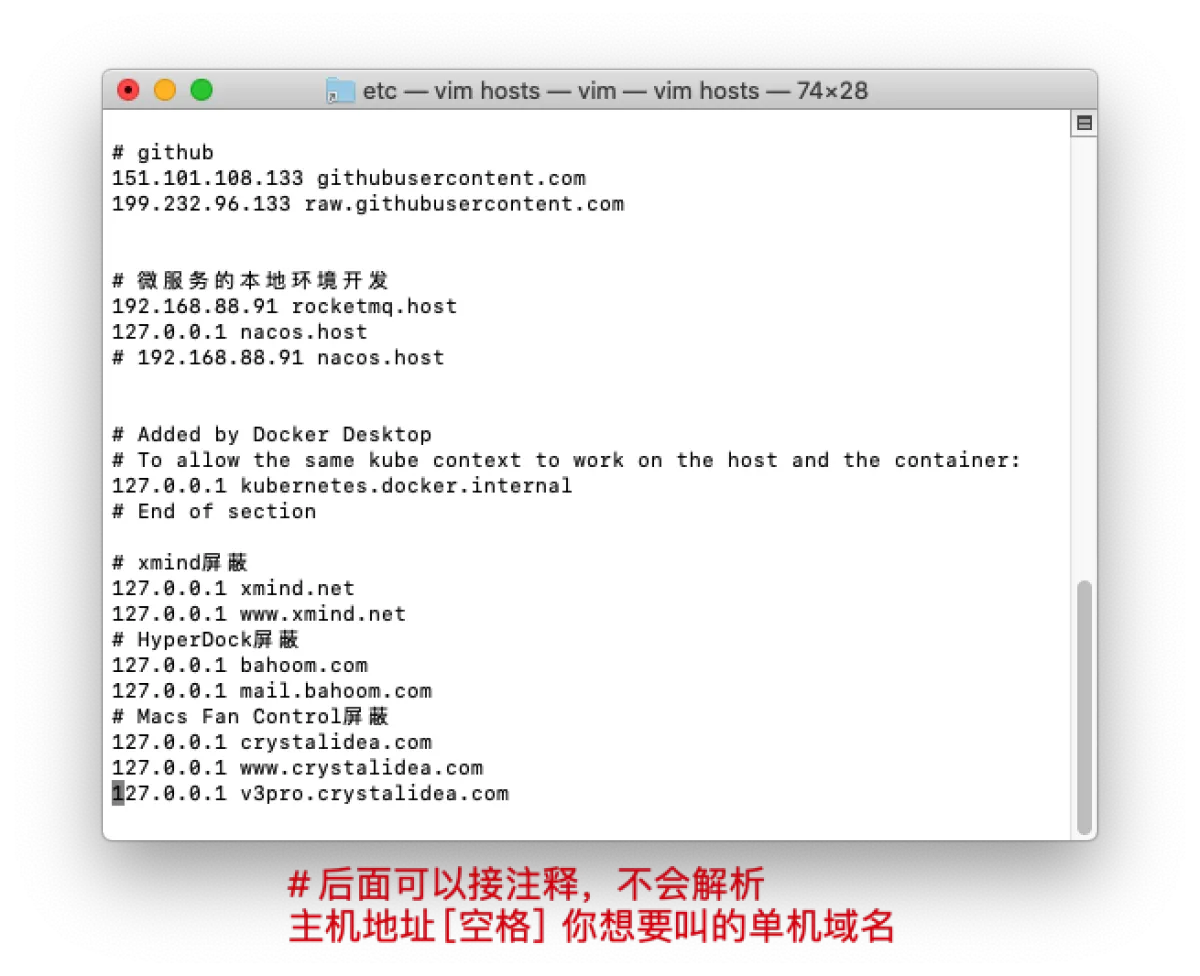
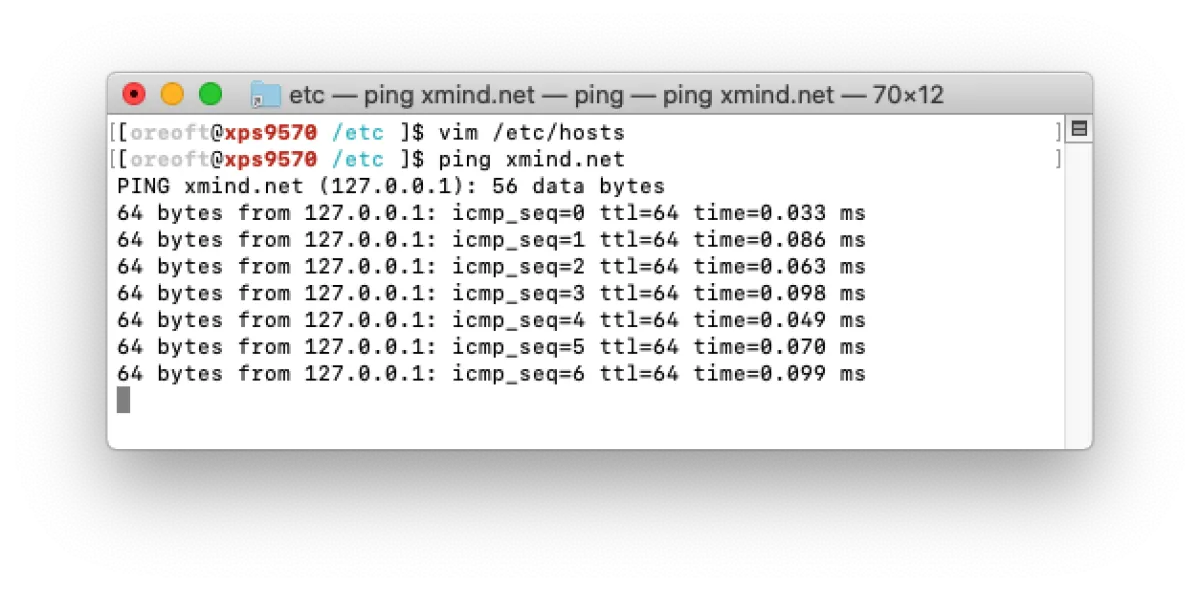
After the change, you can ping it to verify whether it worked and whether your computer can resolve it properly. For example, in the file above, there are some hosts blocked by software. Normally, visiting xmind.net in a browser should take you to XMind’s official site—let’s ping it and see:
Set the default SSH account
When using the ssh command to connect to a remote server, if you don’t put anything before the host, the default login user is your current local computer username.
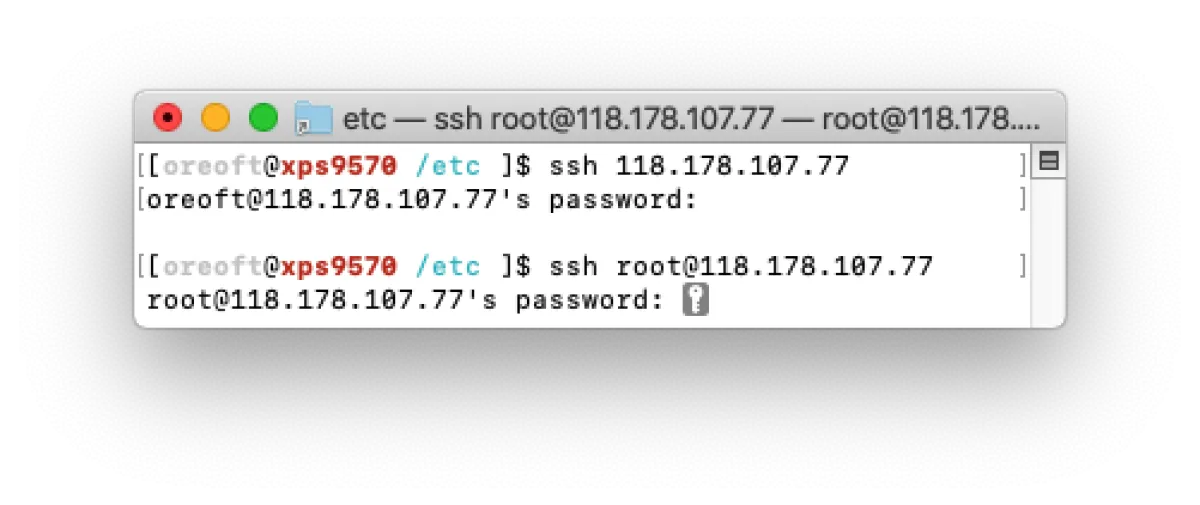
In general, company servers or production devices definitely won’t have the same username as your own computer, so we need to change this default user. Next I’ll show you how to configure it.
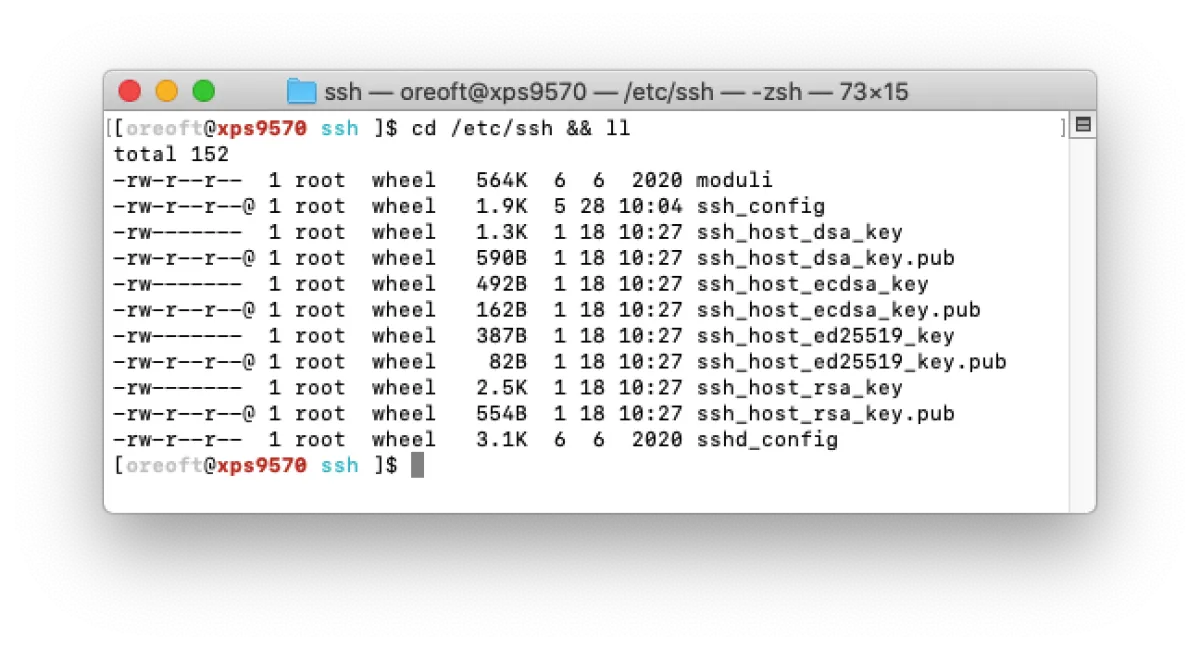
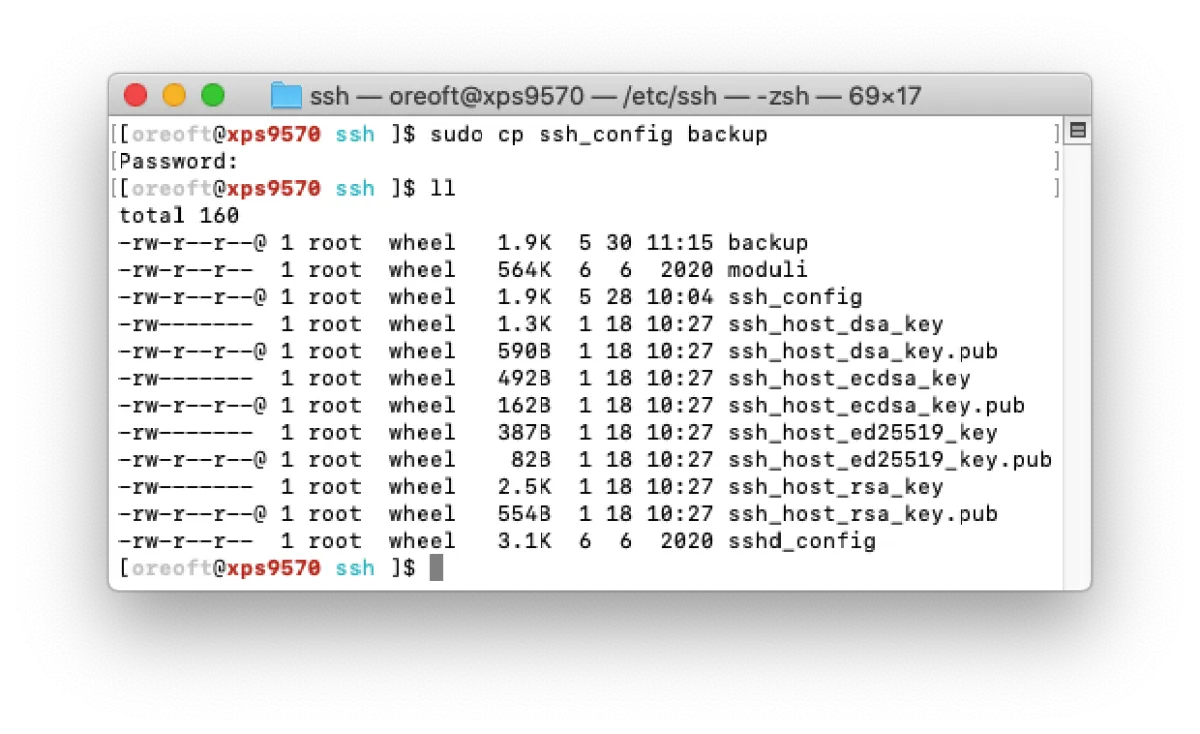
- Switch to the SSH service path:
cd /etc/ssh. Generally, client-side (the connector) configs are inssh_config, and server-side (the one being connected to) configs are insshd_config(note the extrad).
- Build a good habit: back up the file before editing:
sudo cp ssh_config backup
- Then edit it:
sudo vim ssh_config. There are lots of existing configs inside—scroll to the end, carve out a little space, and add your own configuration.
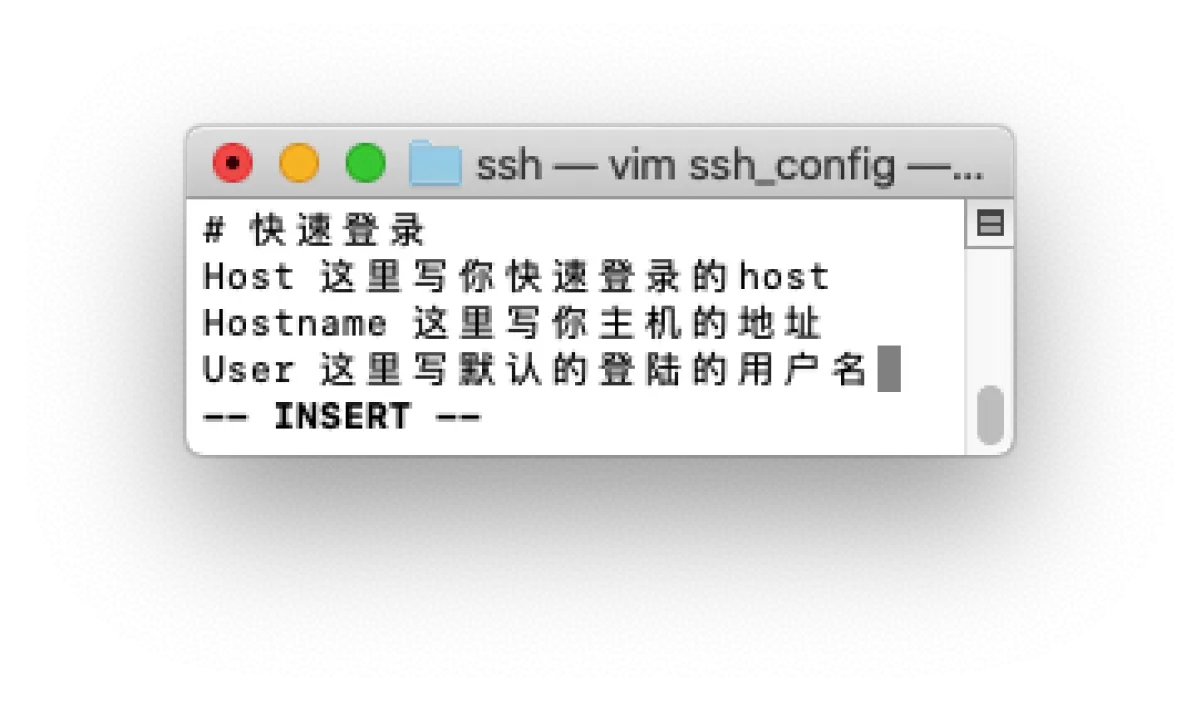
Configure it like above and you can basically make SSH convenient everywhere.
END
All articles in this blog, unless otherwise stated, are licensed under @Oreoft . Please indicate the source when reprinting!