
Preface
RAM prices have gone up recently, so upgrading is pretty expensive. Most people probably just guess how much memory they need and buy that. But the OS actually provides pretty complete information that lets us check day-to-day memory usage. You can use the data to decide how much to add, or to confirm whether the problem you’re hitting is really a memory bottleneck or something else.
Of course, for people like me—if I don’t start at 32GB, I just feel itchy—no amount of data helps. Feeling good matters most, and the price is… spending more money.
Below I’ll go through how to check memory usage on macOS/Windows/Linux and what each metric means. In the next post I’ll cover some “gotchas” when buying RAM, like timings, frequency, ICs, kits, latency, and what those parameters actually mean.
Mac
- Press cmd+space, then type Activity Monitor

- After opening, it looks like this
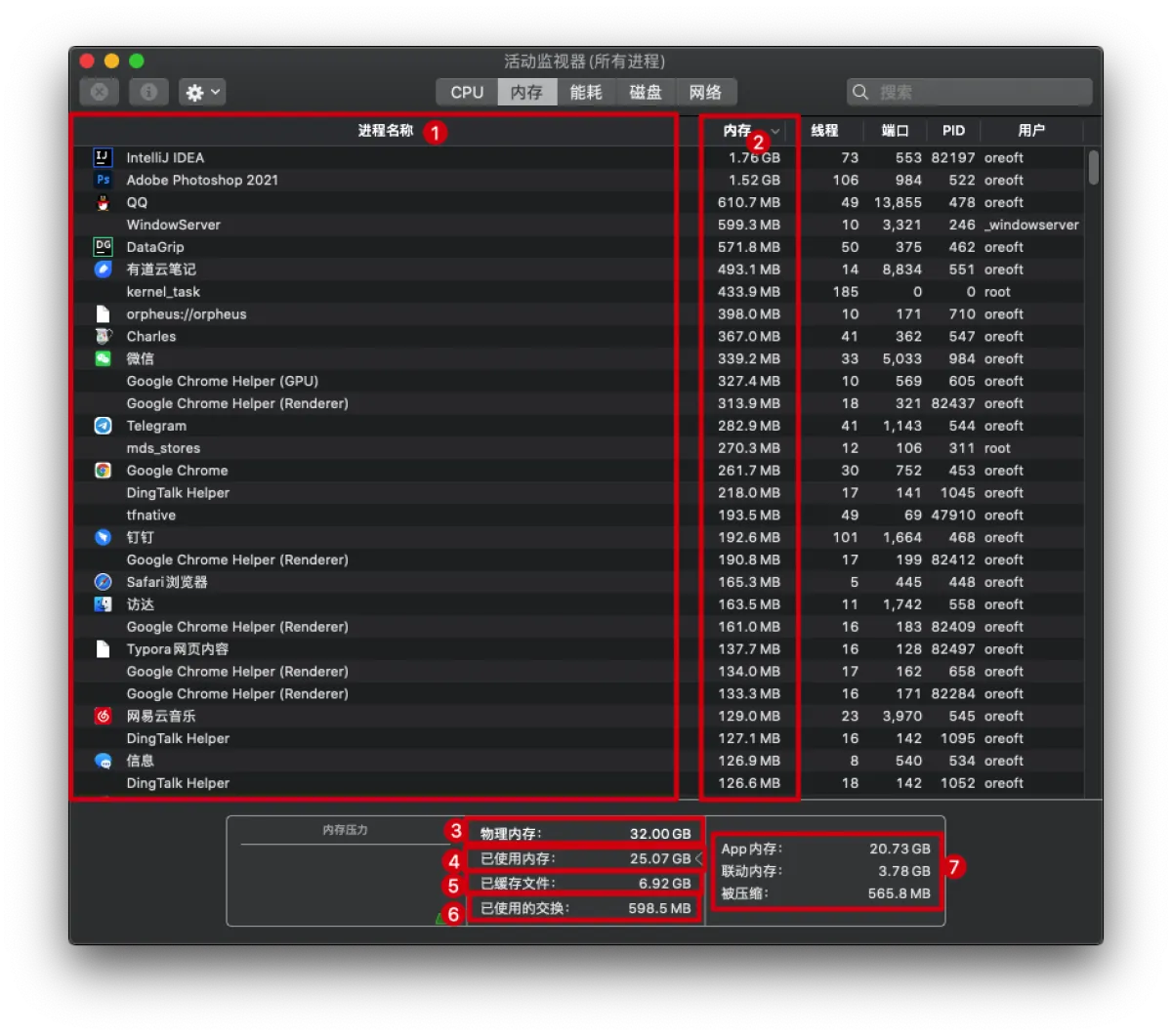
The UI is actually pretty straightforward—most of you can probably understand it without me. But I’ll explain what each metric means (the numbering below matches the numbering in the screenshot):
- This shows process information, not including child processes forked by an app
- The amount of memory used by that process
- Physical Memory is your actual installed RAM size—this value only changes if you replace the RAM
- Memory Used refers to the amount actually allocated in RAM + cached files. But don’t panic just because this number is large and close to Physical Memory—you don’t necessarily need to upgrade RAM just based on this
- Cached Files: apps cache things in memory to speed up loading—stuff that isn’t needed right now but may be needed later. This part generally won’t be “deleted”; if new data is needed it can be overwritten. So you can treat this as part of “free” memory. That’s also why you shouldn’t use “Memory Used” alone as memory pressure—you should subtract this portion
- Swap Used is the amount swapped between memory and disk. I’ll explain this in more detail in the next OS memory management post
- This section is a more detailed breakdown of (4) Memory Used—where the memory is allocated:
- App Memory is the total used by all apps and cached files
- Wired Memory is memory required for the system to run
- Compressed: Apple has a detailed description of this technology on their website. Roughly, it compresses memory used by inactive apps and pushes it out, trading CPU time for disk I/O time.
WIN
- On the desktop, press Ctrl+Shift+ESC, or right-click the taskbar and choose Task Manager. You’ll see something like this:
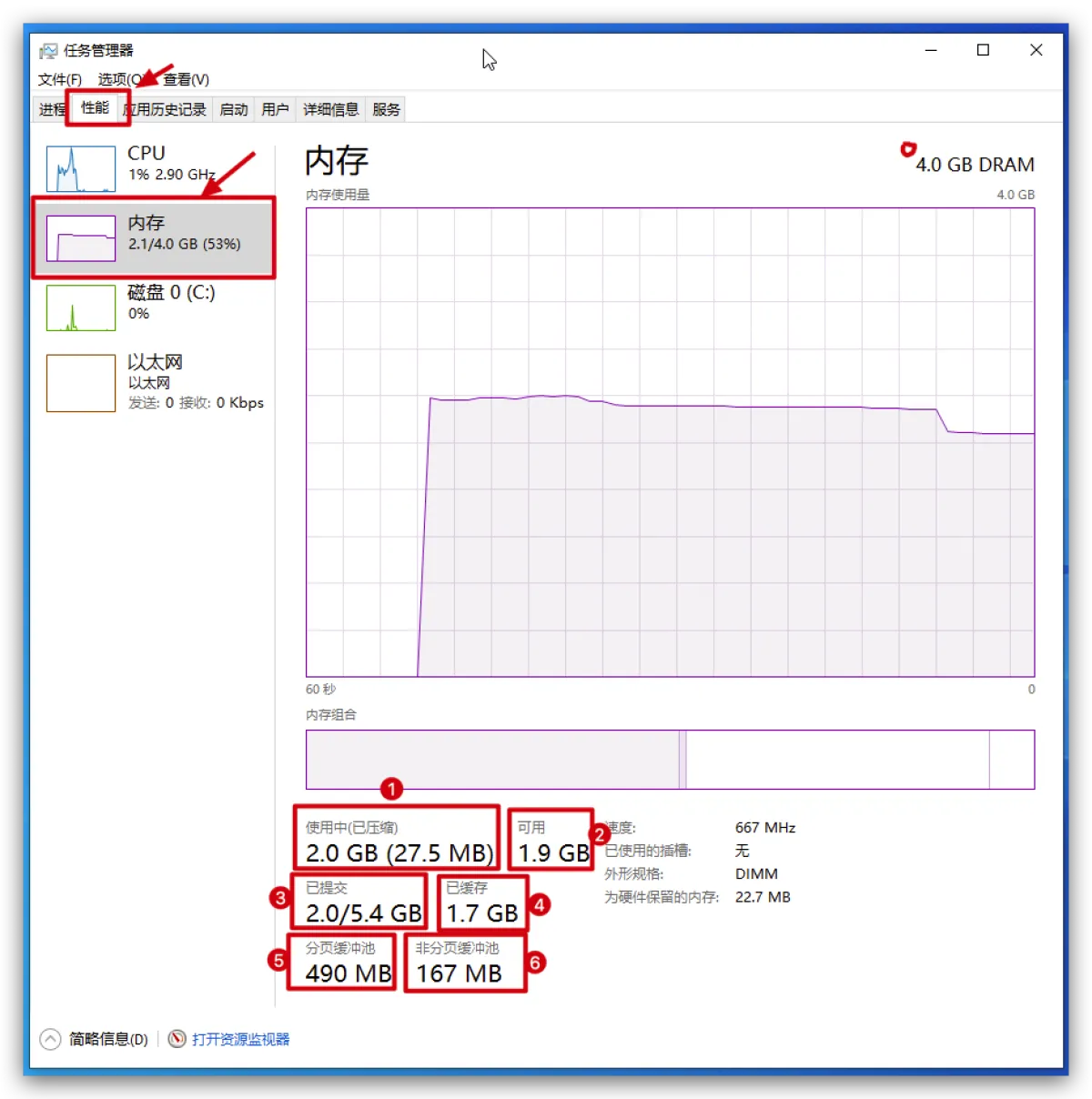
- Below I’ll also follow the order in the screenshot and briefly explain what each value means. Paging involves OS design knowledge—I’ll just mention it briefly here, and I’ll summarize OS memory management in a separate post next time.
- This shows the physical size actually installed in your memory slots. I’m using a VM here, and I allocated 4GB, so it shows 4GB
- In use means the amount of memory actually used by applications
- Available is similar to
freeon Linux—the amount of free memory - Committed has two numbers: the first is the amount of memory applications have committed/asked the system for (asking is asking—apps don’t necessarily consume it all, but on my machine it’s already fully consumed; you can check whether your “Committed” and “In use” match). The second number is the first value plus swap. Swap is the amount paged out to disk—some virtual memory mappings are backed by disk, and that shows up here. On Windows, swap is in a
pagefile.sysfile under the C drive (you need to enable showing protected hidden files to see it) - Cached means file cache, which is also effectively free memory
-
- Paged pool / Non-paged pool: not that important and usually not large. This is mainly space used by the kernel and some drivers. If you’re interested, check Microsoft’s official doc click
Linux
- In a shell, run
free -hwherefreeis the memory command and-hmeans display in a human-friendly format

- The output is also pretty clear. Below I’ll explain each parameter, again following the numbering in the screenshot:
- The screenshot shows
memandswap.swapis the amount of virtual memory mapped to disk. Since this is an online compute node, there’s no usage here. Every OS has swap: Linux maps addresses using a partition, while Windows maps everything into a file on the C drive—this part is a bit different totalis the real memory size. Due to base conversion it shows 31G here, but it’s actually 32Gusedis how much is used—this is the amount actually used by applicationsfreeis the amount of free memorysharedis shared memory, usually for inter-process communication, so it’s typically small. It allows two unrelated processes to access the same memory region, which is an efficient way to pass databuff/cacheis the file cache size. This part is also overwritten-only, effectively “free” space in disguise. If you’re interested, look into Page Cache and Buffer Cache—this cache is for disk read/write dataavailableis available memory. This is simple:free + buff/cache. So you can’t just look atfree; this is the number that matters. You can see my machine is pretty idle (no tasks running), so there’s 23G left.
- The screenshot shows
Afterword
That’s it for a quick overview of how to check memory info on the three OSes. You’ll notice that while the underlying memory management may differ, the overall approach is pretty similar—there are only a few key metrics. A lot of people probably never looked closely at the system monitors, or only glanced at “usage”.
Now you should know how to tell whether you’re hitting the memory ceiling: you can’t just look at whether “used memory” is close to physical RAM—you need to account for cached files. And that cache is also “smart”: it scales with how much free memory you have. With less RAM it caches less; with more RAM it will occupy more.
For Linux in particular, you should pay more attention to swap usage. Frequent swapping means memory pressure is high, and it’s time to add more RAM.
All articles in this blog, unless otherwise stated, are licensed under @Oreoft . Please indicate the source when reprinting!